
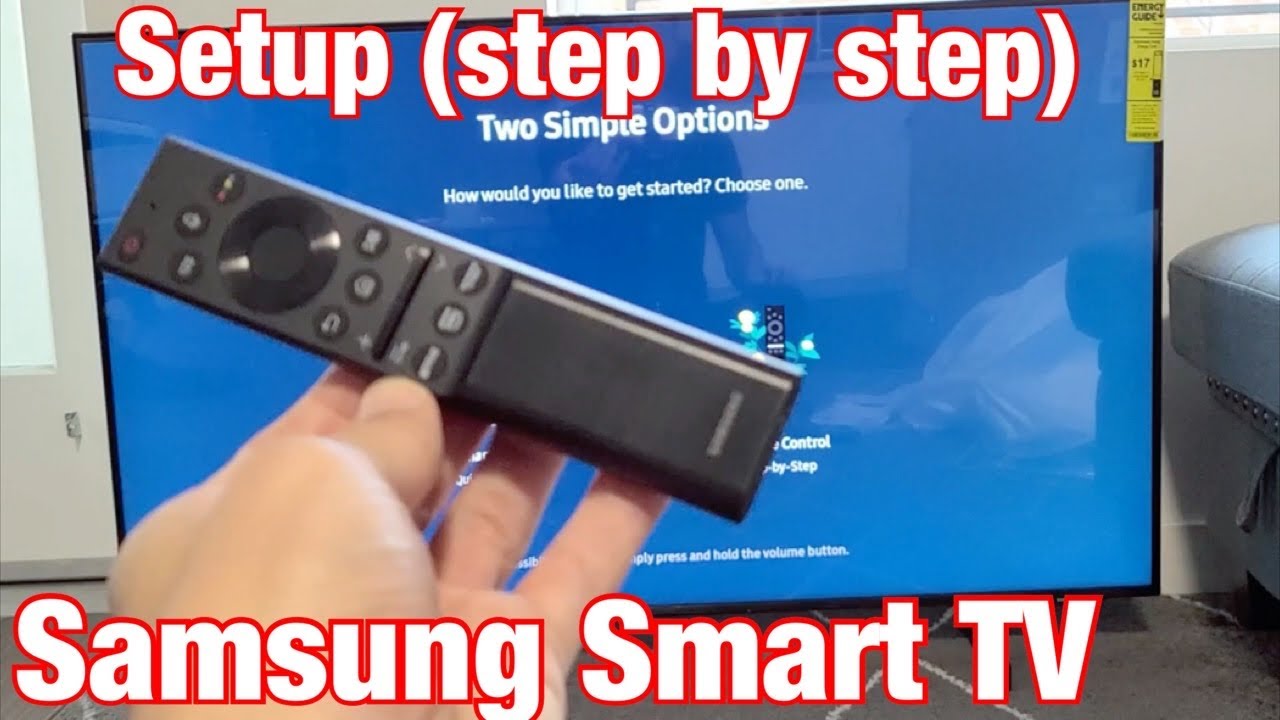
How to Configure Your Samsung Tv: A Step-by-step Guide
Are you struggling to configure your new Samsung TV? Look no further! In this article, we will guide you through the process of setting up your TV, from connecting it to the power source to configuring the internet connection.
Why is Configuration Important?
Before we dive into the steps, let’s quickly discuss why configuration is essential. Configuring your TV ensures that you can access all the features and channels that come with your device. It also helps you to set up any additional devices you may have connected to your TV, such as a soundbar or gaming console.
Step 1: Connecting Your TV to Power
The first step in configuring your Samsung TV is to connect it to the power source. Make sure that the TV is plugged into a working electrical outlet and that the power cord is securely connected to both the TV and the wall socket.
Connecting to The Network
Once you have powered on your TV, use the remote control to navigate to the network settings. You will see an option for wireless or wired connections. Choose the type of connection you want to set up (e.G., Wi-Fi or Ethernet).
Step 3: Configuring The Internet Connection
If you choose a wireless connection, you will need to enter your Wi-Fi password. You can find this information on your modem or router. If you prefer a wired connection, simply insert an Ethernet cable into the TV and your router.
Setting Up Your Tv’s Channels
After configuring your internet connection, it’s time to set up your TV’s channels. Use the remote control to navigate to the channel settings menu. You can choose from various options, including automatic or manual tuning. We will discuss both methods in more detail below.
Automatic Channel Tuning
If you select automatic channel tuning, your TV will scan for available channels and automatically set them up. This process typically takes a few minutes to complete.
Manual Channel Tuning
If you prefer to manually tune your channels, you can do so by selecting the manual option in the settings menu. You will then be able to search for specific channels using their frequencies or channel numbers.
Step 5: Setting Up Your Tv’s Settings
Once you have configured your internet connection and set up your channels, it’s time to customize your TV’s settings. Use the remote control to navigate to the settings menu and adjust options such as:
- Display settings (e.G., Picture mode, brightness)
- Sound settings (e.G., Audio format, volume)
- Parental controls
- Additional features (e.G., Voice assistant, gaming console)
Additional Features
Your Samsung TV may come with additional features, such as a built-in voice assistant or support for external devices like soundbars. We will discuss how to set up these features in the following sections.
Configuring Voice Assistant
If your TV has a built-in voice assistant (e.G., Bixby, Amazon Alexa), you can configure it by navigating to the settings menu and selecting the voice assistant option.
Setting Up External Devices
To connect external devices like soundbars or gaming consoles, follow these steps:
- Use the remote control to navigate to the input selection menu.
- Select the correct HDMI port for your device (if applicable).
- Connect your device to the TV using an HDMI cable.
- Configure any additional settings required by your device.
Configuring Google Home
If you have a Google Home speaker, you can configure it to work with your Samsung TV by following these steps:
- Make sure your TV is connected to the internet and that the Google Assistant app on your phone or tablet is associated with your Google account.
- Navigate to the settings menu on your TV and select the Voice option.
- Choose Google Assistant as your voice assistant.
Conclusion
Configuring your Samsung TV may seem daunting, but by following these steps, you should be able to get it set up and running smoothly in no time. Remember to configure your internet connection, channels, settings, and additional features according to your preferences. Happy viewing!
Faqs
-
Q: How do I connect my Samsung TV to the internet?
A: To connect your Samsung TV to the internet, navigate to the network settings menu using the remote control. Choose the type of connection you prefer (e.G., Wi-Fi or Ethernet) and follow the on-screen instructions. -
Q: Can I manually tune my channels?
A: Yes, you can manually tune your channels by selecting the manual option in the channel settings menu. You will then be able to search for specific channels using their frequencies or channel numbers. -
Q: How do I configure voice assistant on my Samsung TV?
A: To configure voice assistant on your Samsung TV, navigate to the settings menu and select the voice assistant option. Choose your preferred voice assistant (e.G., Bixby, Amazon Alexa). -
Q: Can I connect external devices to my Samsung TV?
A: Yes, you can connect external devices like soundbars or gaming consoles by using an HDMI cable and configuring any additional settings required. -
Q: How do I configure Google Home with my Samsung TV?
A: To configure Google Home with your Samsung TV, make sure your TV is connected to the internet and that the Google Assistant app on your phone or tablet is associated with your Google account. Navigate to the settings menu on your TV and select the Voice option. -
Q: What additional features can I configure on my Samsung TV?
A: Your Samsung TV may come with various additional features, such as voice assistant, gaming console support, or parental controls. We recommend checking your user manual for more information. -
Q: Can I customize my Samsung TV’s settings?
A: Yes, you can customize your Samsung TV’s settings by navigating to the settings menu and adjusting options like display settings (e.G., Picture mode, brightness), sound settings (e.G., Audio format, volume), parental controls, and more. -
Q: How do I troubleshoot common issues with my Samsung TV?
A: We recommend checking our troubleshooting guide for help resolving common issues with your Samsung TV.


