
Monitoring Your Pc’s Temperature: A Comprehensive Guide
As a computer user, it’s essential to keep an eye on your device’s temperature to prevent overheating and potential damage to the hardware. In this article, we’ll explore various methods for monitoring your PC’s temperature, including built-in tools in Windows 11, as well as third-party software programs.
Why Monitor Your Pc’s Temperature?
Before diving into the monitoring process, let’s quickly discuss why it’s crucial to keep an eye on your PC’s temperature. Excessive heat can cause:
- Reduced system performance
- Increased risk of hardware failure
- Shortened lifespan of components
Built-in Tools in Windows 11
Windows 11 provides a straightforward way to monitor your PC’s temperature without installing additional software.
Monitoring Temperature Using Bios/uefi
To access the BIOS or UEFI settings, restart your computer and repeatedly press the designated key (often F2, Del, or Esc). Once inside, navigate to the “Hardware Monitor” section, where you’ll find information about the CPU temperature.
Third-party Software Programs For Windows
If you prefer a more detailed and user-friendly experience, consider using third-party software programs specifically designed for monitoring PC temperatures.
Speccy
Speccy is a free software developed by the same team behind CCleaner. It provides detailed information about your computer’s hardware, including temperature readings. Download Speccy from its official website, follow the installation instructions, and access the “Components” tab to view the CPU temperature.
Hwinfo
Another excellent option is HWiNFO, a free software that displays a comprehensive report on your PC’s hardware characteristics, including temperatures. Download HWiNFO from its official website, extract the ZIP file, and run the executable. Access the “Sensors” tab to view temperature readings.
Other Solutions For Monitoring PC Temperature
If you’re not satisfied with Speccy or HWiNFO, consider trying these alternative software programs:
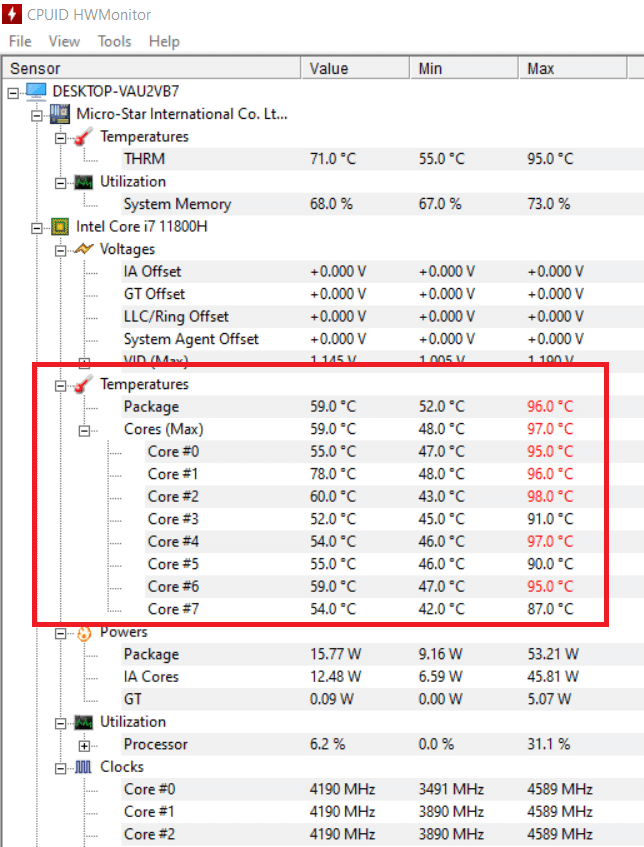
- Hwmonitor: A free program that monitors temperatures of CPU, GPU, and hard drives.
- Open Hardware Monitor: An open-source software that provides detailed information about your computer’s hardware, including temperature readings.
- Core Temp: A lightweight software specifically designed for monitoring CPU temperatures.
Monitoring PC Temperature on Mac
If you’re using a Mac, there are also various methods to monitor the system’s temperature.
Stats
Start by accessing Stats, an application developed specifically for macOS. Download Stats from its official website and follow the installation instructions. Once running, click on the relevant icon to view temperature readings.
Istat Menus
Another excellent option is iStat Menus, a software program that provides detailed information about your Mac’s hardware characteristics, including temperatures. Download the free version from its official website, install it, and access the menu bar icons to view temperature readings.
Other Solutions For Monitoring Mac Temperature
If you’re not satisfied with Stats or iStat Menus, consider trying these alternative software programs:
- Xrg: An open-source software that provides detailed information about your Mac’s hardware characteristics, including temperature readings.
- Fanny: A software widget specifically designed for monitoring CPU and GPU temperatures on Mac.
Conclusion
Monitoring your PC’s temperature is a simple yet crucial step in maintaining the health of your device. By using built-in tools or third-party software programs, you can keep an eye on your system’s temperature and prevent potential damage to hardware components.
Frequently Asked Questions (FAQs)
Here are some frequently asked questions related to monitoring PC temperatures:
- Q: Why is it Essential to Monitor my Pc’s Temperature?
A: Excessive heat can cause reduced system performance, increased risk of hardware failure, and shortened lifespan of components. - Q: What Built-in Tools Does Windows 11 Provide For Monitoring PC Temperatures?
A: Access the BIOS or UEFI settings by restarting your computer and repeatedly pressing the designated key (often F2, Del, or Esc). - Q: Which Third-party Software Programs Can I Use to Monitor my Pc’s Temperature on Windows?
A: Consider using Speccy, HWiNFO, HWMonitor, Open Hardware Monitor, Core Temp, or other alternative software programs. - Q: How Can I Monitor my Mac’s Temperature?
A: Use built-in tools like Stats or third-party software programs like iStat Menus, XRG, Fanny, or other alternative options.
Conclusion
Monitoring your PC’s temperature is a simple yet crucial step in maintaining the health of your device. By using built-in tools or third-party software programs, you can keep an eye on your system’s temperature and prevent potential damage to hardware components.


