
Creating a Samsung Account: A Step-by-step Guide
Are you looking to create a Samsung account on your smartphone, tablet, or Smart TV? Look no further! In this article, we will guide you through the process of creating a Samsung account and associating it with your device.
Why Create a Samsung Account?
Before we dive into the step-by-step instructions, let’s briefly discuss why creating a Samsung account is essential. A Samsung account allows you to access various features and services on your device, including:
- Backing up data and settings
- Enjoying proprietary safety functions (e.G., “Find My Device”)
- Locating a lost or stolen device
- Accessing the Galaxy Store
- Using cloud storage
Creating a Samsung Account on Smartphone
To create a Samsung account on your smartphone, follow these steps:
Step 1: Open Settings
Open the Settings app on your Samsung smartphone.
Step 2: Tap on “Account And Backup”
Tap on “Account and backup” from the list of options.
Step 3: Select “Add Account”
Select “Add account” from the menu that appears.
Step 4: Choose Samsung Account
Choose “Samsung Account” as the type of account to add.
Step 5: Select a Sign-in Method
Select how you want to sign in, either with your Google account or by creating a new Samsung account.
Step 6: Create a New Account
If you choose to create a new account, follow these steps:
- Enter your email address
- Choose a password
- Confirm your password
- Enter your name and surname
- Select your date of birth
Step 7: Verify Your Email
Verify your email address by following the instructions provided.
Creating a Samsung Account on Smart TV
To create a Samsung account on your Smart TV, follow these steps:
Step 1: Open Settings
Open the Settings menu on your Smart TV using the remote control.
Step 2: Select “General”
Select “General” from the list of options.
Step 3: Choose “Network And Open Settings”
Choose “Network and open settings”.
Step 4: Set up Your Network Connection
Set up your network connection by selecting either Wi-Fi or Ethernet.
Step 5: Create a New Account
Create a new Samsung account by following these steps:
- Enter your email address
- Choose a password
- Confirm your password
- Enter your name and surname
- Select your date of birth
Creating a Samsung Account on Tablet or Computer
To create a Samsung account on your tablet or computer, follow these steps:
Step 1: Open The Web Browser
Open the web browser on your device.
Step 2: Go to The Samsung Website
Go to the Samsung website and select “Create an account”.
Step 3: Fill Out The Form
Fill out the form with your personal information, including your email address, password, name, surname, and date of birth.
Configuring Your Email Account on Samsung Device
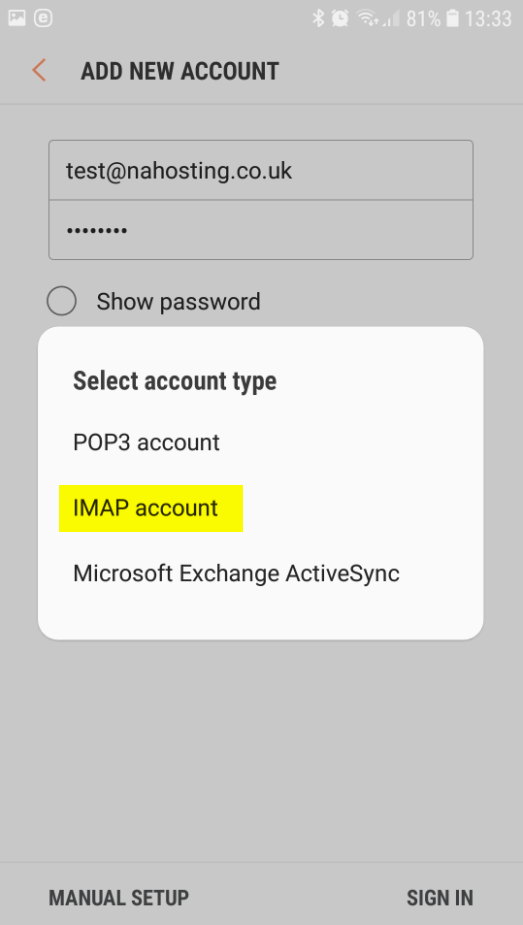
To configure your email account on your Samsung device, follow these steps:
Step 1: Open Settings
Open the Settings app on your Samsung device.
Step 2: Select “Accounts”
Select “Accounts” from the list of options.
Step 3: Choose “Add Account”
Choose “Add account” and select your email provider (e.G., Gmail, Outlook).
Step 4: Enter Your Email Address And Password
Enter your email address and password to add the account.
Frequently Asked Questions
- What is a Samsung Account?
A Samsung account is an online service that allows you to access various features and services on your device. - Why do I Need to Create a Samsung Account?
You need to create a Samsung account to access features like backup, safety functions, and cloud storage. - How do I Create a Samsung Account on my Smartphone?
To create a Samsung account on your smartphone, follow the steps outlined in this article. - Can I Create a Samsung Account on my Smart Tv?
Yes, you can create a Samsung account on your Smart TV by following the steps outlined in this article. - How do I Configure my Email Account on my Samsung Device?
To configure your email account on your Samsung device, follow the steps outlined in this article. - Can I Use my Existing Google Account to Sign In?
Yes, you can use your existing Google account to sign in to your Samsung account. - How do I Reset my Password if I Forget It?
To reset your password, go to the Samsung website and select “Forgot password”. - What Should I do if I Encounter Any Issues While Creating a Samsung Account?
If you encounter any issues while creating a Samsung account, try restarting your device or seeking help from Samsung support.
Conclusion
Creating a Samsung account is an essential step in unlocking the full potential of your device. By following these steps, you can create and configure your Samsung account on your smartphone, Smart TV, tablet, or computer. Remember to always keep your password secure and update your account information regularly.


