
Optimizing Your Mac: A Comprehensive Guide
As a proud owner of a Mac, you want your computer to run smoothly and efficiently. However, despite the legends that paint macOS as a perfect operating system, it’s not immune to problems and slowdowns. But fear not! With the right tools and knowledge, you can “fix” your Mac and restore its former glory.
What Causes Slowdowns on Your Mac?
Before we dive into the solutions, let’s quickly identify some common causes of slowdowns on your Mac:
- Too Many Applications Open at Once: If you have too many apps running in the background, it can slow down your Mac.
- Graphics And Animations: While they’re visually appealing, these can also consume system resources.
- Outdated Software: Not keeping your macOS and apps up-to-date can lead to compatibility issues and slowdowns.
- Malware And Viruses: Like any other computer, your Mac is vulnerable to malware and viruses that can cause problems.
Solutions For a Faster Mac
Now that we’ve identified some common causes of slowdowns, let’s explore the solutions:
Cleanmymac X: The Ultimate Cleaning Tool
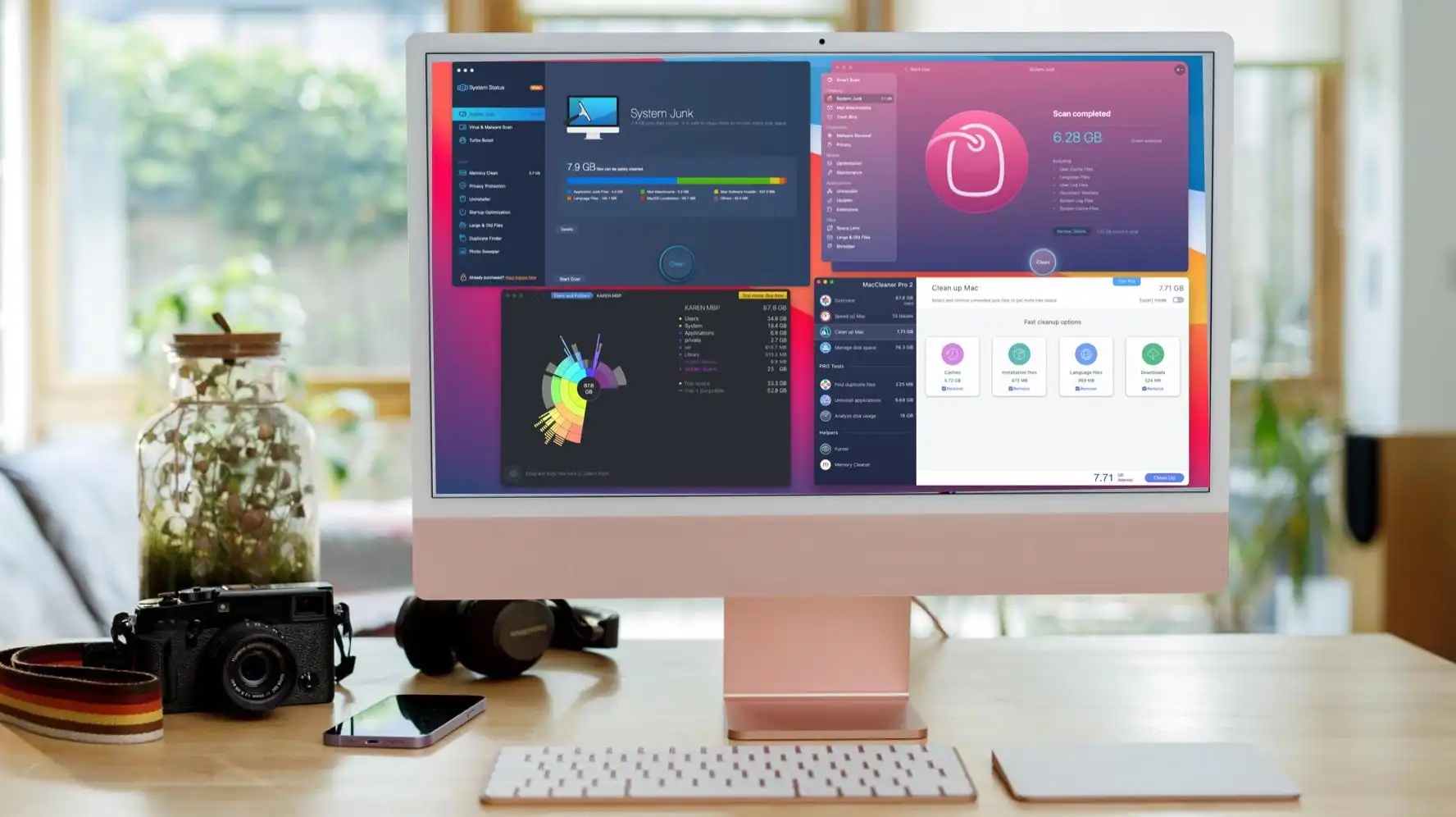
One of the most effective ways to optimize your Mac is by using CleanMyMac X. This powerful tool allows you to clean up unnecessary files, update software, and even scan for malware.
To use CleanMyMac X:
- Download the free version from their official website.
- Install it on your Mac.
- Launch the app and follow the prompts to scan and clean your system.
System Optimization Tools
In addition to CleanMyMac X, there are other system optimization tools built into macOS that can help you improve performance:
- Login Items: Too many apps running in the background can slow down your Mac. To fix this:
- Go to System Preferences > Users & Groups.
- Select your account and click on Login Items.
- Remove any unnecessary apps from the list.
Graphics And Animations
If you’re experiencing slowdowns due to graphics and animations, try these steps:
- Disable Animations: Go to System Preferences > Dock & Dashboard.
- Turn Off Transparency Effects: Go to System Preferences > Accessibility > Display.
- Disable Widgets: Go to System Preferences > Widgets.
Storage Management
Proper storage management can also help improve performance:
- Use The Storage Tab in About This Mac: This tool helps you identify and clean up unnecessary files, recover lost space, and more.
- Empty Your Trash Regularly: Make sure to delete any unwanted files or documents from your trash.
- Consider Upgrading to a Larger Ssd: If your storage is full, consider upgrading to a larger SSD for improved performance.
Onyx: A Powerful Tool For Advanced Users
For advanced users, OnyX is a powerful tool that can help you optimize and maintain your Mac:
- Download The App From Their Official Website.
- Use Caution When Running The App, as it can potentially cause issues if not used correctly.
Malware Removal
If you suspect malware or viruses are causing problems on your Mac, try these steps:
- Run a Virus Scan: Use an anti-virus software to scan for malware and viruses.
- Remove Any Suspicious Apps: If you’ve installed an app recently and it’s causing problems, consider uninstalling it.
Reinstall Macos or Format Your Hard Drive
In extreme cases, if your Mac is experiencing severe problems, you may need to:
- Reinstall Macos: This will erase all data on your hard drive. Make sure to back up any important files before doing so.
- Format Your Hard Drive: This will erase all data on your hard drive and reset it to its original state.
Conclusion
Optimizing your Mac is a simple process that requires some knowledge of the right tools and techniques. By following these steps, you can “fix” your Mac and restore its former glory. Remember to always use caution when running advanced tools like OnyX, and consider seeking professional help if you’re unsure about any steps.
FAQs:
Q: What are some common causes of slowdowns on my Mac?
A: Too many applications open at once, graphics and animations, outdated software, and malware/viruses can cause slowdowns.
Q: How do I optimize my Mac for better performance?
A: Use CleanMyMac X, disable unnecessary login items, turn off transparency effects, disable widgets, empty your Trash regularly, and consider upgrading to a larger SSD.
Q: What is OnyX, and how does it help me optimize my Mac?
A: OnyX is a powerful tool that allows advanced users to optimize and maintain their Mac. It can erase cache files, regulate settings, check system integrity, and more.
Q: How do I remove malware or viruses from my Mac?
A: Run a virus scan using an anti-virus software, remove any suspicious apps, and consider reinstalling macOS or formatting your hard drive if necessary.
Q: What should I do in extreme cases where my Mac is experiencing severe problems?
A: Reinstall macOS or format your hard drive. Make sure to back up any important files before doing so.
Q: Can I use CleanMyMac X for free?
A: Yes, the free version of CleanMyMac X can be downloaded from their official website and used for 7 days.
Q: How do I uninstall CleanMyMac X if it’s causing problems on my Mac?
A: Simply delete the app from your Applications folder, and consider reinstalling macOS or formatting your hard drive if necessary.


