
How to Print a Pdf Front to Back: A Step-by-step Guide
Printing a PDF front to back can be a convenient way to save space and reduce clutter, especially when printing large documents or manuals. However, not all printers are equipped with the necessary features to print in this manner. In this article, we will guide you through the process of printing a PDF front to back on both Windows and Mac operating systems, as well as on smartphones and tablets.
Why Print Front to Back?
Printing a document or manual in front-to-back format can be beneficial for several reasons:
- Saves space: By printing two pages on one sheet of paper, you can reduce the overall size of your documents and save space.
- Reduces clutter: Printing multiple pages on one sheet can help declutter your workspace and make it easier to organize your documents.
- Environmentally friendly: Printing less paper can also be more environmentally friendly.
Printing Front to Back on Windows
To print a PDF front to back on Windows, follow these steps:
- Open The Document: Open the PDF document you want to print in the default PDF viewer or Adobe Acrobat Reader.
- Access The Print Menu: Click on the “File” menu and select “Print…” Or press the Ctrl+P keyboard shortcut to open the print dialog box.
- Configure The Print Settings: In the print dialog box, ensure that the printer is set to the correct paper orientation (e.G., Portrait or landscape) and that the paper size is selected correctly.
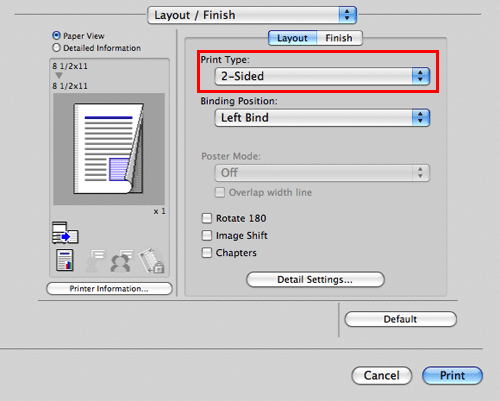
- Select The Front-to-back Option: Look for the “Front-to-Back” or “Duplex Printing” option in the print settings. This may be located under a dropdown menu or as a checkbox.
- Print The Document: Once you have configured the print settings, click the “Print” button to start the printing process.
Printing Front to Back on Mac
To print a PDF front to back on a Mac, follow these steps:
- Open The Document: Open the PDF document you want to print in the default PDF viewer or Adobe Acrobat Reader.
- Access The Print Menu: Click on the “File” menu and select “Print…” Or press the Command+P keyboard shortcut to open the print dialog box.
- Configure The Print Settings: In the print dialog box, ensure that the printer is set to the correct paper orientation (e.G., Portrait or landscape) and that the paper size is selected correctly.
- Select The Front-to-back Option: Look for the “Front-to-Back” or “Duplex Printing” option in the print settings. This may be located under a dropdown menu or as a checkbox.
- Print The Document: Once you have configured the print settings, click the “Print” button to start the printing process.
Printing Front to Back on Smartphones And Tablets
To print a PDF front to back on a smartphone or tablet, follow these steps:
- Open The Document: Open the PDF document you want to print in the default PDF viewer or Adobe Acrobat Reader.
- Access The Share Menu: Tap on the share button (usually represented by three dots or an arrow) and select “Print” from the list of options.
- Configure The Print Settings: In the print dialog box, ensure that the printer is set to the correct paper orientation (e.G., Portrait or landscape) and that the paper size is selected correctly.
- Select The Front-to-back Option: Look for the “Front-to-Back” or “Duplex Printing” option in the print settings. This may be located under a dropdown menu or as a checkbox.
- Print The Document: Once you have configured the print settings, tap the “Print” button to start the printing process.
Common Issues And Solutions
Here are some common issues that may arise when printing front-to-back and their solutions:
- Printer Not Supporting Duplex Printing: If your printer does not support duplex printing, you can manually turn over the pages to print them in front-to-back format.
- Pdf Viewer or Adobe Acrobat Reader Not Recognizing Duplex Printing Option: Try updating your PDF viewer or Adobe Acrobat Reader to the latest version to resolve this issue.
- Print Settings Not Being Applied Correctly: Ensure that the correct paper orientation and size are selected, and try restarting the print process.
Conclusion
Printing a PDF front to back can be a convenient way to save space and reduce clutter. By following these step-by-step guides for Windows, Mac, smartphones, and tablets, you should be able to successfully print your documents in this manner.


