
How to Extract Rar Files: A Step-by-step Guide
Are you tired of dealing with compressed files that are a hassle to extract? Look no further! In this article, we’ll show you how to extract RAR files on various platforms, including Windows, Mac, online, Android, and iPhone.
What is a Rar File?
A RAR file is a compressed archive file that contains one or more files. It’s often used to reduce the size of large files, making them easier to share and transfer. However, extracting RAR files can be a bit tricky if you don’t know how to do it.
Extracting Rar Files on Windows
If you’re using a Windows PC, you have several options for extracting RAR files.
- Winrar: WinRAR is one of the most popular and user-friendly programs for extracting RAR files. You can download a free trial version or purchase a license key.
- 7-Zip: 7-Zip is another excellent alternative to WinRAR. It’s free, open-source, and highly customizable.
Step-by-step Guide to Extracting Rar Files With Winrar
- Download the WinRAR installer from the official website.
- Install WinRAR by following the on-screen instructions.
- Open the folder containing the RAR file(s) you want to extract.
- Right-click on the RAR file and select “Extract Here” (or choose a different destination if desired).
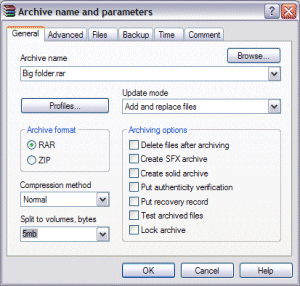
- Select the extraction options, such as password protection or compression level.
- Click “OK” to start the extraction process.
Extracting Rar Files on Mac
If you’re using a Mac, there are also several options for extracting RAR files.
- Keka: Keka is a free and open-source program specifically designed for extracting RAR files on Mac.
- Betterzip: BetterZip is another excellent alternative to Keka. It’s paid, but offers more advanced features.
Step-by-step Guide to Extracting Rar Files With Keka
- Download the Keka installer from the official website.
- Install Keka by following the on-screen instructions.
- Open the folder containing the RAR file(s) you want to extract.
- Right-click (or Control-click) on the RAR file and select “Extract with Keka.”
- Choose the extraction options, such as password protection or compression level.
- Click “OK” to start the extraction process.
Other Options For Extracting Rar Files
If you don’t want to install a program specifically designed for extracting RAR files, there are other options available.
- Online Services: You can use online services like extract.Me to extract RAR files without installing any software.
- Mobile Apps: There are also mobile apps available, such as Unzip (for iPhone and iPad) or Parts RAR (for Android).
Tips And Tricks
Here are some additional tips and tricks for extracting RAR files:
- Make sure you have the correct password (if applicable).
- Choose the right extraction options to ensure your files are extracted correctly.
- Consider using a program with advanced features, such as WinRAR or 7-Zip.
Conclusion
Extracting RAR files is not rocket science! With this guide, you should be able to extract RAR files on various platforms, including Windows, Mac, online, Android, and iPhone. Remember to choose the right program for your needs and follow the step-by-step instructions. Happy extracting!
Frequently Asked Questions
Q: What is a RAR file?
A: A RAR file is a compressed archive file that contains one or more files.
Q: How do I extract RAR files on Windows?
A: You can use programs like WinRAR, 7-Zip, or other alternatives to extract RAR files on Windows.
Q: Can I extract RAR files on Mac?
A: Yes, you can use programs like Keka, BetterZip, or other alternatives to extract RAR files on Mac.
Q: What are some online services for extracting RAR files?
A: You can use services like extract.Me to extract RAR files without installing any software.
Q: Can I extract RAR files on my mobile device?
A: Yes, you can use mobile apps like Unzip (for iPhone and iPad) or Parts RAR (for Android) to extract RAR files.
Q: What are some tips for extracting RAR files?
A: Make sure you have the correct password (if applicable), choose the right extraction options, and consider using a program with advanced features.


