
How to Automatically Forward Emails: A Step-by-step Guide
Are you tired of manually forwarding emails to your boss or clients? Do you want to streamline your email management process and save time? Look no further! In this article, we’ll show you how to automatically forward emails using popular email services like Gmail, Outlook, Libero, iCloud, and Yahoo Mail.
Why Automatically Forward Emails?
Automatically forwarding emails can be a game-changer for businesses and individuals alike. By setting up filters and rules, you can automatically forward specific messages to designated recipients, saving time and reducing the risk of missing important communications.
How to Automatically Forward Emails With Gmail
To set up automatic email forwarding in Gmail, follow these steps:
- Access Your Gmail Account: Log in to your Google account and access your Gmail inbox.
- Click on The Gear Icon: Click on the gear icon located in the upper right corner of the screen.
- Select “See All Settings”: From the drop-down menu, select “See all settings.”
- Navigate to The “Filters And Blocked Addresses” Tab: In the Settings page, navigate to the “Filters and Blocked Addresses” tab.
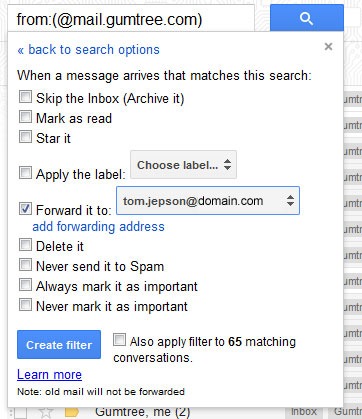
- Click on “Create a New Filter”: Click on the “Create a new filter” button.
- Enter The Email Address You Want to Forward Emails to: Enter the email address of the recipient you want to forward emails to.
- Select The Forwarding Option: Select the forwarding option, which allows you to choose whether to forward emails in their entirety or just specific messages.
How to Automatically Forward Emails With Outlook
To set up automatic email forwarding in Outlook, follow these steps:
- Access Your Outlook Account: Log in to your Microsoft account and access your Outlook inbox.
- Click on The “Settings” Icon: Click on the “Settings” icon located in the upper right corner of the screen.
- Select “More Mail Settings”: From the drop-down menu, select “More mail settings.”
- Navigate to The “Rules” Tab: In the Settings page, navigate to the “Rules” tab.
- Click on “New Rule”: Click on the “New rule” button.
- Enter The Email Address You Want to Forward Emails to: Enter the email address of the recipient you want to forward emails to.
- Select The Forwarding Option: Select the forwarding option, which allows you to choose whether to forward emails in their entirety or just specific messages.
How to Automatically Forward Emails With Libero
To set up automatic email forwarding in Libero, follow these steps:
- Access Your Libero Account: Log in to your Libero account and access your inbox.
- Click on The “Settings” Icon: Click on the “Settings” icon located in the upper right corner of the screen.
- Select “Filters”: From the drop-down menu, select “Filters.”
- Click on “Create a New Filter”: Click on the “Create a new filter” button.
- Enter The Email Address You Want to Forward Emails to: Enter the email address of the recipient you want to forward emails to.
- Select The Forwarding Option: Select the forwarding option, which allows you to choose whether to forward emails in their entirety or just specific messages.
How to Automatically Forward Emails With Icloud
To set up automatic email forwarding in iCloud, follow these steps:
- Access Your Icloud Account: Log in to your Apple account and access your iCloud inbox.
- Click on The “Settings” Icon: Click on the “Settings” icon located in the upper right corner of the screen.
- Select “Mail”: From the drop-down menu, select “Mail.”
- Navigate to The “Rules” Tab: In the Settings page, navigate to the “Rules” tab.
- Click on “Create a New Rule”: Click on the “Create a new rule” button.
- Enter The Email Address You Want to Forward Emails to: Enter the email address of the recipient you want to forward emails to.
- Select The Forwarding Option: Select the forwarding option, which allows you to choose whether to forward emails in their entirety or just specific messages.
How to Automatically Forward Emails With Yahoo Mail
To set up automatic email forwarding in Yahoo Mail, follow these steps:
- Access Your Yahoo Mail Account: Log in to your Yahoo account and access your inbox.
- Click on The “Settings” Icon: Click on the “Settings” icon located in the upper right corner of the screen.
- Select “Filters”: From the drop-down menu, select “Filters.”
- Click on “Create a New Filter”: Click on the “Create a new filter” button.
- Enter The Email Address You Want to Forward Emails to: Enter the email address of the recipient you want to forward emails to.
- Select The Forwarding Option: Select the forwarding option, which allows you to choose whether to forward emails in their entirety or just specific messages.
How to Automatically Forward Emails With Thunderbird
To set up automatic email forwarding in Thunderbird, follow these steps:
- Access Your Thunderbird Account: Log in to your Thunderbird account and access your inbox.
- Click on The “Tools” Menu: Click on the “Tools” menu located in the upper right corner of the screen.
- Select “Message Filters”: From the drop-down menu, select “Message filters.”
- Click on “New Filter”: Click on the “New filter” button.
- Enter The Email Address You Want to Forward Emails to: Enter the email address of the recipient you want to forward emails to.
- Select The Forwarding Option: Select the forwarding option, which allows you to choose whether to forward emails in their entirety or just specific messages.
Conclusion
Automatically forwarding emails can be a powerful tool for streamlining your email management process and saving time. By following the steps outlined in this article, you can set up automatic email forwarding using popular email services like Gmail, Outlook, Libero, iCloud, Yahoo Mail, and Thunderbird. Remember to always check the specific requirements for each service before setting up automatic email forwarding.
Frequently Asked Questions
Q: What is automatic email forwarding?
A: Automatic email forwarding is a feature that allows you to automatically forward emails from one email address to another.
Q: Why should I use automatic email forwarding?
A: You can use automatic email forwarding to save time and reduce the risk of missing important communications.
Q: How do I set up automatic email forwarding in Gmail?
A: To set up automatic email forwarding in Gmail, follow the steps outlined in this article.
Q: Can I forward emails from multiple email addresses to a single recipient?
A: Yes, you can forward emails from multiple email addresses to a single recipient by setting up separate filters for each email address.
Common Issues And Solutions
-
Issue: Automatic email forwarding not working.
Solution: Check that the filter is set up correctly and that the email address being forwarded to exists. -
Issue: Emails being forwarded incorrectly.
Solution: Review the filter settings to ensure that the correct email addresses are being forwarded and that the forwarding options are correctly selected.
Troubleshooting Tips
- Make sure you have the latest version of your email client installed.
- Check that your internet connection is stable.
- Verify that the email address being forwarded to exists.
- Double-check that the filter settings are correctly set up.


