
Recovering Passwords Saved on Internet Explorer, Firefox, And Chrome: A Step-by-step Guide
Are you tired of remembering multiple passwords for different websites? Do you want to recover the passwords saved on your browser without having to resort to manual methods? Look no further! In this article, we’ll show you how to easily recover passwords saved on Internet Explorer, Firefox, and Chrome.
Why Use a Browser’s Built-in Password Manager?
Using a browser’s built-in password manager can be convenient, but it may not always be the safest option. This is because all your passwords are stored in one place, making them vulnerable to hacking. A better approach is to use a dedicated password manager that keeps all your passwords secure and encrypted.
Recovering Passwords Saved on Internet Explorer
If you’re using Internet Explorer as your primary browser, here’s how to recover the passwords saved:
- Open Internet Explorer and click on the “Start” button.
- Select “Control Panel” and then “User Accounts.”
- Click on “Manage Your Credentials” and select “Web Credentials.”
- You’ll see a list of all the websites you’ve saved passwords for. Click on the website’s address to view its password.
Recovering Passwords Saved on Firefox
If you’re using Firefox as your primary browser, here’s how to recover the passwords saved:
- Open Firefox and click on the menu icon.
- Select “Options” and then “Security.”
- Click on “Saved Logins” and select the website you want to view its password for.
Recovering Passwords Saved on Chrome
If you’re using Chrome as your primary browser, here’s how to recover the passwords saved:
- Open Chrome and click on the menu icon.
- Select “Settings” and then “Passwords.”
- You’ll see a list of all the websites you’ve saved passwords for. Click on the website’s address to view its password.
Using Webbrowserpassview
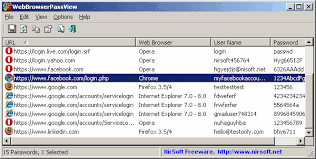
If you’re looking for a more comprehensive solution, consider using WebBrowserPassView. This free program can examine the passwords saved in Internet Explorer (versions 4.0 And above), Firefox, Chrome, and other browsers, and display them in plain text. You can also export the data to a file or HTML page.
Programs For Managing Passwords
There are many programs available that can help you manage your passwords more effectively. These include password managers like LastPass, 1Password, and Dashlane, which allow you to store all your passwords securely and encrypted. Some browsers even have built-in password managers, such as Internet Explorer’s “Credential Manager” and Chrome’s “Passwords.”
Conclusion
Recovering passwords saved on Internet Explorer, Firefox, and Chrome can be a straightforward process if you know where to look. However, it’s essential to prioritize security when managing your passwords. Consider using a dedicated password manager or browser extension to keep all your passwords secure and encrypted.
FAQs:
-
Q: What is The Best Way to Recover Passwords Saved on my Browser?
A: The best way to recover passwords saved on your browser is to use a password manager or browser extension that keeps all your passwords secure and encrypted.
-
Q: How Can I Access The Passwords Saved in Internet Explorer?
A: To access the passwords saved in Internet Explorer, open the browser and click on the “Start” button. Select “Control Panel,” then “User Accounts,” and finally “Manage Your Credentials.” Click on “Web Credentials” to view the list of saved websites.
-
Q: How do I Recover Passwords Saved on Firefox?
A: To recover passwords saved on Firefox, open the browser and click on the menu icon. Select “Options,” then “Security,” and finally “Saved Logins.” Choose the website you want to view its password for.
-
Q: Can I Use Webbrowserpassview to Recover Passwords Saved in Chrome?
A: Yes, you can use WebBrowserPassView to recover passwords saved in Chrome, as well as other browsers like Internet Explorer and Firefox.
-
Q: Are There Any Programs That Can Help me Manage my Passwords More Effectively?
A: Yes, there are many programs available that can help you manage your passwords more effectively, including password managers like LastPass and 1Password.
-
Q: How do I Access The Passwords Saved in Chrome?
A: To access the passwords saved in Chrome, open the browser and click on the menu icon. Select “Settings,” then “Passwords,” and finally choose the website you want to view its password for.
-
Q: Is it Safe to Use a Browser’s Built-in Password Manager?
A: While using a browser’s built-in password manager can be convenient, it may not always be the safest option. This is because all your passwords are stored in one place, making them vulnerable to hacking. Consider using a dedicated password manager or browser extension that keeps all your passwords secure and encrypted.
-
Q: Can I Recover Passwords Saved on my Smartphone?
A: Yes, you can recover passwords saved on your smartphone by using the browser’s built-in password manager or a password manager app.


