
How to Protect Your Whatsapp Conversations With Touch ID or Face ID
Are you worried that someone might spy on your conversations on WhatsApp? You’re not alone! Many people have the same concern, but there’s a solution. In 2019, Facebook introduced a feature that allows users to apply an additional level of protection to their chats by requiring authentication with the digital footprint (or face) for access, even if the phone’s monitor is unblocked.
In this article, we’ll guide you through the process of protecting your WhatsApp conversations with Touch ID or Face ID on both iOS and Android devices.
What You Need to Know Before We Begin
Before we dive into the steps, make sure that:
- Your phone has been configured with a biometric unlock system (digital footprint or face recognition).
- The WhatsApp app is updated to the latest available version.
- If you’re using an iOS device, ensure it’s running iOS 18 or later.
Step-by-step Guide: Protecting Your Whatsapp Conversations
Ios Devices (iPhone)
- Open WhatsApp and access its settings by tapping on the three dots in the top right corner.
- Scroll down to the “Privacy” section and tap on it.
- Select the option that says “Require Face ID/Touch ID” and choose when you want this feature to be activated (immediately, after 1 minute, 15 minutes, or 1 hour).
- To access WhatsApp, you’ll now need to use Face ID or Touch ID.
Android Devices
- Open WhatsApp and tap on the three dots in the top right corner.
- Select “Settings” from the menu.
- Scroll down to the “Privacy” section and select it.
- Tap on the toggle switch next to “Block app” to enable it.
- Choose when you want this feature to be activated (immediately, after 1 minute, or after 30 minutes).
- To access WhatsApp, you’ll now need to use your phone’s biometric unlock system.
Alternative Solutions: Blocking Specific Conversations
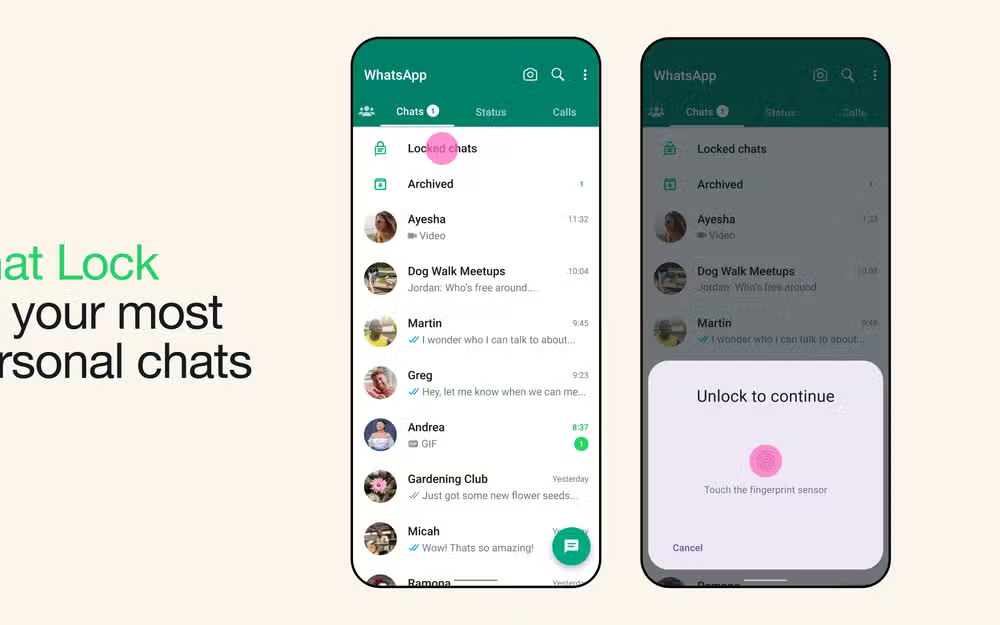
If you don’t want to apply an additional level of protection to the entire app but rather block specific conversations, you can use the “Padlock Chat” feature on both iOS and Android devices.
Ios Devices (iPhone)
- Open WhatsApp and go to the chat section.
- Tap on a conversation you want to lock.
- Swipe down and select the “Chat with padlock” option.
- To access this conversation, you’ll need to use Face ID or Touch ID.
Android Devices
- Open WhatsApp and go to the chat section.
- Tap on a conversation you want to lock.
- Tap on the ⫶ icon in the top right corner.
- Select “Lock” from the menu.
- To access this conversation, you’ll need to use your phone’s biometric unlock system.
Additional Tips And Recommendations
If you’re concerned about data protection, we recommend reading our guides on blocking apps on Android and iPhone. You can also explore other online services that offer similar features or consider using alternative photo editing apps.
By following these steps, you’ll be able to protect your WhatsApp conversations with Touch ID or Face ID on both iOS and Android devices.


