
How to Choose The Best Wi-fi Channel For Your Router
Are you tired of slow internet speeds and dropped connections? One simple trick can improve your online experience: Changing the Wi-Fi channel on your router. In this article, we’ll guide you through the process of selecting the best Wi-Fi channel for your modem/router.
What is a Wi-fi Channel?
A Wi-Fi channel is like a radio frequency that allows your device to connect to the internet. Just like how different radio stations have their own frequencies, Wi-Fi channels operate on specific frequencies to transmit data. The two most common types of Wi-Fi channels are 2.4 GHz and 5 GHz.
Why Do I Need to Change My Wi-fi Channel?
Changing your Wi-Fi channel can improve the range and speed of your internet connection. When multiple devices are connected to the same network, they can interfere with each other’s signals, causing a decrease in performance. By switching to a less crowded channel, you can reduce interference and enjoy a faster connection.
How Do I Choose The Best Wi-fi Channel?
The best way to choose the best Wi-Fi channel is to use software that scans for available channels and suggests the least congested one. Here’s how:
Using Windows:
You can use a free program called WifiInfoView to scan for available channels.
- Download and install WifiInfoView.
- Launch the program and click on “Scan” to find nearby Wi-Fi networks.
- The program will display a list of nearby networks, including their channel numbers.
- Look for the network with the lowest number of devices connected (i.E., The least congested channel).
Using Macos:
You can use the built-in Wireless Diagnostics tool to scan for available channels.
- Click on the Wi-Fi icon in the top right corner of your screen and select “Open Wireless Diagnostic”.
- Click on “Scan” to find nearby Wi-Fi networks.
- The program will display a list of nearby networks, including their channel numbers.
- Look for the network with the lowest number of devices connected (i.E., The least congested channel).
Using Android or Ios:
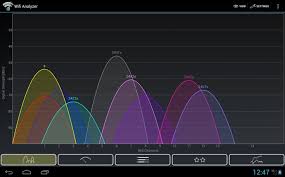
You can use apps like WiFi Analyzer or AirPort Utility to scan for available channels.
- Download and install one of these apps.
- Launch the app and click on “Scan” to find nearby Wi-Fi networks.
- The app will display a list of nearby networks, including their channel numbers.
- Look for the network with the lowest number of devices connected (i.E., The least congested channel).
How Do I Change My Wi-fi Channel?
Once you’ve found the best Wi-Fi channel using one of the methods above, here’s how to change it on your router:
Using a Router’s Web Interface:
- Open a web browser and type in the IP address of your router (usually 192.168.0.1 Or 192.168.1.1).
- Log in with your administrator password.
- Navigate to the Wireless Settings page.
- Look for the channel settings and select the new channel you want to use.
Using a Router’s Mobile App:
- Download and install your router’s mobile app (e.G., TP-Link or Netgear).
- Launch the app and log in with your administrator password.
- Navigate to the Wireless Settings page.
- Look for the channel settings and select the new channel you want to use.
What If I’m Using a Dual-band Router?
If you’re using a dual-band router, which supports both 2.4 GHz and 5 GHz frequencies, you’ll need to change the channel on each band separately.
- Change the channel on the 2.4 GHz frequency as described above.
- Change the channel on the 5 GHz frequency by repeating the process for that band.
Troubleshooting:
If you’ve changed your Wi-Fi channel but still experience slow speeds or dropped connections, try restarting your router and moving it to a different location in your home.
Conclusion:
Changing your Wi-Fi channel can improve the performance of your internet connection. By using software to scan for available channels and selecting the least congested one, you can enjoy faster speeds and fewer dropped connections. Remember to change the channel on each band separately if you’re using a dual-band router.
Frequently Asked Questions:
- Q: Why do I Need to Change my Wi-fi Channel?
A: Changing your Wi-Fi channel can improve the range and speed of your internet connection by reducing interference from other devices. - Q: How do I Choose The Best Wi-fi Channel?
A: Use software like WifiInfoView (Windows) or Wireless Diagnostics (macOS) to scan for available channels and select the least congested one. - Q: Can I Change my Wi-fi Channel on a Dual-band Router?
A: Yes, but you’ll need to change the channel on each band separately. - Q: How do I Troubleshoot Slow Speeds or Dropped Connections After Changing my Wi-fi Channel?
A: Try restarting your router and moving it to a different location in your home.
References:
- WifiInfoView (Windows)
- Wireless Diagnostics (macOS)
- AirPort Utility (iOS)
- TP-Link mobile app (Android/iOS)


