
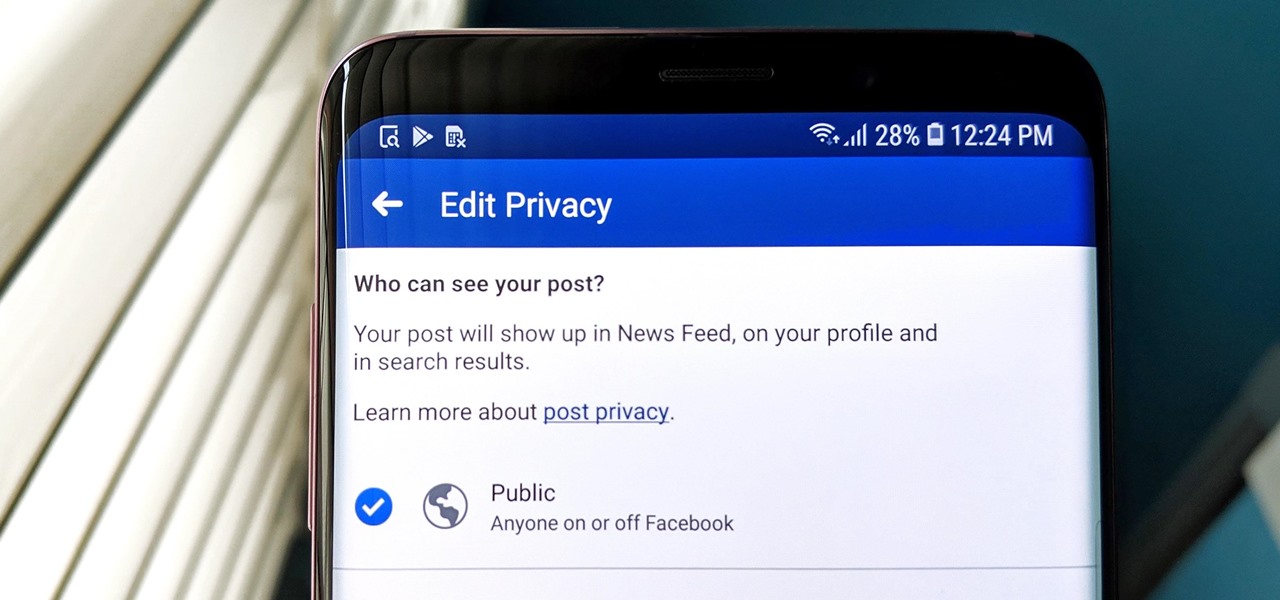
How to Make a Facebook Post Shareable
Are you tired of posting beautiful photos or interesting content on Facebook, only to find that your friends can’t share them? You’re not alone! Many people have encountered this problem, but fortunately, it’s easy to fix.
In this article, we’ll show you how to make a Facebook post shareable by modifying its privacy settings. We’ll cover the steps for Android, iOS/iPadOS, and PC devices, so you can follow along regardless of your device type.
Why Can’t My Friends Share My Posts?
The main reason why your friends can’t share your posts is that you’ve modified the privacy settings to make them unshareable. This might have happened accidentally or intentionally, but either way, it’s easy to fix.
How to Make a Facebook Post Shareable on Android
To make a Facebook post shareable on an Android device, follow these steps:
- Open the Facebook app and access your account.
- Find the post you want to make shareable and tap on the three dots (⋯) in the top right corner of the screen.
- Tap on “Edit Privacy” and select “All” from the menu that opens.
- Save the changes by tapping on the checkmark icon.
How to Make a Facebook Post Shareable on Ios/ipados
To make a Facebook post shareable on an iOS or iPadOS device, follow these steps:
- Open the Facebook app and access your account.
- Find the post you want to make shareable and tap on the three dots (⋯) in the top right corner of the screen.
- Tap on “Edit Privacy” and select “All” from the menu that opens.
- Save the changes by tapping on the checkmark icon.
How to Make a Facebook Post Shareable on PC
To make a Facebook post shareable on a PC, follow these steps:
- Log in to your Facebook account using a web browser.
- Find the post you want to make shareable and click on it.
- Click on the three dots (⋯) in the top right corner of the screen.
- Click on “Edit Post” and select “All” from the menu that opens.
- Save the changes by clicking on the checkmark icon.
How to Make All Future Posts Shareable
If you want to make all future posts shareable, follow these steps:
Android:
1. Open the Facebook app and access your account.
2. Tap on the three lines (≡) in the top right corner of the screen.
3. Tap on your profile picture and name.
4. Tap on “Settings” and select “Privacy”.
5. Select “All” from the menu.
IOS/iPadOS:
1. Open the Facebook app and access your account.
2. Tap on the three dots (⋯) in the top right corner of the screen.
3. Tap on “Edit Privacy” and select “All” from the menu that opens.
4. Save the changes by tapping on the checkmark icon.
PC:
1. Log in to your Facebook account using a web browser.
2. Click on your profile picture and name.
3. Click on “Settings” and select “Privacy”.
4. Select “All” from the menu.
Why Can’t My Post Be Shared?
If you’re still having trouble sharing your post, there might be another reason why it’s not working. Here are a few possible explanations:
- The post is private or friends-only.
- You’ve disabled sharing for that specific post.
- There’s an issue with the Facebook app or browser extension.
Conclusion
Making a Facebook post shareable is easy and straightforward. By following these steps, you can ensure that your posts are visible and sharable by all your friends and followers.
Frequently Asked Questions (FAQs)
Q: Why can’t my friends share my posts?
A: This might be due to modified privacy settings or a technical issue with the Facebook app or browser extension.
Q: How do I make a Facebook post shareable on Android?
A: To make a Facebook post shareable on an Android device, follow these steps: [Insert steps].
Q: How do I make a Facebook post shareable on iOS/iPadOS?
A: To make a Facebook post shareable on an iOS or iPadOS device, follow these steps: [Insert steps].
Q: How do I make a Facebook post shareable on PC?
A: To make a Facebook post shareable on a PC, follow these steps: [Insert steps].
Q: Can I make all future posts shareable?
A: Yes, you can make all future posts shareable by modifying your account settings.
Q: Why can’t my post be shared?
A: There might be another reason why your post is not sharable. Check the Facebook app or browser extension for any issues.
Q: How do I check if my post is private or friends-only?
A: You can check the post’s privacy settings by accessing it and looking at its sharing options.
Q: What should I do if I’m still having trouble sharing my post?
A: If you’re still having trouble, try troubleshooting with Facebook support.


