
How to Disconnect Instagram From Facebook: A Step-by-step Guide
Are you tired of having your Instagram account linked to your Facebook profile? Do you want to share your Instagram posts on Facebook, but don’t want them to be automatically shared? Look no further! In this article, we will guide you through the process of disconnecting Instagram from Facebook and show you how to reconnect if needed.
Why Disconnect Instagram From Facebook?
While having your Instagram account linked to your Facebook profile can be convenient for sharing content across both platforms, it may not be ideal for everyone. Maybe you want to keep your Instagram posts private or share them on a different platform. Whatever the reason, disconnecting Instagram from Facebook is easy and straightforward.
How to Disconnect Instagram From Facebook on Android And Ios
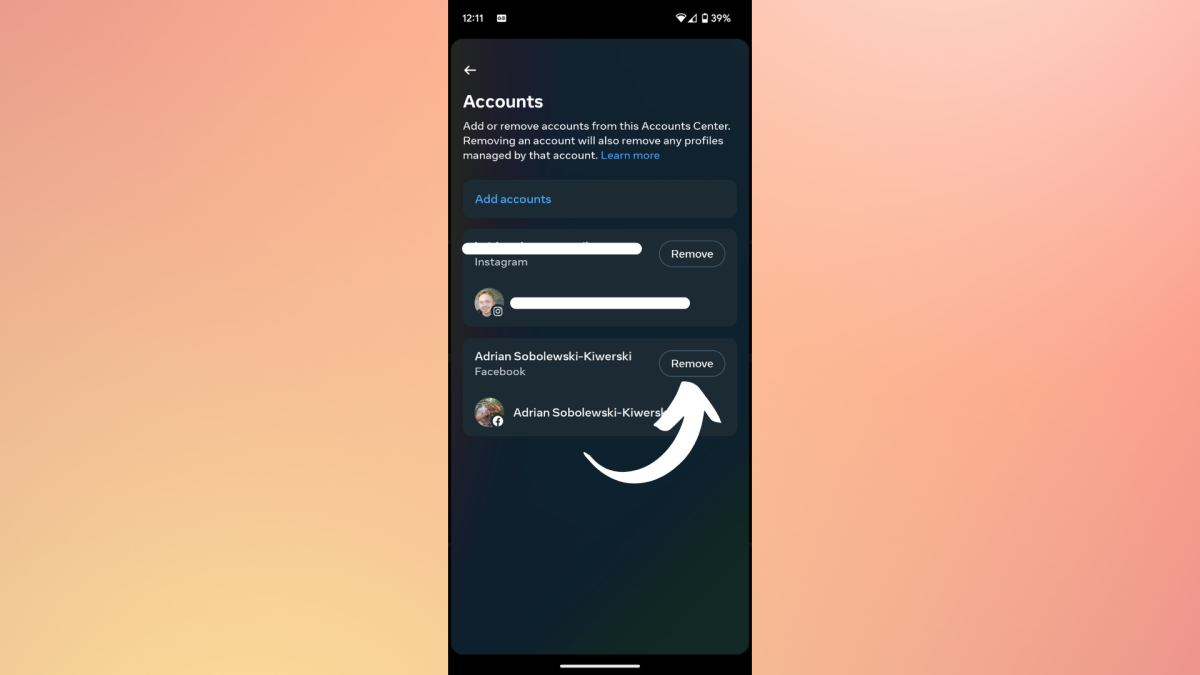
To disconnect Instagram from Facebook on your mobile device, follow these steps:
- Open the Instagram app.
- Tap on your profile picture in the top right corner.
- Select “Settings” from the menu.
- Scroll down and select “Account.”
- Tap on “Linked Accounts.”
- Select “Facebook” from the list of linked accounts.
- Tap on “Unlink Account.”
- Confirm that you want to unlink your Instagram account from Facebook.
That’s it! Your Instagram account is now disconnected from Facebook.
How to Reconnect Instagram And Facebook
If you decide later that you want to reconnect your Instagram account with Facebook, follow these steps:
- Open the Instagram app.
- Tap on your profile picture in the top right corner.
- Select “Settings” from the menu.
- Scroll down and select “Account.”
- Tap on “Linked Accounts.”
- Select “Facebook” from the list of linked accounts.
- Tap on “Link Account.”
- Enter your Facebook login credentials to reconnect your accounts.
How to Disconnect Instagram From Facebook on Computer
To disconnect Instagram from Facebook on your computer, follow these steps:
- Open the Instagram website in a web browser.
- Click on your profile picture in the top right corner.
- Select “Settings” from the menu.
- Scroll down and select “Account.”
- Tap on “Linked Accounts.”
- Select “Facebook” from the list of linked accounts.
- Click on “Unlink Account.”
- Confirm that you want to unlink your Instagram account from Facebook.
How to Share Instagram Posts on Facebook
If you still want to share your Instagram posts on Facebook, but don’t want them to be automatically shared, follow these steps:
- Open the Instagram app.
- Tap on the post you want to share on Facebook.
- Select “Share” from the menu.
- Choose “Facebook” as the platform where you want to share the post.
- Add a caption or tag friends if desired.
- Click “Share” to post your Instagram content on Facebook.
How to Share Instagram Posts on Facebook Manually
If you prefer to share Instagram posts on Facebook manually, follow these steps:
- Open the Facebook app.
- Create a new post by clicking on “What’s on Your Mind?”
- Paste the link of the Instagram post in the text field.
- Add a caption or tag friends if desired.
- Click “Post” to share your Instagram content on Facebook.
Conclusion
Disconnecting Instagram from Facebook is easy and straightforward, and reconnecting them later is just as simple. Whether you want to keep your Instagram posts private or share them on a different platform, this guide has shown you how to do it.


