
Google Authenticator: A Comprehensive Guide
Are you tired of dealing with password-related issues? Do you want to add an extra layer of security to your Google account? Look no further than Google Authenticator!
In this article, we’ll explore the world of Google Authenticator, a two-factor authentication (2FA) app that provides an additional level of protection for your Google account. We’ll delve into its features, benefits, and how-to guides, so you can start using it today.
What is Google Authenticator?
Google Authenticator is a free 2FA app developed by Google. It generates time-based one-time passwords (TOTPs) that are used to verify the identity of users when logging in to their accounts. This adds an extra layer of security, making it more difficult for hackers to access your account.
Benefits of Using Google Authenticator
Using Google Authenticator offers several benefits:
- Increased Security: By adding a second form of verification, you can significantly reduce the risk of unauthorized access to your account.
- Protection Against Phishing Attacks: Even if a hacker manages to obtain your password, they won’t be able to access your account without the 2FA code.
- Compliance With Security Regulations: Using Google Authenticator demonstrates compliance with security regulations and best practices.
How to Download And Install Google Authenticator
Downloading and installing Google Authenticator is a straightforward process:
- Open the Google Play Store (for Android devices) or the App Store (for iOS devices).
- Search for “Google Authenticator” in the search bar.
- Click on the result that matches your search query.
- Tap the “Install” button to download and install the app.
Configuring Google Authenticator
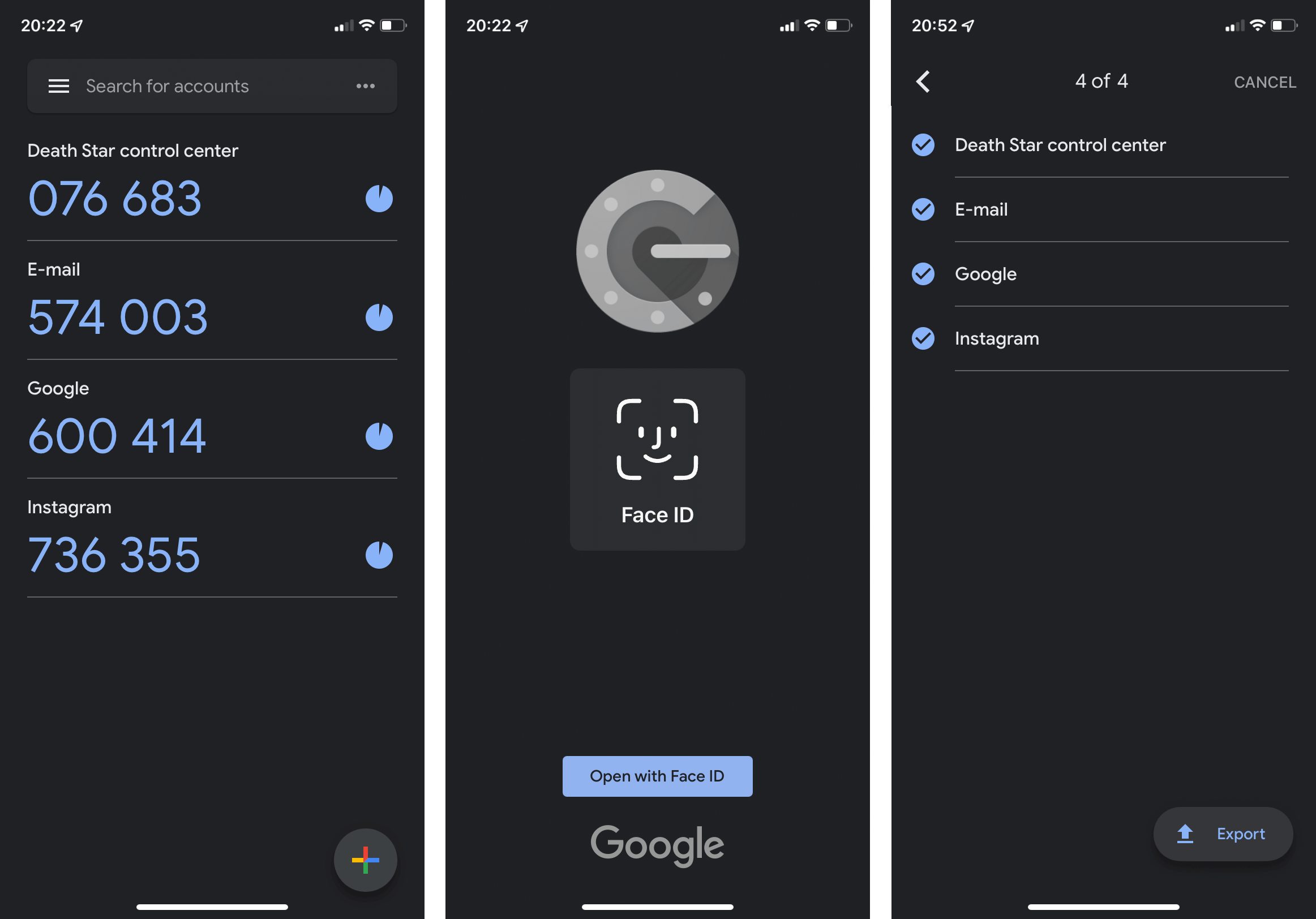
To configure Google Authenticator, follow these steps:
- Open the Google Authenticator app on your device.
- Tap the “+” icon at the top right corner of the screen.
- Select the account you want to add (e.G., Gmail).
- Enter the verification code sent to your phone or email address.
How Google Authenticator Works
Here’s how Google Authenticator works:
- When you log in to your account, you’ll be prompted to enter a 2FA code.
- The app generates a unique code based on the current time and your device’s location.
- You enter this code into the login page to complete the verification process.
Backing Up Google Authenticator Data
If you lose or replace your device, you can easily back up your Google Authenticator data:
- Open the Google Authenticator app on your new device.
- Tap the “Settings” icon (three horizontal lines).
- Select “Backup accounts.”
- Scan the QR code displayed on your old device.
Where to Use Google Authenticator
Google Authenticator can be used with various services, including:
- Google Account: Use it to add an extra layer of security to your Google account.
- Other Google Services: Configure Google Authenticator for other Google services like Gmail, Google Drive, and more.
Additional Tips And Faqs
Here are some additional tips and frequently asked questions:
**Q: How do I recover my Google Authenticator data if I lose my device?*
A: You can back up your data by scanning the QR code on your old device with the new one. If you still have issues, contact Google support for assistance.
**Q: Can I use Google Authenticator with other services besides Google?*
A: Yes, you can configure Google Authenticator with various services like Amazon, Facebook, and more.
Conclusion
Google Authenticator is a simple yet effective way to add an extra layer of security to your Google account. By following this comprehensive guide, you’ll be able to download, install, and configure the app on your device. Remember to back up your data and explore other services that support Google Authenticator.
Frequently Asked Questions (FAQs)
Here are some additional FAQs:
- Q: What is The Difference Between Google Authenticator And Other 2FA Apps?
A: Google Authenticator uses time-based one-time passwords, which are more secure than traditional password methods.
- Q: Can I Use Google Authenticator With Multiple Accounts?
A: Yes, you can add multiple accounts to Google Authenticator, making it easy to manage your online security.
- Q: How do I Reset my Google Authenticator Code if I Forget It?
A: If you forget your code, simply navigate to the “Settings” icon (three horizontal lines) and select “Reset account.”
- Q: Can I Use Google Authenticator on Multiple Devices at Once?
A: Yes, you can use Google Authenticator on multiple devices simultaneously.
- Q: Is Google Authenticator Compatible With All Android Devices?
A: Yes, Google Authenticator is compatible with most Android devices running version 4.3 Or higher.
- Q: Can I Transfer my Google Authenticator Data From One Device to Another?
A: Yes, you can back up your data by scanning the QR code on your old device with the new one.
- Q: How do I Cancel my Google Authenticator Account?
A: To cancel your Google Authenticator account, simply delete the app from your device and follow the on-screen instructions to confirm cancellation.


