
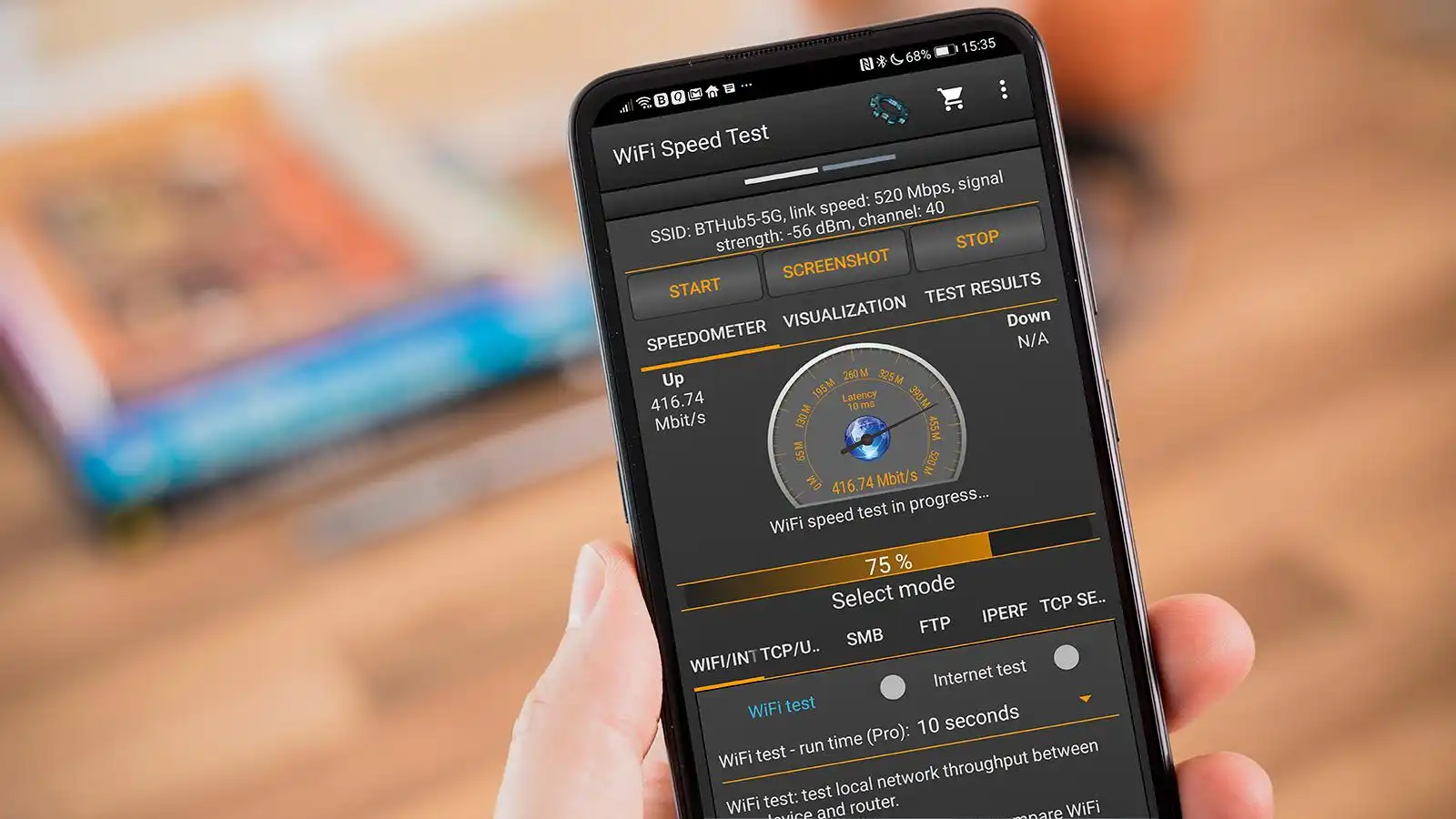
Testing Your Wifi Speed: A Step-by-step Guide
Are you tired of experiencing slow internet speeds? Do you want to know if your WiFi connection is running at its best? Testing your WiFi speed is a simple process that can help you identify any issues and improve your online experience. In this article, we will guide you through the steps to test your WiFi speed using various tools and provide tips on how to optimize your connection.
Why Test Your Wifi Speed?
Testing your WiFi speed is essential for several reasons:
- Identify Slow Speeds: If your internet speed is slow, testing it can help you identify the issue. This will enable you to take corrective action, such as upgrading your plan or replacing your router.
- Improve Online Experience: By testing your WiFi speed regularly, you can ensure that your online experience remains smooth and seamless.
- Optimize Connection: Testing your WiFi speed allows you to optimize your connection by adjusting settings on your router or changing the location of your device.
Preliminary Operations
Before starting to test your WiFi speed, there are some preliminary operations you need to complete:
- Close All Programs: Close all running programs on your computer except for the browser you will use to test your WiFi speed.
- Check Internet Usage: Ensure that no devices are using heavy bandwidth activities like downloading, uploading, or streaming.
Testing Your Wifi Speed
Now that you have completed the preliminary operations, let’s move on to testing your WiFi speed:
Using Ookla Speedtest
One of the most popular tools for testing WiFi speed is Ookla Speedtest. Here’s how to use it:
- Open your browser and go to www.Speedtest.Net.
- Click on the “Go” button in the center of the screen.
- Wait for the test to complete, which should take around 30 seconds.
- Once the test is finished, you will see your download and upload speeds displayed on the screen.
Using Google’s Speed Test Tool
Another way to test your WiFi speed is by using Google’s built-in speed test tool:
- Open your browser and go to www.Google.Com.
- Type “internet speed test” in the search bar.
- Click on the “Search with Google” button.
- A new page will open, click on the “Run Speed Test” button.
- Wait for the test to complete, which should take around 30 seconds.
- Once the test is finished, you will see your download and upload speeds displayed on the screen.
Testing Your Wifi Speed With Tim
If you are a TIM customer, you can use their official speed test tool:
- Open your browser and go to www.Tim.It.
- Click on the “Speed Test” button.
- Enter your fiscal code and phone number in the required fields.
- Wait for the test to complete, which should take around 30 seconds.
- Once the test is finished, you will see your download and upload speeds displayed on the screen.
Testing Your Wifi Speed With Vodafone
If you are a Vodafone customer, you can use their official speed test tool:
- Open your browser and go to www.Vodafone.It.
- Click on the “Speed Test” button.
- Wait for the test to complete, which should take around 30 seconds.
- Once the test is finished, you will see your download and upload speeds displayed on the screen.
Testing Your Wifi Speed With Fastweb
If you are a Fastweb customer, you can use their official speed test tool:
- Open your browser and go to www.Fastweb.It.
- Click on the “Speed Test” button.
- Wait for the test to complete, which should take around 30 seconds.
- Once the test is finished, you will see your download and upload speeds displayed on the screen.
Testing Your Wifi Speed With Wind
If you are a Wind customer, you can use their official speed test tool:
- Open your browser and go to www.Wind.It.
- Click on the “Speed Test” button.
- Wait for the test to complete, which should take around 30 seconds.
- Once the test is finished, you will see your download and upload speeds displayed on the screen.
Optimizing Your Wifi Connection
Now that you have tested your WiFi speed, it’s time to optimize your connection:
- Change Router Location: Try moving your router to a different location in your home to improve coverage.
- Update Router Firmware: Regularly update your router’s firmware to ensure you have the latest features and security patches.
- Use Quality of Service (QoS): Enable QoS on your router to prioritize traffic for critical applications like online gaming or video conferencing.
By following these steps, you can test your WiFi speed and take necessary actions to optimize your connection. Happy testing!


