
How to Change Your Signature on Outlook: A Step-by-step Guide
Are you tired of using the same old signature on your Outlook emails? Do you want to customize it with a personal touch? Look no further! In this article, we’ll show you how to change your signature on Outlook, whether you’re using the desktop version or the mobile app.
Why Change Your Signature?
Before we dive into the instructions, let’s talk about why changing your signature is a good idea. A custom signature can help you stand out and make a great impression on your recipients. It’s also a great way to add some personality to your emails and make them more engaging.
Changing Your Signature on Outlook Desktop
If you’re using the desktop version of Outlook, here’s how to change your signature:
- Launch Outlook: Open Outlook and click on the “File” menu.
- Click on “Options”: Select “Options” from the drop-down menu.
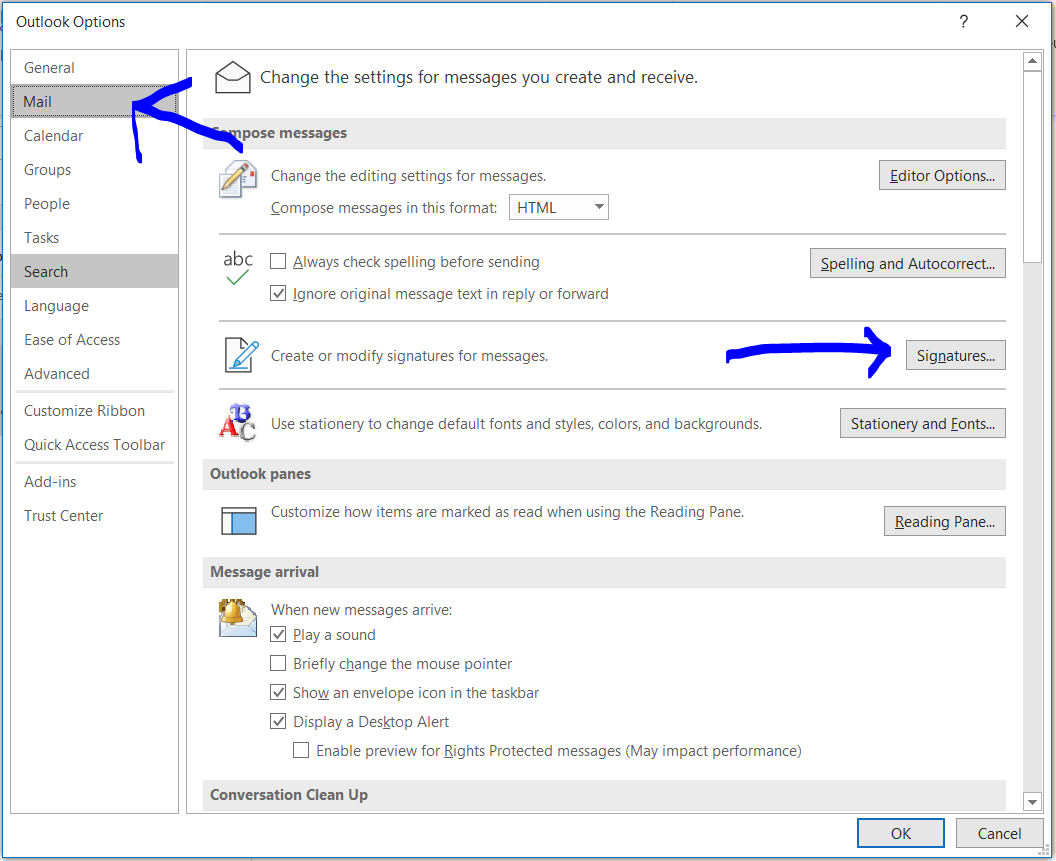
- Select “Mail”: In the Options window, select “Mail” from the left-hand menu.
- Click on “Signatures”: Click on the “Signatures” button at the bottom of the window.
- Create or Modify a Signature: Select an existing signature to modify it, or click on the “New” button to create a new one.
- Add Text And Images: Type in your custom signature text and add any images you like.
- Save Changes: Click on the “OK” button to save your changes.
Changing Your Signature on Outlook Mobile
If you’re using the mobile app version of Outlook, here’s how to change your signature:
- Launch The App: Open the Outlook app on your device.
- Tap on The Menu: Tap on the three horizontal lines in the top-left corner of the screen to access the menu.
- Select “Settings”: Select “Settings” from the menu.
- Scroll Down to “Signatures”: Scroll down to the “Signatures” section.
- Create or Modify a Signature: Select an existing signature to modify it, or tap on the “+” button to create a new one.
- Add Text And Images: Type in your custom signature text and add any images you like.
- Save Changes: Tap on the “Save” button to save your changes.
Changing Your Signature on Outlook Web
If you’re using the web version of Outlook, here’s how to change your signature:
- Log in to Outlook: Log in to your Outlook account on the web.
- Click on The Gear Icon: Click on the gear icon in the top-right corner of the screen.
- Select “Settings”: Select “Settings” from the drop-down menu.
- Scroll Down to “Signatures”: Scroll down to the “Signatures” section.
- Create or Modify a Signature: Select an existing signature to modify it, or click on the “+” button to create a new one.
- Add Text And Images: Type in your custom signature text and add any images you like.
- Save Changes: Click on the “Save” button to save your changes.
Frequently Asked Questions
Here are some frequently asked questions about changing your signature on Outlook:
- Q: How do I Change my Signature on Multiple Devices?
A: To change your signature on multiple devices, you’ll need to repeat the process for each device. - Q: Can I Use Html Code in my Signature?
A: Yes, you can use HTML code in your signature. However, be aware that some email clients may not support it. - Q: How do I Add an Image to my Signature?
A: To add an image to your signature, simply upload the image to a hosting service and then insert the link into your signature. - Q: Can I Use a Different Font in my Signature?
A: Yes, you can use a different font in your signature. However, be aware that some email clients may not support it.
Conclusion
Changing your signature on Outlook is a simple process that can help you stand out and make a great impression on your recipients. Whether you’re using the desktop version or the mobile app, the steps are similar. Just remember to save your changes after making any edits!


