
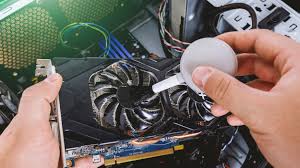
The Ultimate Guide to Cleaning Your PC
Are you tired of dealing with a slow and cluttered computer? Do you want to breathe new life into your device without breaking the bank or requiring advanced technical knowledge? Look no further! In this comprehensive guide, we’ll show you how to clean your PC like a pro, from deleting temporary files to optimizing your system for maximum performance.
The Importance of Regular Maintenance
Before we dive into the nitty-gritty of cleaning your PC, let’s talk about why regular maintenance is essential. Just like your car or home, your computer needs regular upkeep to keep it running smoothly. By performing routine tasks such as deleting temporary files, updating your operating system, and installing security software, you can prevent common problems like slow performance, crashes, and even malware infections.
Cleaning Your Pc: A Step-by-step Guide
Now that we’ve established the importance of regular maintenance, let’s get started with the cleaning process!
Pulizia Del Disco (Disk Cleaning)
The first step in cleaning your PC is to remove temporary files and free up space on your hard drive. This can be done using the built-in Disk Cleanup tool.
How to Use Disk Cleanup:
- Search for “Disk Cleanup” in the Start menu.
- Click on the result to open the Disk Cleanup window.
- Select the drive you want to clean (usually the C: Drive).
- Check the boxes next to the files you want to delete.
- Click OK to confirm.
Pulizia Del Sistema (System Cleaning)
In addition to disk cleaning, it’s also essential to remove temporary system files and other clutter that can slow down your PC.
How to Use System File Checker:
- Search for “System File Checker” in the Start menu.
- Click on the result to open the Command Prompt.
- Type
sfc /scannowand press Enter. - Wait for the scan to complete, which may take several minutes.
- If any corrupted files are found, follow the prompts to repair or replace them.
Pulizia Dei Programmi (Program Cleaning)
Over time, your PC can accumulate a lot of unwanted programs, which can consume system resources and slow down performance.
How to Use Program Removal:
- Search for “Add or Remove Programs” in the Start menu.
- Click on the result to open the Control Panel.
- Look for any programs you no longer need or use.
- Uninstall them by clicking on the “Uninstall” button.
- Repeat this process until all unwanted programs are removed.
Pulizia da Virus (Virus Cleaning)
Malware can be a major problem if left unchecked, so it’s essential to install and regularly update your antivirus software.
How to Use Windows Defender:
- Search for “Windows Defender” in the Start menu.
- Click on the result to open the app.
- Enable Real-time protection by toggling the switch to On.
- Schedule regular scans by clicking on the “Scan Options” button.
Pulizia da Malware (Malware Cleaning)
In addition to antivirus software, you can use specialized tools like BleachBit to remove malware and other unwanted files from your PC.
How to Use Bleachbit:
- Download and install BleachBit from the official website.
- Run the app and select the drive you want to clean (usually the C: Drive).
- Choose the options you want to use, such as cleaning temporary files or removing system junk.
- Click “OK” to confirm.
Pulizia da Cookies e Dati Personali (Cookie And Data Cleaning)
Cookies and personal data can accumulate on your PC over time, which can slow down performance and compromise your online security.
How to Use Cookie And Data Removal Tools:
- Search for “cookie removal” or “data removal” in the Start menu.
- Click on the result to open the app.
- Select the options you want to use, such as deleting cookies or removing personal data.
- Follow the prompts to complete the cleaning process.
The Benefits of Cleaning Your PC
By following these steps and regularly maintaining your PC, you can enjoy a faster, more secure, and overall better computing experience.
- Improved Performance: Regular maintenance can significantly improve your PC’s performance by removing clutter and optimizing system resources.
- Enhanced Security: Keeping your PC up-to-date with the latest security patches and software can protect against malware and other online threats.
- Increased Storage Space: Cleaning temporary files, deleting unwanted programs, and removing personal data can free up valuable storage space on your hard drive.
Conclusion
Cleaning your PC is a simple yet essential task that can significantly improve performance, enhance security, and increase storage space. By following the step-by-step guide outlined in this article, you can keep your device running smoothly and efficiently for years to come.
Faqs
- Q: How Often Should I Clean my Pc?
A: Regular maintenance is essential to prevent common problems like slow performance, crashes, and malware infections. Clean your PC every 3-6 months. - Q: What’s The Best Way to Remove Malware From my Pc?
A: Use a combination of antivirus software (like Windows Defender) and specialized tools (like BleachBit) to remove malware and other unwanted files. - Q: How Can I Optimize my System For Maximum Performance?
A: Regularly update your operating system, install security software, and clean temporary files and system junk using tools like Disk Cleanup and System File Checker. - Q: Can I Use These Methods on my Mac?
A: While some of the methods outlined in this article may work on a Mac, it’s essential to use native instruments and specialized tools (like CleanMyMac X) designed specifically for macOS.
Hope you find this helpful!


