
Displaying File Extensions: A Guide For Windows, Macos, Android, And Ios
Are you tired of searching for the file extension in Properties or wondering how to display it on your device? This guide will walk you through the steps to show file extensions on Windows, macOS, Android, and iOS devices.
Why Display File Extensions?
Displaying file extensions can be helpful in avoiding confusion between similar file types. For instance, having both .DOC and .DOCX files with the same name can lead to errors. By displaying file extensions, you can easily identify the type of file without having to open it.
Windows 11: Displaying File Extensions
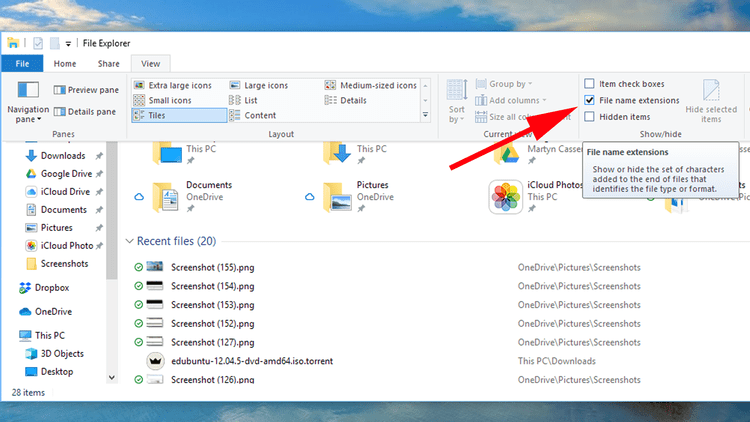
To display file extensions on Windows 11:
- Open File Explorer by clicking on the Start button and selecting File Explorer.
- Click on the three dots at the top right corner and select “View” > “Show” > “File name extensions”.
- A pop-up window will appear, asking you to confirm your choice. Select “Yes”.
Windows 10: Displaying File Extensions
To display file extensions on Windows 10:
- Open File Explorer by clicking on the Start button and selecting File Explorer.
- Click on the three dots at the top right corner and select “View” > “Options” > “Change folder and search options”.
- In the Folder Options window, click on the “View” tab.
- Under the “Hidden files and folders” section, select “Show hidden files, folders, and drives”.
- Uncheck the box beside “Hide extensions for known file types”.
Windows 7: Displaying File Extensions
To display file extensions on Windows 7:
- Open My Computer by clicking on the Start button.
- Click on the Organize tab and select “Folder and Search Options”.
- In the Folder Options window, click on the View tab.
- Under the Hidden files and folders section, select “Show hidden files, folders, and drives”.
- Uncheck the box beside “Hide extensions for known file types”.
Displaying File Extensions on Macos
To display file extensions on a Mac:
- Go to Finder > Preferences.
- Click on the Advanced tab.
- Select the checkbox beside “Show all filename extensions”.
Displaying File Extensions on Android
On an Android device, you can use a third-party app to view file extensions. Some popular options include ES File Explorer and Solid Explorer.
Displaying File Extensions on Ios
To display file extensions on an iPhone or iPad:
- Open the Files app.
- Tap on the three dots at the top right corner.
- Select “Show file extensions” from the menu.
- A toggle switch will appear, allowing you to enable or disable file extension display.
Conclusion
Displaying file extensions can be a useful feature for avoiding confusion between similar file types. This guide has walked you through the steps to show file extensions on Windows, macOS, Android, and iOS devices.
Frequently Asked Questions (FAQs)
- Q: Why Are my File Extensions Hidden?
A: File extensions may be hidden by default to avoid cluttering your file list. - Q: How do I Display File Extensions in File Explorer?
A: Go to View > Show > File name extensions or use the keyboard shortcut Ctrl + J. - Q: Can I Customize How File Extensions Are Displayed on my Device?
A: Yes, you can adjust the settings for displaying file extensions on your Windows, macOS, Android, and iOS devices. - Q: How do I View a Specific File’s Extension Without Changing The Default Setting?
A: Right-click on the file icon and select Properties > General tab to see its type and extension. - Q: Are There Any Security Risks Associated With Displaying File Extensions?
A: No, displaying file extensions does not pose any significant security risk. However, it’s essential to be cautious when downloading files from unknown sources. - Q: Can I Use a Third-party App to View File Extensions on my Android Device?
A: Yes, several third-party apps like ES File Explorer and Solid Explorer can display file extensions on Android devices. - Q: How do I Reset The Default Setting For Displaying File Extensions?
A: To revert to the original behavior, follow the same steps used to enable file extension display and uncheck the box beside “Show all filename extensions” or similar settings. - Q: Is it Possible to Display File Extensions on Older Versions of Windows, Macos, Android, And Ios Devices?
A: Yes, you can still display file extensions on older devices by following the steps outlined in this guide.


