
How to Pay With a Wallet on Your Smartphone: A Comprehensive Guide
In today’s digital age, paying with a wallet on your smartphone has become increasingly popular. With the rise of contactless payments, it’s now easier than ever to make transactions without the need for physical cards or cash. In this article, we’ll explore the various ways you can pay with a wallet on your smartphone, including Google Pay, Samsung Wallet, and Apple Pay.
What is a Digital Wallet?
A digital wallet is a mobile app that allows you to store your credit or debit card information, making it possible to make transactions online or in-store using your phone. Digital wallets are designed to provide a secure and convenient way to pay for goods and services, eliminating the need for physical cards or cash.
Google Pay: A Comprehensive Guide
Google Pay is a popular digital wallet that allows you to store your credit or debit card information and make transactions online or in-store. Here’s how to set up Google Pay on your Android device:
Step 1: Install The Google Wallet App
Download and install the Google Wallet app from the Google Play Store.
Step 2: Add a Card to Google Pay
Open the Google Wallet app, tap the “+” icon, and select “Add card.” Choose your credit or debit card type, and enter the required information.
Step 3: Set Up Authentication
Set up authentication using your fingerprint, face recognition, or PIN code.
Step 4: Make a Payment
To make a payment, open the Google Wallet app, select the card you want to use, and follow the prompts to complete the transaction.
Samsung Wallet: A Comprehensive Guide
Samsung Wallet is another popular digital wallet that allows you to store your credit or debit card information and make transactions online or in-store. Here’s how to set up Samsung Wallet on your Android device:
Step 1: Install The Samsung Wallet App
Download and install the Samsung Wallet app from the Google Play Store.
Step 2: Add a Card to Samsung Wallet
Open the Samsung Wallet app, tap the “+” icon, and select “Add card.” Choose your credit or debit card type, and enter the required information.
Step 3: Set Up Authentication
Set up authentication using your fingerprint, face recognition, or PIN code.
Step 4: Make a Payment
To make a payment, open the Samsung Wallet app, select the card you want to use, and follow the prompts to complete the transaction.
Apple Pay: A Comprehensive Guide
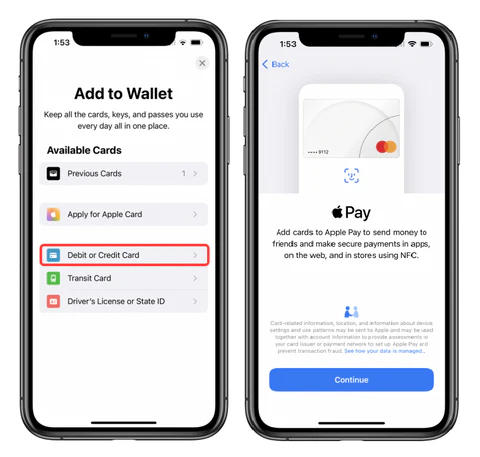
Apple Pay is a popular digital wallet that allows you to store your credit or debit card information and make transactions online or in-store. Here’s how to set up Apple Pay on your iOS device:
Step 1: Install The Wallet App
Download and install the Wallet app from the App Store.
Step 2: Add a Card to Apple Pay
Open the Wallet app, tap the “+” icon, and select “Add card.” Choose your credit or debit card type, and enter the required information.
Step 3: Set Up Authentication
Set up authentication using Face ID, Touch ID, or Passcode.
Step 4: Make a Payment
To make a payment, open the Wallet app, select the card you want to use, and follow the prompts to complete the transaction.
Booking.Com: A Comprehensive Guide
Booking.Com is an online travel agency that allows you to book hotels, flights, and car rentals. Here’s how to pay with a wallet on Booking.Com:
Step 1: Choose Your Payment Method
Select your preferred payment method from the options available.
Step 2: Add a Card to Your Wallet
If using Google Pay or Apple Pay, add your credit or debit card information to your digital wallet.
Step 3: Make a Payment
To make a payment, select the card you want to use and follow the prompts to complete the transaction.
Frequently Asked Questions (FAQs)
- Q: What is a digital wallet?
A: A digital wallet is a mobile app that allows you to store your credit or debit card information, making it possible to make transactions online or in-store using your phone. - Q: Which digital wallets are available on Android devices?
A: Google Pay and Samsung Wallet are available on Android devices. - Q: Which digital wallets are available on iOS devices?
A: Apple Pay is available on iOS devices. - Q: How do I set up a digital wallet on my phone?
A: Download and install the digital wallet app, add your credit or debit card information, and set up authentication using fingerprint, face recognition, or PIN code. - Q: Can I use multiple digital wallets on my phone?
A: Yes, you can use multiple digital wallets on your phone. - Q: Is it safe to use a digital wallet?
A: Digital wallets are designed to provide a secure and convenient way to pay for goods and services. - Q: What is Booking.Com’s policy on payment methods?
A: Booking.Com accepts various payment methods, including Google Pay and Apple Pay.
Conclusion
Paying with a wallet on your smartphone has become increasingly popular in recent years. With the rise of contactless payments, it’s now easier than ever to make transactions without the need for physical cards or cash. In this article, we’ve explored the various ways you can pay with a wallet on your smartphone, including Google Pay, Samsung Wallet, and Apple Pay. By understanding how these digital wallets work and setting them up correctly, you can enjoy a secure and convenient payment experience.
Conclusion Paragraph
Paying with a wallet on your smartphone is a convenient and secure way to make transactions online or in-store. With the rise of contactless payments, it’s now easier than ever to pay without the need for physical cards or cash. By understanding how digital wallets work and setting them up correctly, you can enjoy a seamless payment experience. Whether you’re using Google Pay, Samsung Wallet, or Apple Pay, these digital wallets offer a secure and convenient way to make transactions. So why not give it a try? Download and install the digital wallet app on your phone today!


