
How to Do Video With Memoji on Iphone: A Step-by-step Guide
Are you curious about creating fun and engaging videos using Memoji on your iPhone? Look no further! In this article, we will guide you through the process of making a video with Memoji on your iPhone, as well as exploring alternative apps that can help you achieve similar outcomes.
What Are Memoji?
Before diving into the step-by-step guide, let’s briefly discuss what Memoji are. Memoji are emoji-like characters based on the user’s face scan, which can be used to create funny and engaging videos. They can be customized in various ways, such as choosing the color of their hair, skin tone, and accessories.
Why Use Memoji?
Using Memoji offers several benefits, including:
- Fun And Engaging Content: Memoji can add a touch of humor and personality to your videos.
- Easy to Use: The process of creating a video with Memoji is straightforward and easy to follow.
- Customization Options: You can personalize your Memoji in various ways to suit your style.
How to Do Video With Memoji on Iphone
Now that we’ve discussed the benefits of using Memoji, let’s move on to the step-by-step guide on how to create a video with Memoji on your iPhone:
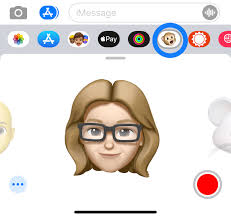
- Access The Messages App: Open the Messages app on your iPhone and tap on the “New Conversation” button.
- Select The Memoji Icon: Tap on the Memoji icon at the bottom of the screen to access the Memoji feature.
- Choose Your Memoji: Select the Memoji you want to use from the list or create a new one by tapping on the “+” icon.
- Record Your Video: Hold your iPhone up to your face and tap on the red record button to start recording your video with Memoji.
- Save or Share Your Video: Once you’ve finished recording, you can save the video in your Photos app or share it directly from the Messages app.
Alternative Apps For Creating Video With Memoji
If you don’t have an iPhone or want to explore other options, there are several alternative apps available that can help you create similar outcomes:
- Zepeto (Android/iOS/iPadOS): This app allows you to create your own avatar and superimpose it onto your face for a fun video experience.
- Facemoji (iOS/iPadOS): Similar to Zepeto, Facemoji enables you to create an avatar and record a video with it.
Step-by-step Guide For Using Zepeto
Here’s a step-by-step guide on how to use Zepeto:
- Download And Install The App: Download and install the Zepeto app from the App Store or Google Play Store.
- Create Your Avatar: Choose your avatar character, take a photo of yourself, or select an existing one from the gallery.
- Personalize Your Avatar: Use the editor to customize your avatar’s appearance, such as eyes, nose, mouth, and hair color.
- Record Your Video: Tap on the record button to start recording your video with Zepeto’s avatar.
- Save or Share Your Video: Save the video in your gallery or share it directly from the app.
Step-by-step Guide For Using Facemoji
Here’s a step-by-step guide on how to use Facemoji:
- Download And Install The App: Download and install the Facemoji app from the App Store.
- Create Your Avatar: Choose your avatar character, take a photo of yourself, or select an existing one from the gallery.
- Personalize Your Avatar: Use the editor to customize your avatar’s appearance, such as eyes, nose, mouth, and hair color.
- Record Your Video: Tap on the record button to start recording your video with Facemoji’s avatar.
- Save or Share Your Video: Save the video in your gallery or share it directly from the app.
Conclusion
Creating a video with Memoji on iPhone is a fun and engaging way to express yourself creatively. With these step-by-step guides, you can easily create a video with Memoji on your iPhone or explore alternative apps like Zepeto and Facemoji.
Frequently Asked Questions (FAQs)
Here are some frequently asked questions about creating video with Memoji:
- Q: What is The Difference Between Memoji And Animoji?
A: Memoji represent human faces, while Animoji are animal characters. - Q: Can I Use Memoji on Devices Other Than Iphone?
A: No, Memoji is exclusive to iPhone and iPad Pro models. - Q: Are There Any Alternative Apps That Can Help me Create a Video With Memoji?
A: Yes, Zepeto and Facemoji are two popular apps that offer similar features. - Q: Can I Save my Video From The Messages App?
A: Yes, you can save your video to the Photos app or share it directly from the Messages app. - Q: Can I Use Memoji on Android Devices?
A: No, Memoji is exclusive to iPhone and iPad Pro models, but you can use alternative apps like Zepeto on Android devices.
References
- [1] Apple Support. (2022). Create a video with Memoji.
- [2] Zepeto. (N.D.). Create your own avatar.
- [3] Facemoji. (N.D.). Create an avatar and record a video.


