
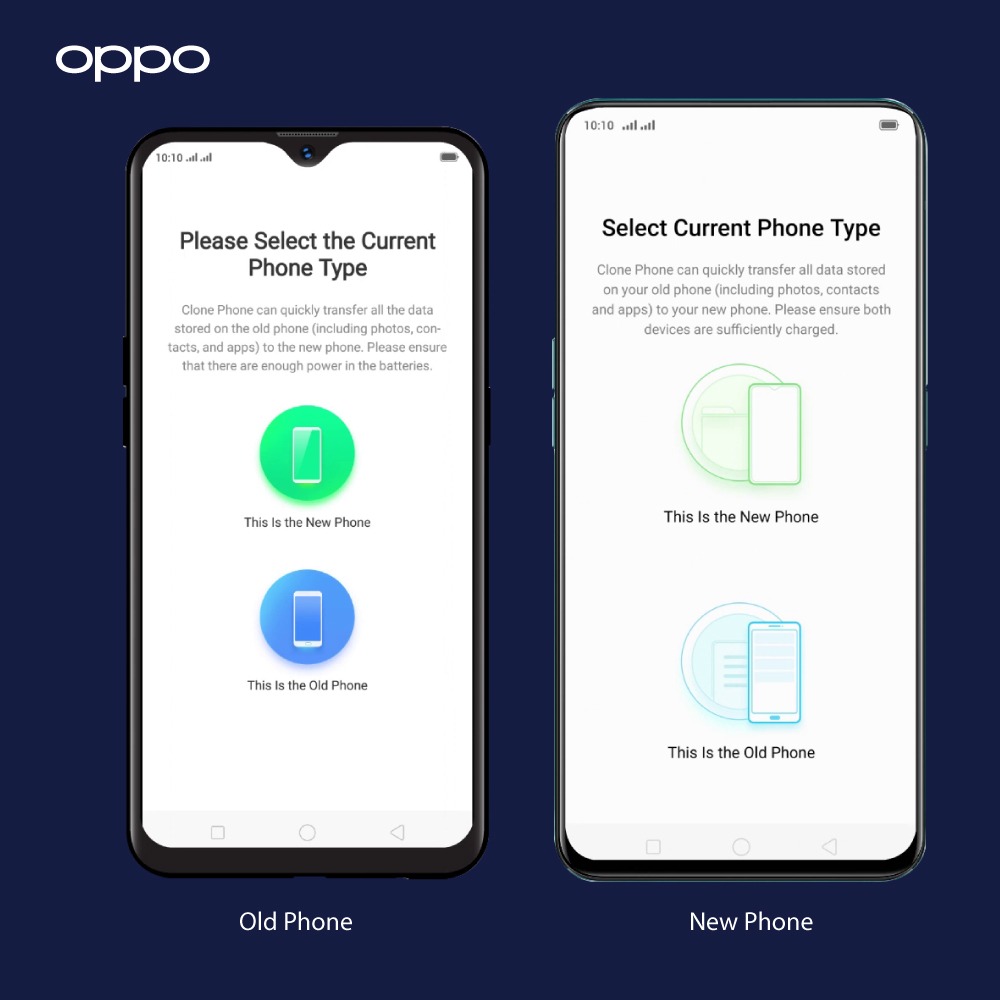
Transferring Data From Huawei to Xiaomi: A Step-by-step Guide
Are you planning to upgrade your smartphone from Huawei to Xiaomi, but don’t know how to transfer all your data, contacts, photos, and apps? Look no further! In this comprehensive guide, we’ll walk you through the process of transferring data from Huawei to Xiaomi using various methods.
Why Transfer Data?
Transferring your data from one phone to another is essential for preserving memories, contacts, and applications. Losing all your data can be frustrating and time-consuming. With the right tools and techniques, you can transfer everything seamlessly.
Methods For Transferring Data
There are several ways to transfer data from Huawei to Xiaomi:
- Mi Mover: This app allows you to transfer messages, contacts, call logs, images, videos, audio, and third-party apps directly between Android devices.
- Google Drive Sync: If your Huawei phone is connected to Google services, you can use Google Drive sync to transfer data, including contacts, emails, photos, and navigation history.
- Snapdrop: This service allows you to share files between devices connected to the same Wi-Fi network without installing any apps.
- Send Anywhere: This app enables you to send files between devices using a 6-digit code or QR code.
- Telegram: You can use Telegram to transfer files, images, and videos between devices by sharing messages.
- Bluetooth: Transfer data wirelessly using Bluetooth technology.
- Cloud Storage Services: Use services like Google Drive, Dropbox, or OneDrive to store and access your files from any device.
Step-by-step Guide: Transferring Data With Mi Mover
- Download the Mi Mover app on both devices.
- Open Mi Mover on both phones and follow the prompts to enable data transfer.
- Select the type of data you want to transfer (e.G., Messages, contacts, images).
- Confirm that both devices are connected to the same Wi-Fi network.
- Wait for the transfer process to complete.
Using Google Drive Sync
- Ensure your Huawei phone is connected to Google services.
- Check that Google Drive sync is enabled on your Huawei device.
- Transfer data using Google Drive sync, which includes contacts, emails, photos, and navigation history.
- Access your transferred data on your new Xiaomi device.
Alternative Methods For Transferring Data
- Snapdrop: Share files between devices connected to the same Wi-Fi network without installing any apps.
- Send Anywhere: Transfer files using a 6-digit code or QR code.
- Telegram: Use Telegram to transfer files, images, and videos by sharing messages.
- Bluetooth: Transfer data wirelessly using Bluetooth technology.
- Cloud Storage Services: Store and access your files from any device using services like Google Drive, Dropbox, or OneDrive.
Tips For a Smooth Data Transfer Process
- Ensure both devices are connected to the same Wi-Fi network.
- Use a stable internet connection for cloud-based transfers.
- Be patient during the transfer process, as it may take some time depending on the amount of data.
- Make sure you have enough storage space on your new device.
Conclusion
Transferring data from Huawei to Xiaomi is easier than ever with various methods and tools available. Follow our step-by-step guide to ensure a seamless transfer process. Remember to backup your data regularly using cloud storage services or local backups for added security.
Frequently Asked Questions (FAQs)
- Q: How do I Transfer my Whatsapp Data From Huawei to Xiaomi?
A: Use the WhatsApp backup feature on both devices. - Q: Can I Use Mi Mover on Other Android Devices Besides Huawei And Xiaomi?
A: Yes, Mi Mover can be used between any two Android devices. - Q: What is The Fastest Method For Transferring Data From Huawei to Xiaomi?
A: Using Google Drive sync or Mi Mover is generally faster than other methods. - Q: Can I Transfer my Data Using a Computer Instead of Mobile Phones?
A: Yes, use software like Wondershare MobileTrans to transfer data between devices. - Q: How do I Access my Transferred Data on my New Xiaomi Device?
A: Access your transferred data from the corresponding apps or cloud storage services. - Q: Can I Transfer Data From a Huawei Phone Without a Google Account?
A: Use alternative methods like Mi Mover, Snapdrop, or Send Anywhere to transfer data without relying on Google services. - Q: Is it Possible to Transfer Data Wirelessly Using Bluetooth Technology?
A: Yes, you can use Bluetooth to transfer data between devices.
Bonus Tips
- Regularly backup your data using cloud storage services or local backups for added security.
- Update both devices with the latest software and firmware.
- Ensure both devices are connected to the same Wi-Fi network during transfers.
- Use a stable internet connection for cloud-based transfers.


