
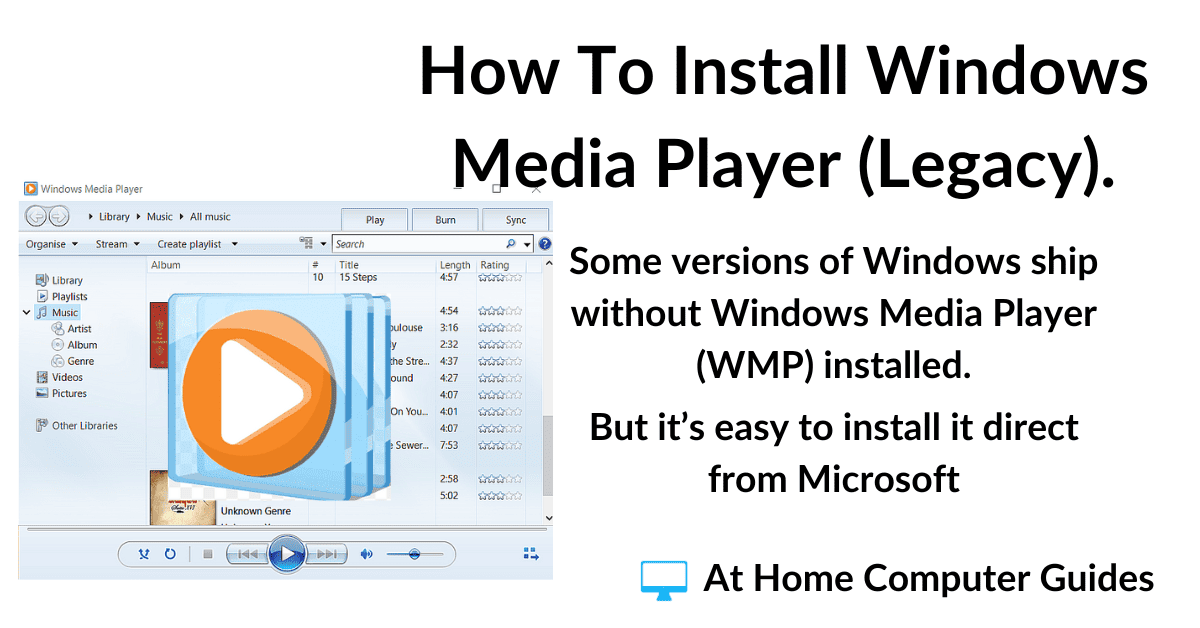
How to Download Windows Media Player: A Step-by-step Guide
Are you a fan of the classic Windows Media Player, but can’t find it on your computer? Well, you’re not alone! Many users have been wondering how to download Windows Media Player again, especially with the rise of newer media players. In this article, we’ll show you how to do just that.
Windows 11
If you’re using Windows 11, congratulations! You’re running the latest and greatest operating system from Microsoft. But, if you’re looking for Windows Media Player, you might be disappointed. By default, it’s not installed on Windows 11. However, don’t worry; we’ve got you covered.
How to Download Windows Media Player on Windows 11
To download Windows Media Player on Windows 11, follow these simple steps:
- Open the Settings app by clicking on the Start button and selecting “Settings.”
- Click on “Apps” from the left menu.
- Scroll down and click on “Add a feature.”
- Type “Windows Media Player Legacy” in the search bar.
- Select the result, then click on “Install.”
That’s it! You should now have Windows Media Player installed on your computer.
Windows 10
If you’re using Windows 10, you might find that Windows Media Player is already installed on your computer. However, if it’s not, don’t worry; we’ve got a solution for you too.
How to Download Windows Media Player on Windows 10
To download Windows Media Player on Windows 10, follow these steps:
- Open the Control Panel by searching for “Control Panel” in the Start menu.
- Click on “Programs and Features.”
- Look for “Windows Media Player Legacy” and click on it.
- If you don’t see it, click on “Add or Remove Programs” and search for Windows Media Player.
Alternatively, if Windows Media Player is not listed, follow these additional steps:
- Open the Settings app by clicking on the Start button and selecting “Settings.”
- Click on “Apps” from the left menu.
- Scroll down and click on “Add a feature.”
- Type “Windows Media Player Legacy” in the search bar.
- Select the result, then click on “Install.”
Windows 10 N
If you’re using Windows 10 N, things might be a bit different. The N version of Windows 10 doesn’t come with certain features like Windows Media Player.
How to Download Windows Media Player on Windows 10 N
To download Windows Media Player on Windows 10 N, follow these steps:
- Open the official Microsoft website and navigate to the Media Feature Pack page.
- Click on “Download” and select the correct version for your computer (x86 or x64).
- Run the downloaded file and click on “Yes” to continue with the installation.
Windows 8.1
If you’re using Windows 8.1, Don’t worry; we’ve got a solution for you too!
How to Download Windows Media Player on Windows 8.1
To download Windows Media Player on Windows 8.1, Follow these steps:
- Open the official Microsoft website and navigate to the Media Feature Pack page.
- Click on “Download” and select the correct version for your computer (x86 or x64).
- Run the downloaded file and click on “Yes” to continue with the installation.
Alternative to Windows Media Player
If you’ve decided not to use Windows Media Player, don’t worry! There are plenty of other media players available that can help you play audio and video files on your computer.
Some popular alternatives include:
- VLC Media Player
- KMPlayer
- PotPlayer
These players offer a wide range of features, including support for various file formats, customizable interfaces, and more.
Conclusion
Downloading Windows Media Player is a straightforward process, even if it’s not installed on your computer by default. Whether you’re using Windows 11, Windows 10, or Windows 8.1, We’ve got the steps to guide you through the installation process. If you have any questions or need further assistance, feel free to ask!
Frequently Asked Questions
Q: How do I download Windows Media Player on Windows 11?
A: To download Windows Media Player on Windows 11, follow the steps outlined in this article.
Q: Is Windows Media Player still supported by Microsoft?
A: Yes, Windows Media Player is still supported by Microsoft, although it’s not the default media player on Windows 11.
Q: Can I use other media players instead of Windows Media Player?
A: Absolutely! There are many other media players available that can help you play audio and video files on your computer.
Q: How do I know which version of Windows Media Player to download?
A: The version you need depends on the operating system you’re using. Make sure to select the correct version for your computer (x86 or x64).
Q: Can I install multiple media players on my computer?
A: Yes, you can install multiple media players on your computer. This can be useful if you want to try out different features and see which one works best for you.
Q: How do I update Windows Media Player?
A: To update Windows Media Player, follow the steps outlined in this article or check for updates through the Microsoft website.
Q: Can I use Windows Media Player on a Mac?
A: Unfortunately, Windows Media Player is not compatible with macOS. However, there are other media players available that can help you play audio and video files on your Mac.
Q: How do I troubleshoot issues with Windows Media Player?
A: If you’re experiencing issues with Windows Media Player, try restarting your computer or uninstalling and reinstalling the program.


