
How to Partition a Hard Disk: A Step-by-step Guide
Are you tired of losing your files and data due to hard disk crashes or formatting issues? Do you want to free up space on your computer by creating separate partitions for different types of files? Look no further! In this article, we will guide you through the process of partitioning a hard disk using both Windows and macOS operating systems.
What is Hard Disk Partitioning?
Hard disk partitioning involves dividing your hard drive into multiple volumes or partitions, each with its own file system and set of permissions. This allows you to separate different types of files and data, making it easier to manage and protect them.
Why Partition Your Hard Disk?
Partitioning your hard disk offers several benefits, including:
- Improved data protection: By separating sensitive files and data from other types of files, you can reduce the risk of losing important information in case of a system crash or formatting issue.
- Increased storage capacity: By creating separate partitions for different types of files, you can free up space on your hard drive and make more room for new files and programs.
- Enhanced performance: Partitioning your hard disk can improve system performance by reducing the number of files and programs competing for resources.
Partitioning a Hard Disk on Windows
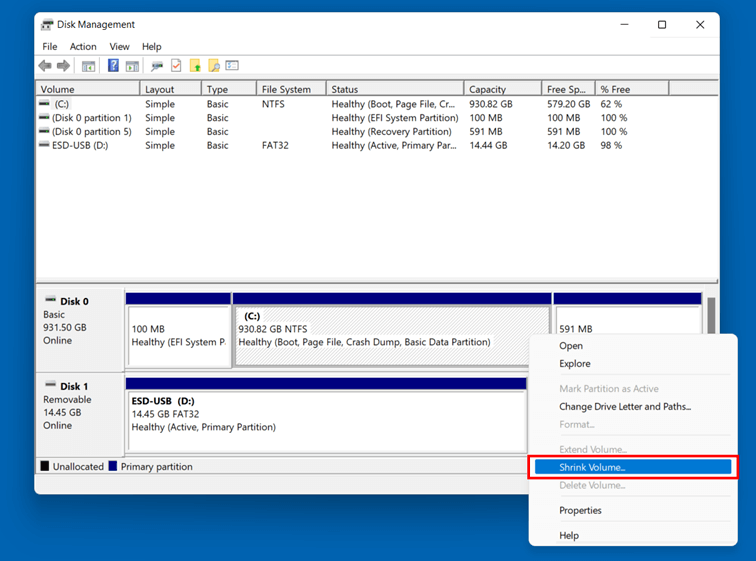
If you use a Windows operating system, you can partition your hard disk using the built-in tool called “Disk Management.”
- Open Disk Management: To access Disk Management, right-click on the Start button and select “Disk Management.”
- Create a New Partition: In the Disk Management window, click on the “Create a new partition” option.
- Specify The Partition Size: Enter the desired size for your new partition in megabytes (MB) or gigabytes (GB).
- Assign a Drive Letter: Choose a drive letter from the dropdown menu to assign to your new partition.
- Format The Partition: Select the file system you want to use, such as NTFS or exFAT.
- Create The Partition: Click on the “Create” button to create the new partition.
Partitioning a Hard Disk on Macos
If you use a macOS operating system, you can partition your hard disk using the built-in tool called “Disk Utility.”
- Open Disk Utility: To access Disk Utility, click on the Spotlight icon in the top right corner of the screen and type “Disk Utility.”
- Select The Hard Drive: In the Disk Utility window, select the hard drive you want to partition from the list of available disks.
- Click The “Partition” Tab: Click on the “Partition” tab at the top of the window.
- Create a New Partition: Click on the “+” button to create a new partition.
- Specify The Partition Size: Enter the desired size for your new partition in megabytes (MB) or gigabytes (GB).
- Assign a Volume Name: Choose a name for your new partition from the dropdown menu.
- Format The Partition: Select the file system you want to use, such as APFS or HFS+.
- Create The Partition: Click on the “Apply” button to create the new partition.
Other Solutions For Partitioning a Hard Disk
If the built-in tools in Windows and macOS don’t meet your needs, there are other solutions available.
- Minitool Partition Wizard Free Edition: This is a free tool that allows you to partition and manage hard disks on both Windows and macOS.
- Gparted: This is a free, open-source tool that can be used to partition and manage hard disks on any operating system.
Conclusion
Partitioning your hard disk is a simple and effective way to improve data protection, increase storage capacity, and enhance performance. By following the steps outlined in this article, you can easily partition your hard disk using either Windows or macOS operating systems. Remember to choose the right file system for your new partition and assign a drive letter or volume name as needed.
Frequently Asked Questions
- Q: What is The Difference Between a Partition And a Volume?
A: A partition is a section of a hard drive that can be formatted and used independently, while a volume is a partition with its own file system and set of permissions. - Q: Can I Partition my Hard Disk Without Losing Data?
A: Yes, most modern operating systems allow you to partition your hard disk without losing any files or data. - Q: How do I Format a New Partition?
A: To format a new partition, select the file system you want to use (such as NTFS or exFAT) and click on the “Format” button. - Q: Can I Resize an Existing Partition?
A: Yes, most modern operating systems allow you to resize an existing partition by moving the partition boundaries. - Q: How do I Delete a Partition?
A: To delete a partition, select the partition you want to delete from the list of available disks and click on the “Delete” button.
Additional Resources
If you need more information or assistance with partitioning your hard disk, please refer to the following resources:
- Microsoft Support: Partitioning a Hard Disk Drive in Windows 10
- Apple Support: Managing Disks and Volumes in macOS
- MiniTool Partition Wizard Free Edition: User Guide
- GParted: Documentation and Resources


