
The Ultimate Guide to Copy And Paste: A Comprehensive Overview
Introduction
Copy and paste is one of the most fundamental functions in computer science, yet many people still struggle with its use. Whether you’re a student, professional, writer, blogger, or journalist working with text documents, code, and graphics, understanding how to copy and paste is essential for efficient productivity. In this article, we’ll explore the ins and outs of copy and paste on various devices and operating systems.
Understanding Copy And Paste
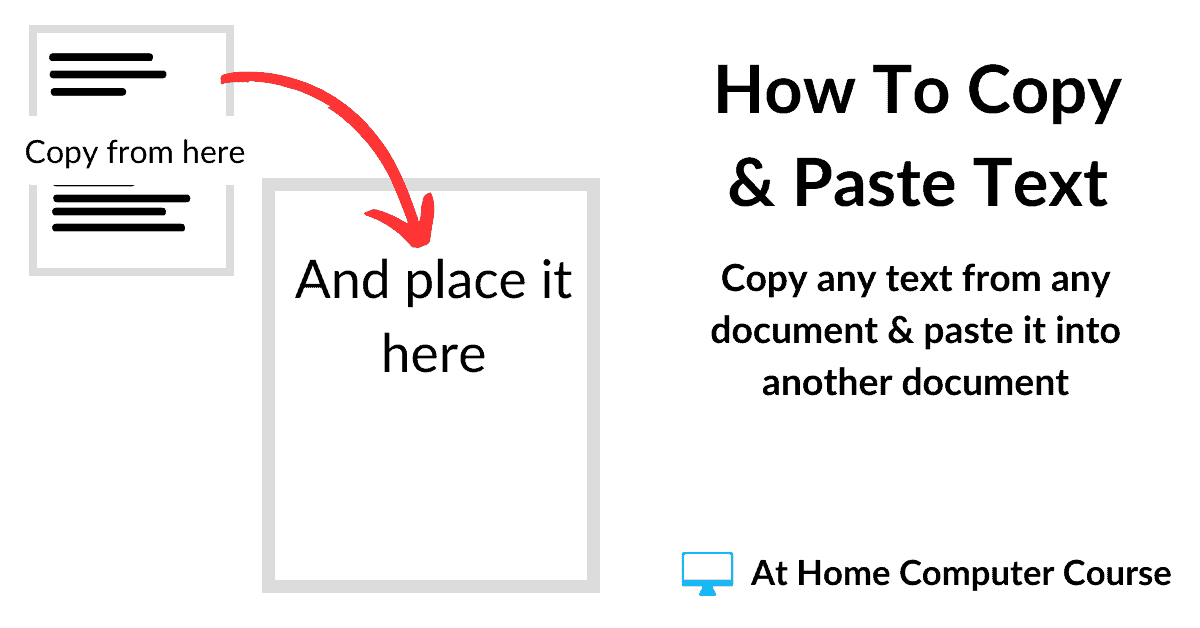
Copy and paste allows you to select a portion of text or an object and duplicate it in another location. This feature has been a staple in computer science since ancient times and has become increasingly important as technology advances. By mastering the art of copy and paste, you can save time and effort when working with digital content.
Copy And Paste on Windows
On Windows, you can use your mouse or keyboard shortcuts to copy and paste text. To do this:
- Open the document or webpage containing the text you want to copy.
- Select the desired portion of text by dragging the cursor over it.
- Right-click on the selected text and choose “Copy” from the context menu.
- Go to the location where you want to paste the copied text.
- Right-click again and select “Paste” from the context menu.
Alternatively, you can use keyboard shortcuts:
- Ctrl+c to copy the selected text
- Ctrl+v to paste the copied text
Copy And Paste on Mac
On a Mac, the process is similar:
- Open the document or webpage containing the text you want to copy.
- Select the desired portion of text by dragging the cursor over it.
- Right-click on the selected text and choose “Copy” from the context menu.
- Go to the location where you want to paste the copied text.
- Right-click again and select “Paste” from the context menu.
Alternatively, you can use keyboard shortcuts:
- Cmd+c to copy the selected text
- Cmd+v to paste the copied text
Copy And Paste on Android
On an Android device:
- Select the desired portion of text by tapping on it.
- Tap and hold on a word to select it, then drag your finger to extend selection.
- Release your finger when you’ve selected the desired text.
- Tap the “Copy” option in the menu that appears.
- Go to the location where you want to paste the copied text.
- Tap and hold again, then tap the “Paste” option.
Copy And Paste on Ios
On an iOS device:
- Select the desired portion of text by tapping on it.
- Tap and hold on a word to select it, then drag your finger to extend selection.
- Release your finger when you’ve selected the desired text.
- Tap the “Copy” option in the menu that appears.
- Go to the location where you want to paste the copied text.
- Tap and hold again, then tap the “Paste” option.
Managing Your Clipboard
To better manage your clipboard, consider using third-party applications such as:
- Ditto: A free software for Windows that keeps a history of your clipboard contents and allows you to recall them easily.
- Flycut: A free app for Mac that also keeps a history of your clipboard contents and allows you to recall them with ease.
Other Useful Applications
There are several other applications available that can help you manage your clipboard:
- Alt-c: A program/app that synchronizes what you copy on one device and makes it easy to access on another.
- Continuity: The native function of the Apple ecosystem that allows you to interact and share data directly between devices.
- Pastebot: A program for Mac that manages your clipboard effectively by applying filters to elements and syncing them across devices.
Copy And Paste in Specific Contexts
In specific contexts, such as working with PDF files or Excel spreadsheets, the process of copy and paste may vary. To copy and paste from a PDF file:
- Open the PDF file in your browser.
- Right-click on the desired text and select “Open with” followed by your preferred browser.
- Select the text you want to copy using your mouse or keyboard shortcuts.
- Copy the selected text and paste it into another location.
To copy and paste from an Excel spreadsheet:
- Open the Excel file containing the data you want to copy.
- Select the desired cells using your mouse or keyboard shortcuts.
- Right-click on the selected cells and choose “Copy” from the context menu.
- Go to the location where you want to paste the copied data.
- Right-click again and select “Paste” from the context menu.
Conclusion
Mastering the art of copy and paste is essential for efficient productivity in today’s digital age. Whether you’re using a Windows, Mac, Android, or iOS device, understanding how to copy and paste is crucial for success. By exploring the various methods and applications available, you can optimize your workflow and save time when working with digital content.
Frequently Asked Questions (FAQs)
- Q: What is The Difference Between Copying And Pasting?
A: Copying creates a duplicate of the selected text or object, while pasting inserts it into another location. - Q: Can I Copy And Paste Images or Other Media Files?
A: Yes, most applications allow you to copy and paste images, videos, and other media files. - Q: How do I Manage my Clipboard History on Multiple Devices?
A: Consider using third-party applications like Ditto or Flycut to keep a history of your clipboard contents and access them easily across devices. - Q: Can I Use Keyboard Shortcuts to Copy And Paste?
A: Yes, most operating systems allow you to use keyboard shortcuts to copy (Ctrl+C on Windows or Cmd+C on Mac) and paste (Ctrl+V on Windows or Cmd+V on Mac). - Q: How do I Copy And Paste From a Pdf File?
A: Open the PDF file in your browser, select the desired text, right-click, and choose “Copy.” Then go to the location where you want to paste the copied text. - Q: Can I Use Copy And Paste on Mobile Devices?
A: Yes, most mobile devices allow you to use copy and paste functions, although they may vary slightly from desktop versions.
Bonus Tips
- Use keyboard shortcuts to speed up your workflow.
- Consider using third-party applications to manage your clipboard history.
- Experiment with different methods for copying and pasting in specific contexts.


