
How to Block Unwanted Sms on Your Mobile Device
Are you tired of receiving unwanted SMS messages on your mobile device? Whether it’s from telemarketers, spammers, or just plain annoying friends, these texts can be a nuisance. In this article, we’ll show you how to block unwanted SMS on both Android and iPhone devices.
What is Blocking Unwanted Sms?
Blocking unwanted SMS involves preventing specific contacts or numbers from sending you text messages. This feature can be particularly useful for people who receive a high volume of spam or unsolicited messages.
Why Should I Block Unwanted Sms?
There are several reasons why you might want to block unwanted SMS:
- Reduce Clutter: Blocking unwanted SMS helps keep your phone’s messaging app clean and organized.
- Save Time: By blocking unwanted SMS, you’ll save time by not having to deal with irrelevant messages.
- Improve Mental Health: Constantly receiving unwanted SMS can be stressful and overwhelming. Blocking these messages can help reduce stress and anxiety.
How to Block Unwanted Sms on Android
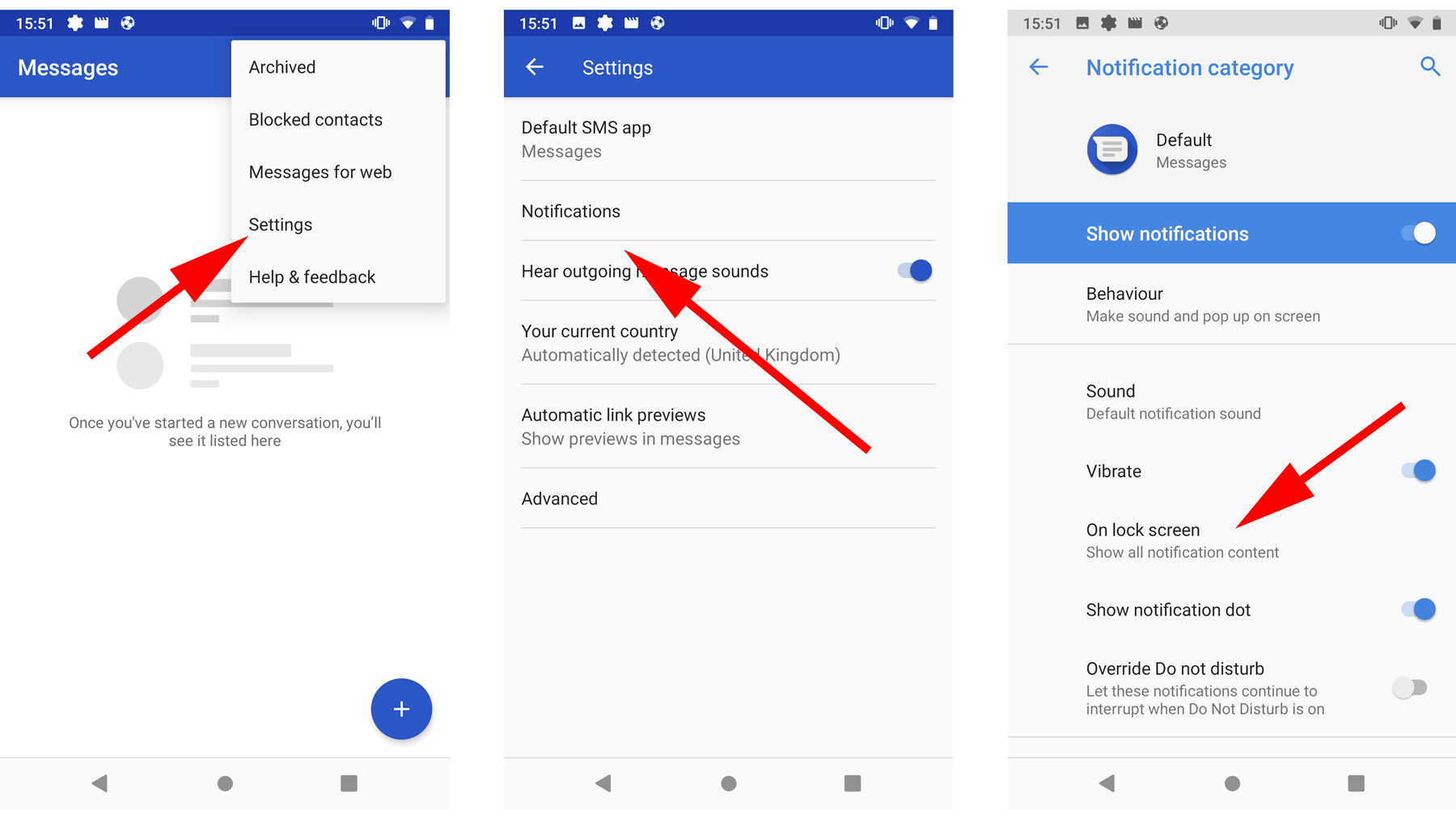
If you have an Android device, follow these steps:
How to Block Unwanted Sms on Google Messages
- Open the Google Messages app on your Android device.
- Tap the menu icon (three horizontal lines) at the top left of the screen.
- Select “Settings” from the dropdown menu.
- Scroll down and tap on “Protection & spam.”
- Toggle the switch next to “Active” to turn on spam protection.
How to Block Unwanted Sms Using a Third-party App
If you want to block unwanted SMS without using Google Messages, consider downloading a third-party app like Truecaller. This app can help identify and block spammers and telemarketers.
How to Block Unwanted Sms on Iphone
Unfortunately, blocking unwanted SMS is not as straightforward on iPhone devices. However, there are still some steps you can take:
How to Use The Filter Unknown Senders Feature
- Open the Settings app on your iPhone.
- Tap “Messages” from the list of options.
- Scroll down and tap on “Filter Unknown Senders.”
- Toggle the switch next to “Filter Unknown Senders” to turn it on.
How to Block Unwanted Sms Using a Third-party App
If you want to block unwanted SMS on your iPhone, consider downloading a third-party app like Truecaller (which is available for iOS devices).
What Happens When I Block Unwanted Sms?
When you block unwanted SMS, the following will occur:
- Messages From Blocked Contacts Won’t be Delivered: Messages sent by contacts you’ve blocked won’t appear in your messaging app.
- Blocked Messages Won’t Send Notifications: You won’t receive notifications for messages from blocked contacts.
- You Can Unblock Contacts at Any Time: If you need to unblock a contact, you can do so from the same menu where you initially blocked them.
How to Unblock Contacts
If you accidentally block someone or change your mind about blocking a particular contact, here’s how to unblock them:
- Go back to the “Block contacts” menu.
- Tap on the contact you want to unblock.
- Select “Unblock” from the options.
Conclusion
Blocking unwanted SMS is an easy and effective way to reduce clutter and save time on your mobile device. By following these simple steps, you can block specific contacts or numbers and improve your overall messaging experience.
Frequently Asked Questions (FAQs)
- Can I Block a Number Without Adding it to my Contacts?
Yes, you can block a number without adding it to your contacts. Simply go to the “Block contacts” menu and add the number from there.
2. Will Blocking a Contact Affect Their Ability to Send me Mms Messages?
Blocking a contact only affects text messaging (SMS) and won’t prevent them from sending you multimedia messages (MMS).
3. Can I Block Multiple Numbers at Once?
Yes, on Android devices, you can block multiple numbers by selecting the “Block” option in the “Protection & spam” menu.
4. How do I Unblock a Contact if They’re Not Listed in my Contacts?
To unblock a contact who’s not listed in your contacts, go back to the “Block contacts” menu and remove their number from the blocked list.
Block Contacts (H3)
On Android
- Open the Google Messages app.
- Tap the menu icon (three horizontal lines) at the top left of the screen.
- Select “Settings” from the dropdown menu.
- Scroll down and tap on “Protection & spam.”
- Toggle the switch next to “Active” to turn on spam protection.
On Iphone
- Open the Settings app.
- Tap “Messages” from the list of options.
- Scroll down and tap on “Filter Unknown Senders.”
- Toggle the switch next to “Filter Unknown Senders” to turn it on.
Unblock Contacts (H3)
On Android
- Go back to the “Protection & spam” menu.
- Select the contact you want to unblock from the blocked list.
- Tap “Unblock” to confirm your decision.
On Iphone
- Go back to the “Block contacts” menu.
- Select the contact you want to unblock from the list.
- Tap “Unblock” to confirm your decision.
What Happens When I Block Unwanted Sms? (H4)
When you block unwanted SMS, the following will occur:
- Messages from blocked contacts won’t be delivered.
- Blocked messages won’t send notifications.
- You can unblock contacts at any time.


