
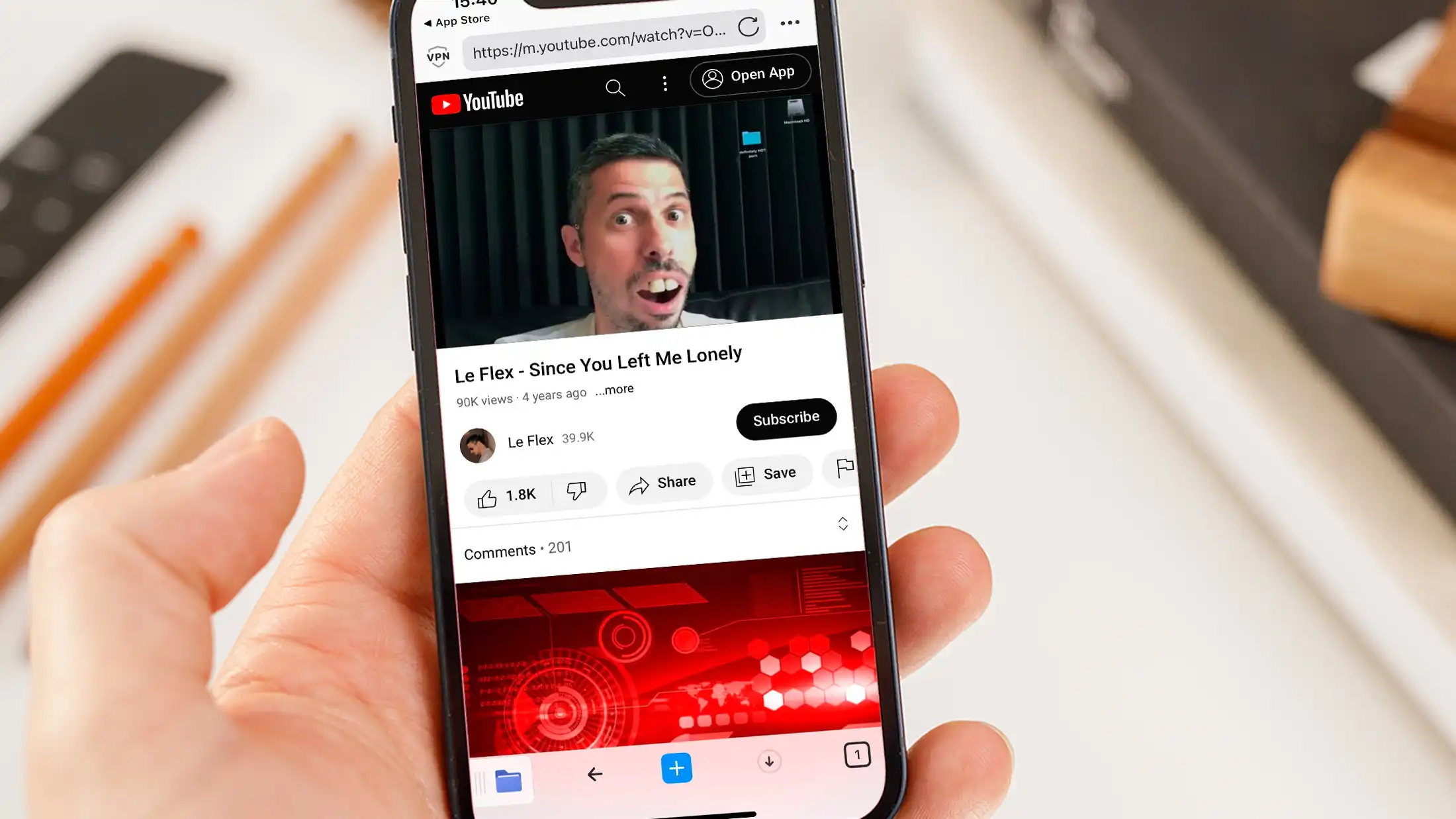
How to Download Videos From Youtube on Iphone: A Step-by-step Guide
Are you tired of watching videos on your iPhone only when connected to the internet? Do you want to download videos from YouTube and watch them offline? Look no further! In this article, we will show you how to download videos from YouTube on your iPhone using various methods.
Why Download Videos From Youtube?
Downloading videos from YouTube can be useful in several scenarios:
- You have a slow internet connection or are traveling abroad with limited data plans.
- You want to watch videos offline without being dependent on an internet connection.
- You want to save storage space on your iPhone by storing videos locally.
Method 1: Using Youtube Premium
YouTube has an official premium subscription that allows you to download videos for offline viewing. Here’s how to do it:
- Install the YouTube app on your iPhone and log in with your Google account.
- Open the YouTube app and find the video you want to download.
- Tap the three dots next to the video title and select “Download.”
- Choose the quality of the video and tap “OK” to confirm.
Method 2: Using Command
Command is a built-in iOS feature that allows you to create custom shortcuts for various tasks, including downloading videos from YouTube. Here’s how to do it:
- Open the Settings app on your iPhone and navigate to “Shortcuts.”
- Tap “Add Shortcuts” and search for “YouTube Video & Audio.”
- Select the shortcut and tap “Get Shortcut” to install it.
- Open the YouTube app, find the video you want to download, and tap the three dots next to the video title.
- Select “Download” and choose the quality of the video.
Method 3: Using Total Files
Total Files is a third-party file manager that allows you to download videos from YouTube without using the official app. Here’s how to do it:
- Install the Total Files app on your iPhone.
- Open the app and navigate to the “Download” section.
- Copy the URL of the video you want to download and paste it into the search bar.
- Tap the “Download” button and select the quality of the video.
Method 4: Using Online Services
There are several online services that allow you to download videos from YouTube without installing any apps on your iPhone. Here’s how to do it:
- Use a browser like Safari or Google Chrome to navigate to the website.
- Copy the URL of the video you want to download and paste it into the search bar.
- Tap the “Download” button and select the quality of the video.
Alternative Solutions
If you’re looking for alternative solutions, here are some other options:
- Notube: A free online service that allows you to download videos from YouTube in various formats.
- Loader.To: A free online service that allows you to download videos from YouTube without requiring registration.
- Vido: A free online service that allows you to download videos from YouTube and watch them offline.
Conclusion
Downloading videos from YouTube on your iPhone is a straightforward process. You can use various methods, including the official YouTube app, Command, Total Files, or online services like noTube, Loader.To, and VIDO. Make sure to check the terms of service for each method before using it.
Faqs
Here are some frequently asked questions:
- Q: How do I Download Videos From Youtube on my Iphone?
A: You can use various methods, including the official YouTube app, Command, Total Files, or online services like noTube, Loader.To, and VIDO. - Q: What is The Best Method to Download Videos From Youtube on my Iphone?
A: The best method depends on your personal preferences and needs. You can use the official YouTube app for simplicity, Command for more control, Total Files for a third-party file manager, or online services like noTube, Loader.To, and VIDO for flexibility. - Q: Can I Download Videos From Youtube Without an Internet Connection?
A: Yes, you can download videos from YouTube using various methods that allow offline viewing.


