
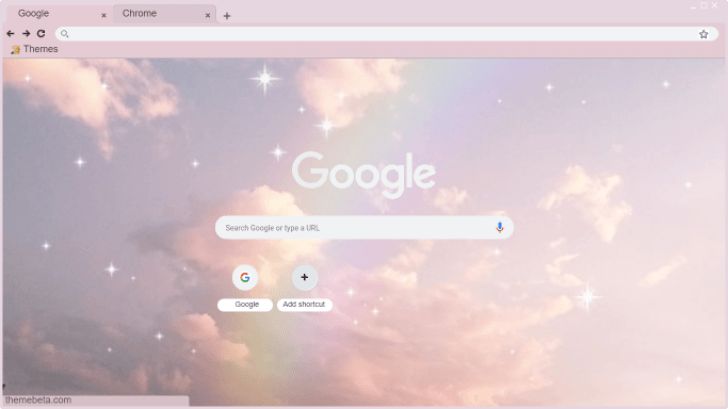
How to Download And Use Custom Themes on Google Chrome
Are you tired of using the same old theme on your Google Chrome browser? Do you want to give it a personalized touch that reflects your personality or style? Look no further! In this article, we will guide you on how to download and use custom themes on Google Chrome.
What Are Themes in Google Chrome?
Before we dive into the steps, let’s first understand what themes are in Google Chrome. Themes are pre-designed templates that can be applied to your browser to change its appearance. They can include various elements such as background colors, images, fonts, and more. Using a theme can make your browsing experience more enjoyable and personalized.
Why Use Custom Themes on Google Chrome?
There are many reasons why you should use custom themes on Google Chrome. Here are a few:
- Personalization: With thousands of themes available, you can choose one that perfectly reflects your personality or style.
- Customization: Themes allow you to customize the look and feel of your browser, making it unique from others.
- Fun: Using a theme can make browsing more enjoyable and engaging.
How to Download Free Themes on Google Chrome
Downloading free themes on Google Chrome is easy. Here’s how:
- Open Google Chrome on your PC or Mac.
- Click on the three dots (⋮) in the top right corner of the browser window.
- Select “More tools” from the drop-down menu.
- Click on “Settings”.
- Scroll down to the “Appearance” section.
- Click on the “Themes” tab.
- Browse through the available themes and select one that you like.
- Click on the “Add theme” button.
How to Download Personalized Themes on Google Chrome
To download personalized themes on Google Chrome, follow these steps:
- Open Google Chrome on your PC or Mac.
- Type in the address bar
chrome://Theme/and press Enter. - Browse through the available themes and select one that you like.
- Click on the “Add theme” button.
How to Create Custom Themes For Google Chrome
Creating custom themes for Google Chrome requires some technical expertise, but it’s possible using JSON files. Here’s a brief overview of how to create a theme:
- Create a JSON file with the following structure:
Json

{

  "Version": "2.6",

  "Name": "Custom Theme",

  "Theme": {

    "Images": {

      "Theme_frame": "Images/theme_frame.Png",

      "Theme_overlay": "Images/theme_overlay.Png",

      "Theme_toolbar": "Images/theme_toolbar.Png"

    },

    "Colors": {

      "Frame": [71, 105, 91],

      "Toolbar": [207, 221, 192]

    }

  }

} - Save the JSON file as a
.Jsonfile. - Go to the Chrome Web Store and sign in with your Google account.
- Click on the “Add new item” button.
- Select “Theme” from the drop-down menu.
- Upload the JSON file you created.
- Fill out the theme information form.
- Click on the “Publish” button.
Using Custom Themes on Mobile Devices
Using custom themes on mobile devices is a bit different than on desktop devices. Here’s how:
- Android: Open Chrome on your Android device and go to Settings > Appearance. Select one of the available themes or choose a custom theme from the Google Play Store.
- Ios/ipados: Go to Settings > Display & Brightness and select “Dark” for a dark theme.
Conclusion
Using custom themes on Google Chrome is easy and fun! With thousands of themes available, you can choose one that perfectly reflects your personality or style. Whether you’re looking for a free theme or want to create a personalized theme from scratch, we hope this guide has been helpful. Happy theming!


