
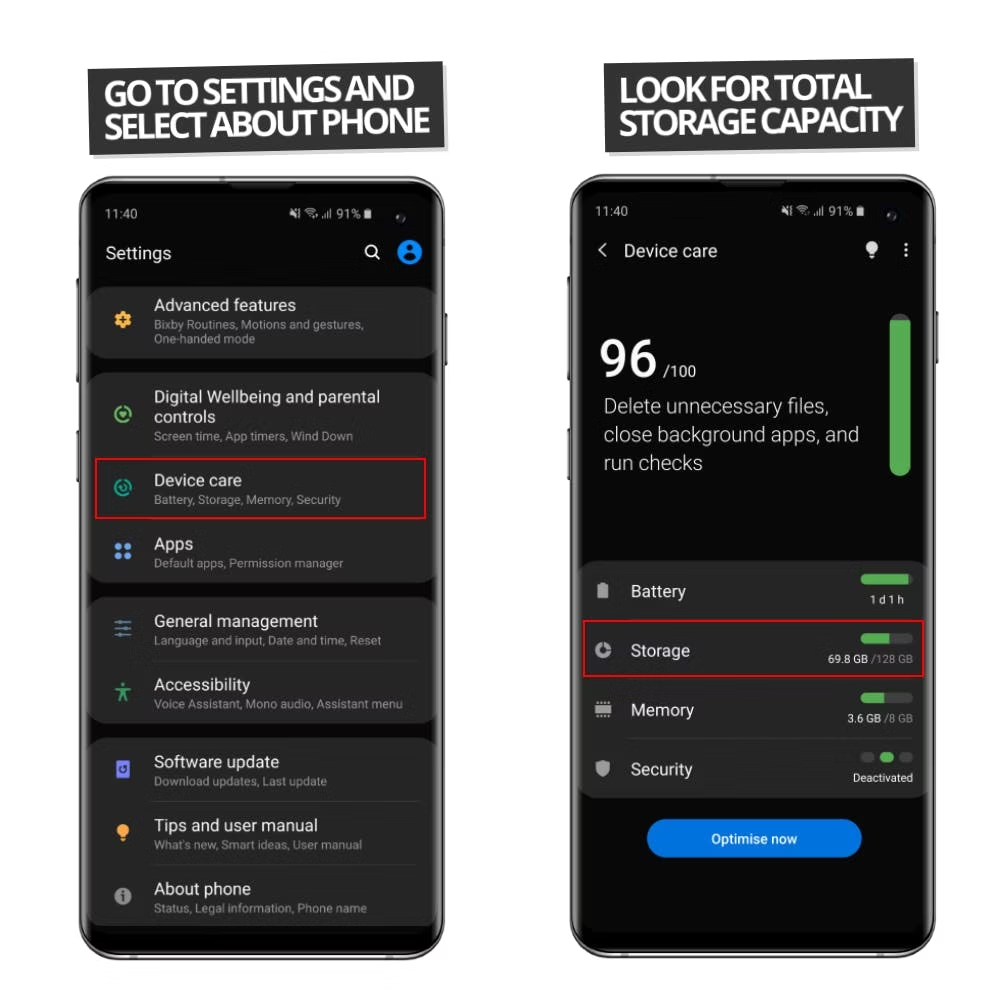
How to See The Ram of Your Phone: A Step-by-step Guide
Are you curious about how much RAM your phone has, but not sure where to look? Look no further! In this article, we’ll guide you through the process of checking your phone’s RAM, and also provide some tips on how to optimize it.
What is Ram, Anyway?
RAM (Random Access Memory) is a type of computer memory that temporarily stores data while a device is running. The more RAM your phone has, the more applications and tasks it can handle without slowing down.
Why Check Your Phone’s Ram?
Checking your phone’s RAM is essential to ensure it’s running smoothly and efficiently. A phone with low RAM may experience slow performance, crashes, or even freezes. By monitoring your phone’s RAM usage, you can identify potential issues and take steps to resolve them.
How to See The Ram of Your Phone: Android Edition
If you have an Android device, follow these simple steps to check your phone’s RAM:
- Tap on Settings: Open the Settings app on your phone.
- Scroll Down to Informazioni Sul Dispositivo: Look for this option and tap on it.
- Tap on 7 Consecutive Times on “Number of Build”: Yes, you read that right! Tap on this option 7 times in a row to access the developer options menu.
- Select “Developer Options”: From the menu, select Developer options.
- Look For “Memory”: In the Developer options menu, look for the “Memory” section.
Here, you’ll see two important metrics:
- Use of Memory: This shows how much RAM is being used by your phone’s applications and processes.
- Total Memory: This indicates the total amount of RAM available on your device.
How to See The Ram of Your Phone: Samsung Edition
If you have a Samsung phone, follow these steps to check your phone’s RAM:
- Tap on Settings: Open the Settings app on your phone.
- Scroll Down to Informazioni Sul Dispositivo: Look for this option and tap on it.
- Tap on 7 Consecutive Times on “Number of Build”: Yes, you read that right! Tap on this option 7 times in a row to access the developer options menu.
- Select “Developer Options”: From the menu, select Developer options.
- Look For “Memory”: In the Developer options menu, look for the “Memory” section.
How to See The Ram of Your Phone: Iphone Edition
If you have an iPhone, things get a bit more complicated. Apple doesn’t provide a built-in way to check your phone’s RAM directly. However, there are some third-party apps that can help you monitor your phone’s memory usage:
- Download And Install Usage Widgets: This app is available for free on the App Store.
- Launch Usage Widgets: Open the app and navigate to the Memory section.
Here, you’ll see two important metrics:
- Memory: This shows how much RAM is being used by your phone’s applications and processes.
- Inactive: This indicates how much memory is currently not in use but still available.
Tips For Optimizing Your Phone’s Ram
Now that you know how to check your phone’s RAM, here are some tips to help you optimize it:
- Close Unused Apps: Close any apps that you’re not using to free up memory.
- Update Your Operating System: Regularly update your phone’s operating system to ensure you have the latest security patches and performance improvements.
- Clear App Data And Cache: Clearing app data and cache can help free up memory and improve performance.
Conclusion
Checking your phone’s RAM is a simple process that can help you identify potential issues and take steps to optimize it. By following the steps outlined in this article, you can ensure your phone runs smoothly and efficiently. Remember to close unused apps, update your operating system, and clear app data and cache to keep your phone running like new!
Faqs
- Q: How Much Ram Does my Phone Have?
A: To find out how much RAM your phone has, follow the steps outlined in this article for your specific device. - Q: What is The Difference Between “Use of Memory” And “Total Memory”?
A: “Use of memory” shows how much RAM is being used by your phone’s applications and processes, while “Total Memory” indicates the total amount of RAM available on your device. - Q: Can I Increase my Phone’s Ram?
A: Unfortunately, no. Your phone’s RAM is a fixed component that cannot be increased. - Q: How Often Should I Check my Phone’s Ram?
A: It’s a good idea to check your phone’s RAM regularly, especially if you notice any performance issues or slow downs. - Q: What Are Some Common Causes of Low Ram on Android Devices?
A: Some common causes of low RAM on Android devices include running too many apps simultaneously, having too many widgets and live wallpapers, and not closing unused apps. - Q: How Can I Optimize my Phone’s Ram on an Iphone?
A: To optimize your iPhone’s RAM, close unused apps, clear app data and cache, and regularly update your operating system.
We hope this article has been helpful in answering your questions about how to see the RAM of your phone!


