
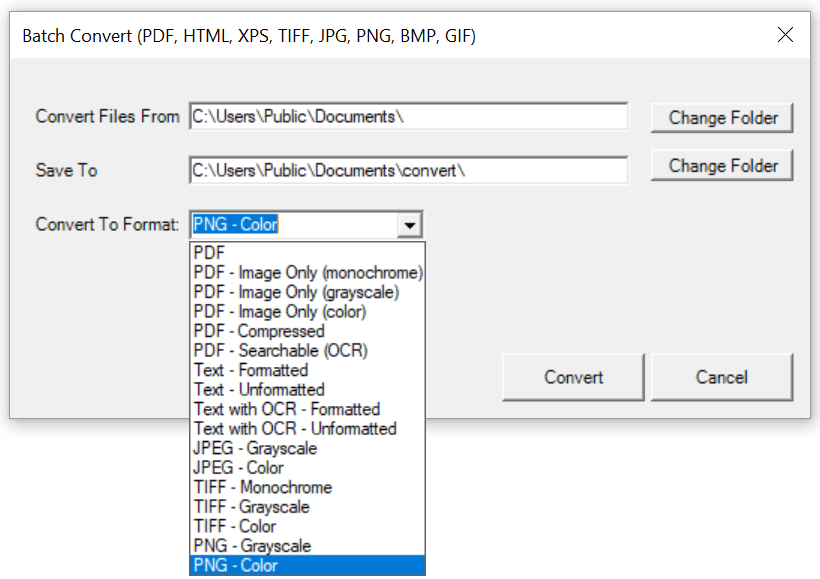
How to Convert Bmp Images to Jpg Format
Are you looking for ways to convert your BMP images to a more compressed format like JPG? Look no further! In this article, we will explore the various methods to achieve this task, both on computer and online.
Why Convert Bmp to Jpg?
Before we dive into the conversion process, let’s quickly understand why converting BMP to JPG is necessary. BMP (Bitmap) images are uncompressed and can be quite large in size. On the other hand, JPG (Joint Photographic Experts Group) images are compressed and take up less storage space. This makes JPG a more suitable format for sharing online or storing on devices with limited storage capacity.
Converting Bmp to Jpg on Computer
There are several software options available that can help you convert BMP to JPG format on your computer. Let’s take a look at some of the most popular ones:
Xnview NP (Windows, Macos, Linux)
XnView NP is a free and powerful image viewer that supports over 500 formats, including BMP. To convert BMP to JPG using XnView NP:
- Download and install XnView NP on your computer.
- Launch the software and select the BMP images you want to convert.
- Go to the “Tools” menu and select “Convert / Rename in batch.”
- In the conversion settings, choose the output format as JPG.
- Select the desired quality level for the converted image.
- Choose a folder to save the converted images.
Irfanview (Windows)
IrfanView is another popular image viewer that can be used to convert BMP to JPG format. To do this:
- Download and install IrfanView on your computer.
- Launch the software and select the BMP images you want to convert.
- Go to the “File” menu and select “Batch Conversion / Rename.”
- In the conversion settings, choose the output format as JPG.
- Select the desired quality level for the converted image.
- Choose a folder to save the converted images.
Trailer (macOS)
Trailer is a free image viewer that comes pre-installed on macOS. To convert BMP to JPG using Trailer:
- Launch the software and select the BMP images you want to convert.
- Go to the “File” menu and select “Export.”
- In the export settings, choose the output format as JPG.
- Select the desired quality level for the converted image.
- Choose a folder to save the converted images.
Converting Bmp to Jpg Online
If you don’t want to install any software on your computer or prefer a cloud-based solution, there are several online tools available that can help you convert BMP to JPG format. Let’s take a look at some of them:
Cloudconvert
CloudConvert is an online conversion service that supports over 200 formats, including BMP and JPG. To use CloudConvert:
- Visit the CloudConvert website and sign up for an account.
- Select the BMP images you want to convert and upload them to the cloud.
- Choose the output format as JPG.
- Select the desired quality level for the converted image.
- Choose a folder to save the converted images.
Convertio
Convertio is another online conversion service that supports various formats, including BMP and JPG. To use Convertio:
- Visit the Convertio website and sign up for an account.
- Select the BMP images you want to convert and upload them to the cloud.
- Choose the output format as JPG.
- Select the desired quality level for the converted image.
- Choose a folder to save the converted images.
Converting Bmp to Jpg on Mobile
If you’re using a smartphone or tablet, there are several apps available that can help you convert BMP to JPG format. Let’s take a look at some of them:
Image Converter (Android)
Image Converter is an app available for Android devices that allows you to convert various image formats, including BMP to JPG. To use Image Converter:
- Download and install the app on your device.
- Launch the app and select the BMP images you want to convert.
- Choose the output format as JPG.
- Select the desired quality level for the converted image.
- Save the converted images to a folder.
The Converter of Images (iOS)
The Converter of Images is an app available for iOS devices that allows you to convert various image formats, including BMP to JPG. To use The Converter of Images:
- Download and install the app on your device.
- Launch the app and select the BMP images you want to convert.
- Choose the output format as JPG.
- Select the desired quality level for the converted image.
- Save the converted images to a folder.
Conclusion
Converting BMP images to JPG format is an essential task, especially when sharing online or storing on devices with limited storage capacity. By using software like XnView NP, IrfanView, and Trailer on your computer, or cloud-based services like CloudConvert and Convertio, or mobile apps like Image Converter (Android) and The Converter of Images (iOS), you can easily convert BMP to JPG format.
Faqs
- What is The Difference Between Bmp And Jpg?
BMP stands for Bitmap and is an uncompressed image format that takes up more storage space. JPG, on the other hand, stands for Joint Photographic Experts Group and is a compressed image format that takes up less storage space.
- Why Convert Bmp to Jpg?
Converting BMP to JPG is necessary when sharing online or storing images on devices with limited storage capacity, as JPG images take up less storage space.
- What Software Can I Use to Convert Bmp to Jpg?
You can use XnView NP, IrfanView, and Trailer on your computer, or cloud-based services like CloudConvert and Convertio, or mobile apps like Image Converter (Android) and The Converter of Images (iOS).
- Can I Convert Multiple Images at Once?
Yes, all the software and online services mentioned above allow you to convert multiple images at once.
- What is The Quality Level of The Converted Image?
You can adjust the quality level of the converted image according to your preference using most of the software and online services mentioned above.
- Can I Save The Converted Image to a Folder?
Yes, you can save the converted image to a folder on your computer or device using most of the software and online services mentioned above.
- Is There an Official App to Transfer Apps From Android to Ios?
Unfortunately, no, but you can use the method described in this article to transfer some apps from Android to iOS using the “Spend” feature in the App Store.
- Can I Transfer Apps From Ios to Android?
No, there is no official app available to transfer apps directly from iOS to Android. However, you can use cloud-based services like iCloud or Google Drive to transfer some data and settings between devices.


