
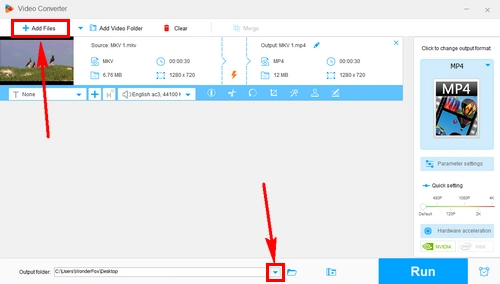
Converting Mkv Files to Mp4: A Step-by-step Guide
Are you struggling to play your favorite video files on various devices? Have you downloaded a video from the internet, only to find it’s in an incompatible format? Worry no more! In this article, we’ll guide you through the process of converting MKV files to MP4, ensuring they can be played seamlessly on your smartphone, tablet, or computer.
What Are Mkv Files?
Before we dive into the conversion process, let’s briefly understand what MKV files are. MKV stands for Matroska Video, a container format that allows for high-quality video and audio compression. Unlike other formats, MKV can contain multiple video, audio, and subtitle streams within a single file.
The Problem With Mkv Files
While MKV files offer excellent quality, they’re not widely supported on all devices. That’s where the need to convert them arises. The good news is that there are several methods to convert MKV files to MP4, which is an extremely popular and widely-supported format.
Method 1: Converting Mkv to Mp4 Without Losing Quality
To maintain the original quality of your video file, you can use FFmpeg, a free and open-source software. This method involves demuxing (decomposing) the MKV file into its individual components and then remuxing them into an MP4 container.
Converting Mkv to Mp4 With Ffmpeg
Here’s how to do it:
- Download And Install Ffmpeg: Head over to the official website and download the software for your operating system.
- Open Command Prompt (Windows) or Terminal (macOS/Linux): This is where you’ll input the command to convert the MKV file.
- Enter The Following Command:
Ffmpeg -i input.Mkv -c copy output.Mp4
Replaceinput.Mkvwith your actual MKV file name andoutput.Mp4with your desired MP4 file name.
Method 2: Converting Mkv to Mp4 Using Adapter
Another method is to use Adapter, a user-friendly software that can convert various media formats. Here’s how to do it:
- Download And Install Adapter: Go to the official website and download the software for your operating system.
- Launch Adapter: Open the software and select the MKV file you want to convert.
- Choose The Output Format as Mp4: In the settings, choose MP4 as the output format.
Method 3: Converting Mkv to Mp4 Using Vlc
You can also use VLC, a popular media player that has built-in conversion capabilities:
- Launch Vlc: Open the software and select the MKV file you want to convert.
- Go to Media > Convert/save: In the menu, choose Convert/Save and select the MP4 format.
Method 4: Converting Mkv to Mp4 Online
If you don’t want to install any software on your computer, you can use online services like The Converter Video:
- Upload Your Mkv File: Go to the website, upload your MKV file, and select the output format as MP4.
- Convert And Download: Wait for the conversion process to complete, then download your converted MP4 file.
Converting Mkv to Mp4 on Smartphone And Tablet
For those using smartphones or tablets, you can use dedicated apps like Media Converter (for Android) or The Converter Video (for iOS):
- Download And Install The App: Get the app from your device’s store.
- Launch The App: Open the software and select the MKV file you want to convert.
- Choose The Output Format as Mp4: In the settings, choose MP4 as the output format.
Conclusion
Converting MKV files to MP4 is a relatively simple process that can be achieved through various methods. Whether you’re using FFmpeg, Adapter, VLC, or online services, we’ve provided you with step-by-step guides to ensure your video files are playable on all devices.
Frequently Asked Questions (FAQs)
- What’s The Best Method For Converting Mkv to Mp4?
The best method depends on your personal preference and requirements. FFmpeg is ideal for maintaining original quality, while Adapter and VLC offer user-friendly interfaces. - Can I Convert Mkv Files to Other Formats Besides Mp4?
Yes, you can convert MKV files to various other formats using the methods mentioned above or by adjusting the output format in the conversion settings. - How Long Does The Conversion Process Take?
The conversion time varies depending on the method and file size. Generally, it takes a few minutes for small files and up to several hours for larger ones. - Are There Any Compatibility Issues With Converted Mp4 Files?
Converted MP4 files should be compatible with most devices. However, if you experience any issues, try re-converting using a different method or checking the output file settings.
Now that you’ve learned how to convert MKV files to MP4, go ahead and enjoy seamless video playback on all your devices!


