
Installing Windows 8 on Your Pc: A Step-by-step Guide
Are you ready to upgrade your operating system to the latest version? Installing Windows 8 can be a bit daunting, but with this guide, you’ll be able to navigate through the process with ease.
Minimum Requirements For Installing Windows 8
Before we dive into the installation process, it’s essential to know the minimum requirements for installing Windows 8 on your PC. Here are the specifications:
- Processor: 1 GHz or higher with support for PAE, NX, and SSE2
- RAM: 1 GB (32-bit) or 2 GB (64-bit)
- Hard disk space: 16 GB (32-bit) or 20 GB (64-bit)
- Graphics card: Microsoft DirectX 9 with WDDM driver
Preliminary Operations
Before starting the installation process, it’s crucial to accomplish some preliminary operations:
- Backup Your Data: Make sure to backup all your important files and data on an external hard drive or a cloud storage service.
- Download Windows 8 Iso File: If you don’t have a DVD or USB drive with the Windows 8 installation media, you can download the ISO file from Microsoft’s official website.
Installing Windows 8
Now that we’ve covered the minimum requirements and preliminary operations, let’s move on to the installation process:
- Insert The Installation Media: Insert the DVD or USB drive with the Windows 8 installation media into your PC.
- Restart Your PC: Restart your PC to initiate the setup process.
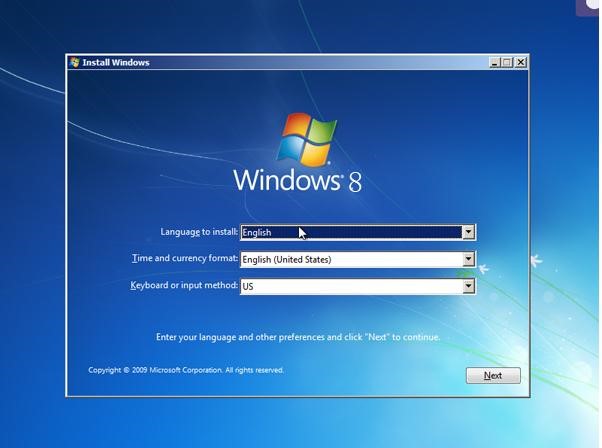
- Select The Language And Other Preferences: Select your preferred language, time and currency format, and keyboard layout.
- Choose The Type of Installation: Choose whether you want to upgrade or perform a clean install.
- Enter The Product Key: Enter your Windows 8 product key to activate the operating system.
Installing Windows 8 on Windows 10
If you’re currently running Windows 10, don’t worry! You can still downgrade to Windows 8 by following these steps:
- Go to Settings: Go to the Start menu and select Settings.
- Update & Security: Select Update & Security from the list of options.
- Recovery: Click on Recovery and then select “Get started” under the “Go back to a previous version of Windows” section.
- Follow The Prompts: Follow the prompts to complete the downgrade process.
Installing Windows 8 on Virtualbox
If you don’t want to overwrite your current operating system or prefer to run multiple operating systems simultaneously, consider using VirtualBox:
- Download And Install Virtualbox: Download and install VirtualBox from its official website.
- Create a New Virtual Machine: Create a new virtual machine and select the Windows 8 ISO file as the installation media.
- Install Windows 8 on Virtualbox: Follow the prompts to complete the installation process.
Installing Windows 8 on Mac
If you’re using a Mac, you can install Windows 8 using Boot Camp:
- Download And Install Boot Camp: Download and install Boot Camp from Apple’s official website.
- Create a New Partition: Create a new partition for Windows 8 and select the ISO file as the installation media.
- Install Windows 8 on Mac: Follow the prompts to complete the installation process.
Installing Windows 8 on Ubuntu
If you’re running Ubuntu, you can install Windows 8 using VirtualBox:
- Download And Install Virtualbox: Download and install VirtualBox from its official website.
- Create a New Virtual Machine: Create a new virtual machine and select the Windows 8 ISO file as the installation media.
- Install Windows 8 on Ubuntu: Follow the prompts to complete the installation process.
Conclusion
Installing Windows 8 can be a bit challenging, but with this guide, you should be able to navigate through the process with ease. Make sure to follow the minimum requirements and preliminary operations carefully before starting the installation process.
Frequently Asked Questions (FAQs)
- What Are The Minimum Requirements For Installing Windows 8?
- Processor: 1 GHz or higher with support for PAE, NX, and SSE2
- RAM: 1 GB (32-bit) or 2 GB (64-bit)
- Hard disk space: 16 GB (32-bit) or 20 GB (64-bit)
- Graphics card: Microsoft DirectX 9 with WDDM driver
- How do I Install Windows 8 on a Virtual Machine?
- Download and install VirtualBox from its official website.
- Create a new virtual machine and select the Windows 8 ISO file as the installation media.
- Can I Install Windows 8 on my Mac?
- Yes, you can use Boot Camp to create a dual-boot system with Windows 8 and macOS.
- How do I Downgrade From Windows 10 to Windows 8?
- Go to Settings > Update & Security > Recovery and follow the prompts to complete the downgrade process.
Frequently Asked Questions (FAQs)
- What is the difference between installing Windows 8 on a virtual machine and on a physical partition?
- Can I install Windows 8 on my Mac without using Boot Camp?
- How do I transfer my files from Windows 10 to Windows 8 during the downgrade process?
- Can I use VirtualBox to install Windows 8 on Ubuntu?
- What are the system requirements for running multiple operating systems simultaneously?
- How do I configure Boot Camp to create a dual-boot system with Windows 8 and macOS?
- Can I upgrade from Windows 7 to Windows 8 directly?
- What is the difference between installing Windows 8 on VirtualBox and on VMware?


