
How to Backup Iphone: A Comprehensive Guide
Are you tired of worrying about losing your precious iPhone data? Look no further! In this article, we’ll show you how to backup your iPhone using various methods, ensuring that your valuable photos, contacts, and other important information are safely stored.
Why Backup Your Iphone?
Backing up your iPhone is essential for several reasons:
- Prevents Data Loss: A backup ensures that your data remains safe in case your device gets damaged, lost, or stolen.
- Saves Time: Restoring a backup can be faster than setting up your device from scratch.
- Preserves Memories: Your iPhone contains cherished moments, and backing it up helps you preserve those memories.
Method 1: Backup Iphone on Icloud
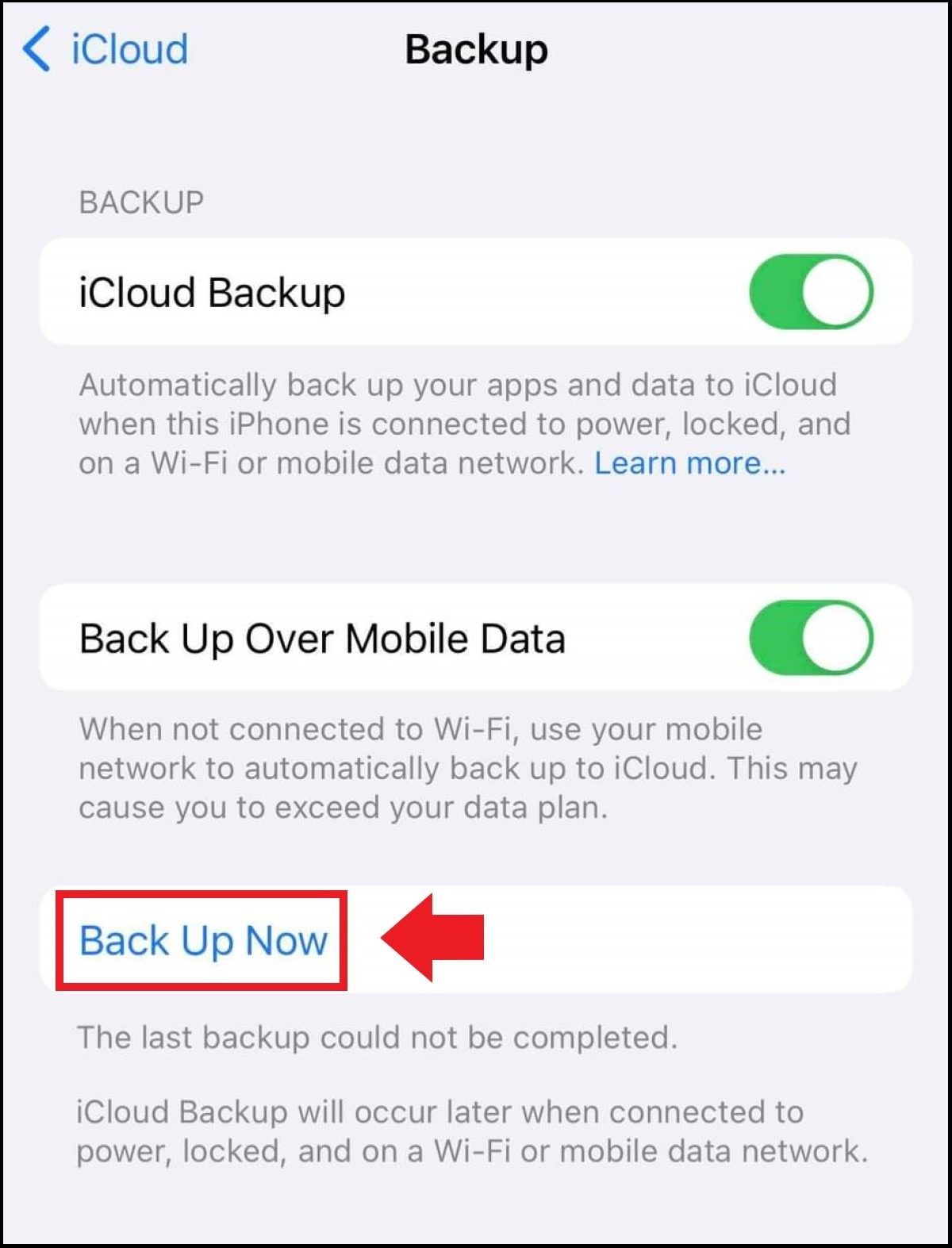
ICloud is Apple’s cloud storage service that allows you to store your data securely. Here’s how to backup your iPhone using iCloud:
- Open the Settings app on your iPhone.
- Tap on “iCloud” and then tap on “Backup”.
- Ensure that the switch next to “iCloud Backup” is turned on.
Method 2: Backup Iphone Without Icloud
If you prefer not to use iCloud, there are alternative methods to backup your iPhone:
- Use Itunes: Connect your iPhone to a computer with iTunes installed and select “Backup Now”.
- Manual Backup: Manually copy important data from your iPhone using the Files app or other file transfer tools.
Method 3: Backup Iphone on PC
To backup your iPhone on a Windows PC, follow these steps:
- Download and install iTunes from Microsoft Store.
- Connect your iPhone to the computer using a USB cable.
- Open iTunes and select “Backup Now”.
Method 4: Backup Iphone on Mac
If you’re using a Mac with macOS Catalina or later, here’s how to backup your iPhone:
- Connect your iPhone to the Mac using a USB cable.
- Open the Finder app and select the name of your iPhone in the sidebar.
- Select the “Backup” option from the menu.
Method 5: Backup Iphone on External Hard Drive
To backup your iPhone on an external hard drive, follow these steps:
- Connect the external hard drive to a computer with iTunes installed.
- Open iTunes and select the name of your iPhone.
- Select the “Backup Now” option.
Method 6: Backup Iphone on Google Drive
Google Drive is another cloud storage service that allows you to backup your iPhone data:
- Download and install Google Drive from the App Store.
- Sign in with your Google account and select the files you want to backup.
- Tap the “+” icon to add more files.
Method 7: Backup Iphone Monitor Broken
If your iPhone is broken, don’t worry! You can still recover data using a computer:
- Connect the broken iPhone to a computer with iTunes installed.
- Open iTunes and select the name of your iPhone.
- Select the “Backup Now” option.
Frequently Asked Questions (FAQs)
Q: What is Icloud?
A: ICloud is Apple’s cloud storage service that allows you to store data securely.
Q: Why Backup my Iphone?
A: Backing up your iPhone prevents data loss, saves time, and preserves memories.
Q: How do I Backup my Iphone on Pc?
A: Connect the iPhone to a Windows PC using iTunes and select “Backup Now”.
Q: Can I Backup my Iphone on Google Drive?
A: Yes, you can backup your iPhone data to Google Drive using the Files app or other file transfer tools.
Q: How do I Recover Data From a Broken Iphone?
A: Connect the broken iPhone to a computer with iTunes installed and select “Backup Now” to restore data.
Conclusion
Backing up your iPhone is a simple process that ensures your precious data remains safe. Whether you choose iCloud, iTunes, or another method, taking regular backups will give you peace of mind.


