
Protecting Your Whatsapp Conversations: A Step-by-step Guide
Are you tired of worrying about your WhatsApp conversations being accessed by others? Do you want to ensure that only you can view specific chats on your iPhone or Android device? Look no further! In this guide, we’ll show you how to protect your WhatsApp conversations using Face ID.
What is Face Id?
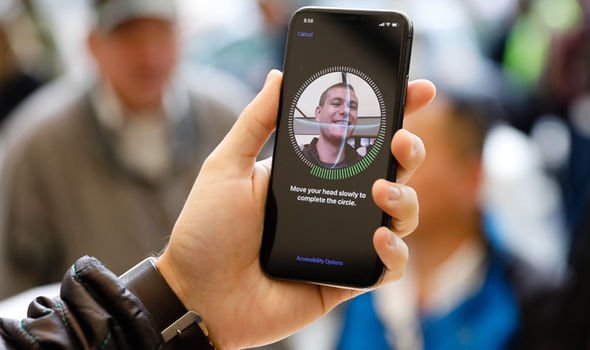
Face ID is a biometric authentication technology developed by Apple. It uses facial recognition to unlock your iPhone and grant access to sensitive information. With Face ID, you can secure specific chats on WhatsApp, ensuring that only you can view them.
How to Activate Face ID on Whatsapp: Iphone
To activate Face ID on WhatsApp on your iPhone, follow these steps:
- Open Settings: Tap on the icon of the gear in the bottom right corner of your screen.
- Face ID And Code: Select “Face ID and Code” from the menu.
- Enable Face ID: Make sure that Face ID is enabled by moving the toggle to the right.
- Configure Face ID: Follow the prompts to configure Face ID on your iPhone.
- Block Monitor: Go back to Settings and select “Privacy.” Tap on “Block Contacts” and then move the toggle next to “Require Face ID” from OFF to ON.
How to Block Whatsapp Access With Face Id: Iphone
Now that you’ve enabled Face ID, follow these steps to block WhatsApp access:
- Open Whatsapp: Launch the app by tapping on its icon.
- Settings: Tap on the three dots in the top right corner of your screen and select “Settings.”
- Privacy: Scroll down and tap on “Privacy.”
- Block Monitor: Move the toggle next to “Require Face ID” from OFF to ON.
How to Access Whatsapp With Face Id: Iphone
To access WhatsApp using Face ID, follow these steps:
- Open Whatsapp: Launch the app by tapping on its icon.
- Face ID Prompt: You’ll be prompted to use Face ID to unlock WhatsApp.
- Authenticate: Look into your iPhone’s camera and authenticate with Face ID.
How to Protect Specific Chats: Iphone
To protect specific chats using Face ID, follow these steps:
- Open Whatsapp: Launch the app by tapping on its icon.
- Chat List: Scroll down and select a chat you want to protect.
- Padlock Chat: Tap on the padlock icon next to the chat’s name and move the toggle from OFF to ON.
How to Deactivate Face Id: Iphone
If you ever need to deactivate Face ID, follow these steps:
- Settings: Go back to Settings and select “Face ID and Code.”
- Disable Face ID: Move the toggle next to Face ID from ON to OFF.
How to Activate Face ID on Whatsapp: Android
To activate Face ID on WhatsApp on your Android device, follow these steps:
- Open Settings: Tap on the icon of the gear in the bottom right corner of your screen.
- Password And Safety: Select “Password and Safety” from the menu.
- Face Recognition: Choose Face Recognition as your authentication method.
How to Block Whatsapp Access With Face Id: Android
Now that you’ve enabled Face ID, follow these steps to block WhatsApp access:
- Open Whatsapp: Launch the app by tapping on its icon.
- Settings: Tap on the three dots in the top right corner of your screen and select “Settings.”
- Privacy: Scroll down and tap on “Privacy.”
- Block App: Move the toggle next to “Unlock with Face Recognition” from OFF to ON.
How to Access Whatsapp With Face Id: Android
To access WhatsApp using Face ID, follow these steps:
- Open Whatsapp: Launch the app by tapping on its icon.
- Face ID Prompt: You’ll be prompted to use Face ID to unlock WhatsApp.
- Authenticate: Look into your phone’s camera and authenticate with Face ID.
Conclusion
Protecting your WhatsApp conversations using Face ID is a simple yet effective way to ensure that only you can view sensitive information on your iPhone or Android device. By following the steps outlined in this guide, you’ll be able to secure specific chats and prevent unauthorized access.
Frequently Asked Questions
Q: Is Face ID available on all devices?
A: No, Face ID is currently available on iPhone and iPad devices with a TrueDepth camera.
Q: Can I use Face ID on Android devices?
A: Yes, some Android devices support facial recognition, but it’s not the same as Apple’s Face ID.
Q: How do I disable Face ID on WhatsApp?
A: To disable Face ID on WhatsApp, go to Settings > Privacy and move the toggle next to “Require Face ID” from ON to OFF.


