
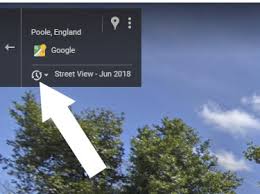
Google Maps: Unveiling The Secrets of Street View And Location History
In today’s digital age, it’s no surprise that Google Maps has become an essential tool for navigating our world. With its seamless integration of Street View, location history, and real-time traffic updates, this platform has revolutionized the way we explore and interact with our surroundings. However, have you ever wondered how to access these features? In this article, we’ll delve into the intricacies of Google Maps and explore the fascinating world of Street View and location history.
What is Street View?
Street View is a feature within Google Maps that allows users to visually explore specific locations using 360-degree panoramic images. This technology was first introduced in 2007 and has since become an integral part of the Google Maps experience. With Street View, you can:
- Explore cities and towns from the comfort of your own home
- Get a visual representation of a location before visiting it
- Even use it for educational purposes or historical research
Accessing Street View on Your Phone
To access Street View on your phone, follow these simple steps:
- Open the Google Maps app on your mobile device.
- Tap the search bar and enter the address or name of the place you want to explore.
- If available, a yellow “Street View” icon will appear in the bottom left corner of the screen.
- Tap this icon to access Street View.
- Use the directional arrows to navigate through the location.
Accessing Street View on Your PC
If you prefer to use Google Maps on your computer, follow these steps:
- Open a web browser and navigate to maps.Google.Com.
- Search for the address or name of the place you want to explore.
- Look for the “Street View” tab in the top left corner of the screen.
- Click this tab to access Street View.
- Use the directional arrows to navigate through the location.
Location History: A Glimpse Into Your Past
Google Maps also offers a feature called Location History, which allows you to view your past locations and movements. This can be useful for:
- Recalling where you’ve been and when
- Monitoring your daily commute or regular travel routes
- Even using it as a memory aid
Accessing Location History on Your Phone
To access Location History on your phone, follow these steps:
- Open the Google Maps app.
- Tap the menu icon (three horizontal lines) in the top left corner of the screen.
- Select “Your location history” from the dropdown menu.
- Choose the time period you want to view.
Accessing Location History on Your PC
To access Location History on your computer, follow these steps:
- Open a web browser and navigate to myactivity.Google.Com.
- Click on the “Location history” tab.
- Select the time period you want to view.
Tips For Using Street View And Location History
Here are some additional tips to keep in mind when using Street View and location history:
- Use Street View to explore new places before visiting them
- Access your location history to recall where you’ve been and when
- Share your location history with friends or family members
- Even use it as a educational tool for teaching students about geography and navigation
Conclusion
In conclusion, Google Maps is an incredibly powerful tool that offers a wealth of features, including Street View and Location History. By understanding how to access these features, you can unlock the full potential of this platform and explore your world in ways you never thought possible.
Frequently Asked Questions
Q: What is Street View?
A: Street View is a feature within Google Maps that allows users to visually explore specific locations using 360-degree panoramic images.
Q: How do I access Street View on my phone?
A: To access Street View on your phone, open the Google Maps app and tap the search bar. If available, a yellow “Street View” icon will appear in the bottom left corner of the screen.
Q: Can I access Location History on my phone?
A: Yes, you can access Location History on your phone by opening the Google Maps app and tapping the menu icon. Select “Your location history” from the dropdown menu.
Q: How do I access Street View on my PC?
A: To access Street View on your computer, open a web browser and navigate to maps.Google.Com. Search for the address or name of the place you want to explore.
Q: What is Location History?
A: Location History is a feature within Google Maps that allows users to view their past locations and movements.
Q: Can I share my location history with others?
A: Yes, you can share your location history with friends or family members by selecting “Share” from the dropdown menu.
Q: Is it safe to use Street View and Location History?
A: Yes, both features are safe to use. However, be aware that Google may store your location history data for future reference.
References
- Google Maps
- Street View
- Location History


