
How to Reset Sumup Air: A Step-by-step Guide
Are you having trouble with your SumUp Air, a sleek and efficient point-of-sale (POS) system designed for businesses? Do you need to reset it due to technical issues or other reasons? Look no further! This comprehensive guide will walk you through the process of resetting your SumUp Air, so you can get back to running your business smoothly.
What is Sumup Air?
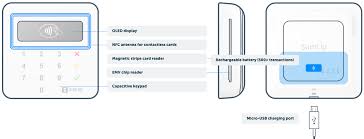
SumUp Air is a cutting-edge POS system designed for businesses. It’s a compact and user-friendly device that allows you to accept payments, manage sales, and access vital business insights. With its sleek design and advanced features, SumUp Air is an essential tool for any business owner looking to streamline their operations.
Why Reset Your Sumup Air?
Resetting your SumUp Air can resolve various technical issues, such as:
- System crashes or freezes
- Connectivity problems with the Bluetooth or Wi-Fi network
- Payment processing issues
- Software glitches
Step 1: Prepare For The Reset
Before proceeding, ensure that you have:
- Removed any cards from the reader (if applicable)
- Closed all applications on your smartphone or tablet connected to SumUp Air
- Disabled Bluetooth and Wi-Fi connectivity on your device
How to Close Applications on Android Devices
To close applications on your Android device:
- Long-press on an empty area of the home screen
- Drag the app you want to close upwards until it disappears from view
How to Close Applications on Iphone/ipad Devices
To close applications on your iPhone or iPad:
- Double-click the Home button (on iPhone X and later) or swipe up from the bottom of the screen and hold
- Swipe left or right to find the app you want to close
- Swipe up on the app icon to close it
Step 2: Reset Sumup Air
Now that your device is prepared, follow these steps:
- Turn off the reader by pressing and holding the power button for a few seconds until the lights turn off
- Wait for about 10 seconds to ensure the system has fully shut down
- Press and hold the power button again for around 10 seconds (you will see an acoustic sign proceed of the reader)
- Release the power button when you hear the release sound
What Happens During The Reset Process?
During the reset process, your SumUp Air will restart and return to its default settings. This is a normal part of the reset procedure.
Step 3: Reconfigure Your Sumup Air
After resetting your SumUp Air:
- Open the application on your connected device
- Log in with your account credentials (if you’re using the same device)
- Allow all necessary permissions for Bluetooth and location services
How to Connect Sumup Air to Your Device
To connect your SumUp Air to your smartphone or tablet:
- Launch the SumUp app on your device
- Tap the “Connect” button to initiate the pairing process
- Confirm that the digits displayed on the reader match those physically indicated on the back of the reader
Troubleshooting Tips
Encountering issues with your SumUp Air? Don’t worry! This guide has you covered:
- Consult our guide on resolving Bluetooth problems for more information
- Check out our tutorial on using SumUp, which includes a step-by-step configuration process
Sumup Only: Resetting The Network Connection
If you’re experiencing network connectivity issues with your SumUp Only device (which uses a SIM card for free unlimited data), follow these steps:
- Disable and re-enable the connection to your network
- Press and hold the power button for a few seconds, then select “Turn off” and restart the device
Conclusion
Resetting your SumUp Air is an essential step in resolving technical issues or simply starting fresh with a clean slate. By following these steps, you’ll be able to overcome common problems and get back to running your business smoothly.
Frequently Asked Questions (FAQs)
- Q: Why do I need to reset my SumUp Air?
A: Resetting your SumUp Air can resolve various technical issues, such as system crashes or freezes. - Q: How do I close applications on Android devices?
A: Long-press on an empty area of the home screen and drag the app you want to close upwards until it disappears from view. - Q: Can I reset my SumUp Air without losing data?
A: Yes, resetting your SumUp Air will not delete any existing data; it simply returns the system to its default settings. - Q: How do I reconfigure my SumUp Air after resetting it?
A: Open the application on your connected device and follow the on-screen instructions to log in with your account credentials and allow necessary permissions. - Q: Can I use a different device to connect to my SumUp Air?
A: Yes, you can use a different device to connect to your SumUp Air as long as it meets the minimum system requirements. - Q: How do I troubleshoot issues with my SumUp Air?
A: Consult our guide on resolving Bluetooth problems or check out our tutorial on using SumUp for more information. - Q: What if I’m experiencing network connectivity issues with my SumUp Only device?
A: Disable and re-enable the connection to your network, then press and hold the power button for a few seconds and restart the device. - Q: Can I reset my SumUp Air remotely?
A: No, resetting your SumUp Air requires physical access to the device.
Contact Us
If you have any further questions or concerns, feel free to contact us at [insert contact information]. We’re here to help!


