
How to Erase Windows Old: A Step-by-step Guide
Are you tired of dealing with a cluttered computer? Do you want to free up some space on your hard drive? Look no further! In this article, we will guide you through the process of erasing Windows Old, a folder that can take up a significant amount of space on your computer.
What is Windows Old?
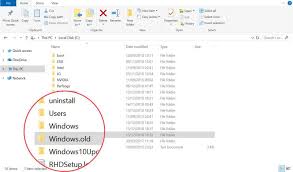
Windows Old is a folder that contains files from previous versions of Windows. When you upgrade to a new version of Windows, the old files are not automatically deleted. Instead, they are stored in this folder, taking up valuable space on your hard drive.
Why Erase Windows Old?
Erasing Windows Old can help free up space on your computer and improve performance. It’s a good idea to erase this folder every now and then to keep your computer running smoothly.
How to Erase Windows Old: Windows 11 Edition
If you’re using Windows 11, erasing Windows Old is a relatively straightforward process. Here’s how:
- Open The Start Menu: Click on the Start button in the bottom left corner of the screen.
- Type “clean Disc”: In the search bar, type “clean disc” and select the result from the list.
- Select The Correct Drive: If you have multiple hard drives connected to your computer, make sure to select the one with Windows 11 installed.
- Click on The “Clean Rows of System” Button: This will initiate a scan of your hard drive for any unnecessary files and folders.
- Select The “Installations of Windows Precedent” Option: This will allow you to delete any old Windows installations that are still taking up space on your computer.
- Click on The “OK” Button: This will confirm your selection and begin the deletion process.
How to Erase Windows Old: Windows 10 Edition
If you’re using Windows 10, erasing Windows Old is also relatively easy. Here’s how:
- Open The Start Menu: Click on the Start button in the bottom left corner of the screen.
- Type “clean Disc”: In the search bar, type “clean disc” and select the result from the list.
- Select The Correct Drive: If you have multiple hard drives connected to your computer, make sure to select the one with Windows 10 installed.
- Click on The “Clean Rows of System” Button: This will initiate a scan of your hard drive for any unnecessary files and folders.
- Select The “Installations of Windows Precedent” Option: This will allow you to delete any old Windows installations that are still taking up space on your computer.
- Click on The “OK” Button: This will confirm your selection and begin the deletion process.
How to Erase Windows Old: Windows 7 Edition
If you’re using Windows 7, erasing Windows Old is also a relatively simple process. Here’s how:
- Open The Start Menu: Click on the Start button in the bottom left corner of the screen.
- Type “clean Disc”: In the search bar, type “clean disc” and select the result from the list.
- Select The Correct Drive: If you have multiple hard drives connected to your computer, make sure to select the one with Windows 7 installed.
- Click on The “Clean Rows of System” Button: This will initiate a scan of your hard drive for any unnecessary files and folders.
- Select The “Installations of Windows Precedent” Option: This will allow you to delete any old Windows installations that are still taking up space on your computer.
- Click on The “OK” Button: This will confirm your selection and begin the deletion process.
Tips For Erasing Windows Old
- Make sure to back up any important files before erasing Windows Old, just in case something goes wrong during the process.
- If you’re not comfortable with the process of erasing Windows Old yourself, consider consulting a professional for help.
- Keep an eye on your computer’s performance after erasing Windows Old and adjust your settings as needed to ensure optimal performance.
Conclusion
Erasing Windows Old is a simple yet effective way to free up space on your computer and improve performance. By following the steps outlined in this article, you can easily erase Windows Old and get back to enjoying a clutter-free computer experience. Remember to always back up important files before erasing Windows Old, just in case something goes wrong during the process.
Frequently Asked Questions
- What Happens if I Don’t Erase Windows Old?
If you don’t erase Windows Old, your computer may become slower and more prone to crashes. - Will Erasing Windows Old Delete Any of my Personal Files?
No, erasing Windows Old will not delete any of your personal files. - Can I Erase Windows Old Manually Without Using The “clean Disc” Tool?
Yes, but it’s not recommended as it can be a complex and time-consuming process. - How Often Should I Erase Windows Old?
It’s recommended to erase Windows Old every 6-12 months to keep your computer running smoothly. - Will Erasing Windows Old Affect my Computer’s Warranty?
No, erasing Windows Old will not affect your computer’s warranty.
I hope this article has been helpful in guiding you through the process of erasing Windows Old. If you have any further questions or concerns, feel free to ask!


