
How to Reinstall Windows 10 on Your Pc: A Step-by-step Guide
Are you tired of dealing with a slow or malfunctioning Windows 10 computer? Do you want to start fresh with a clean installation of the operating system? Look no further! In this article, we will guide you through the process of reinstalling Windows 10 on your PC.
What is Reinstalling Windows 10?
Reinstalling Windows 10 involves deleting all installed programs and applications, as well as resetting the operating system to its default settings. This can be a good option if you’re experiencing problems with your computer or want to start fresh with a clean installation of Windows 10.
Why Would You Want to Reinstall Windows 10?
There are several reasons why you might want to reinstall Windows 10 on your PC:
- Your computer is running slow or malfunctioning.
- You’ve installed too many programs and applications, causing conflicts or slowdowns.
- You want to start fresh with a clean installation of the operating system.
How Do I Reinstall Windows 10?
Reinstalling Windows 10 is a relatively straightforward process. Here are the steps you need to follow:
Step 1: Prepare Your PC For Reinstallation
Before you begin, make sure your computer is turned off and all external devices, such as USB drives and printers, are disconnected.
Step 2: Boot From The Windows Installation Media
Insert the Windows installation media (such as a USB drive or DVD) into your computer and restart it. Make sure to set your BIOS settings to boot from the installation media first.
Step 3: Select Your Language And Country/region
Once you’re at the Windows installation screen, select your language and country/region from the dropdown menus.
Step 4: Choose a Troubleshoot Option (If Needed)
If you’re experiencing problems with your computer, you might need to choose a troubleshoot option before proceeding. This will allow Windows to detect any issues and provide a solution.
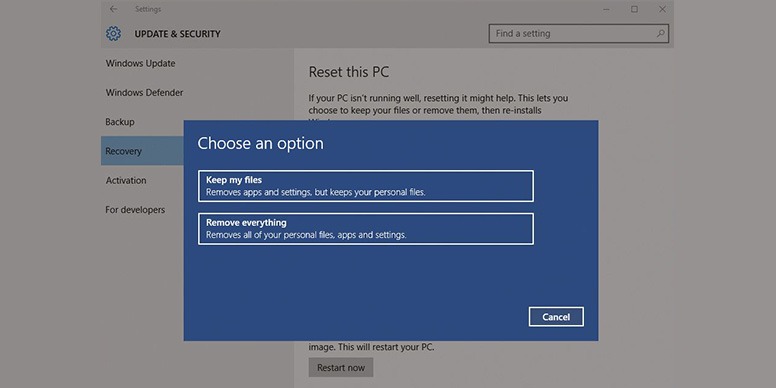
Step 5: Select “Reset”
From the Windows installation screen, select the “Reset” option. This will delete all installed programs and applications, as well as reset the operating system to its default settings.
Step 6: Follow The On-screen Instructions
Follow the on-screen instructions to complete the installation process. This may take some time, so be patient!
Step 7: Set Up Your Pc
Once the installation is complete, you’ll need to set up your computer by selecting a username, password, and other settings.
Conclusion
Reinstalling Windows 10 can be a great way to start fresh with a clean installation of the operating system. By following these steps, you should be able to successfully reinstall Windows 10 on your PC. If you’re experiencing problems or have questions, don’t hesitate to reach out for help.
Frequently Asked Questions (FAQs)
- Q: Will I Lose my Personal Files And Data?
A: No, your personal files and data will be preserved during the installation process. - Q: How Long Does The Installation Process Take?
A: The installation process can take anywhere from 30 minutes to several hours, depending on your computer’s specifications. - Q: Can I Reinstall Windows 10 Without a Password?
A: Yes, you can reinstall Windows 10 without a password by following the steps outlined in this article.
I hope this guide has been helpful!


