
How to Refuse a Call With Iphone: A Step-by-step Guide
Are you tired of being disturbed by unwanted calls on your iPhone? Do you want to know how to refuse a call without having to deal with the hassle of blocking numbers or using third-party apps? Look no further! In this article, we’ll show you how to refuse a call with ease, using the latest features and functionalities of iOS.
The Easy Way: Using The Side Button
Refusing a call on iPhone is as simple as it gets. All you need to do is press and hold the side button (also known as the sleep/wake button) for about 2 seconds. This will immediately disconnect the call, and the caller will receive a busy signal or an automated message.
Using Ios Features: Blocking Contacts And Calls
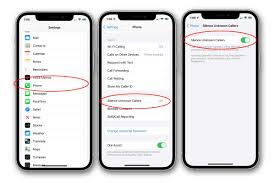
If you want to take it a step further, you can use the built-in features of iOS to block contacts and calls altogether. Here’s how:
- Go to Settings: Tap on the Settings app icon on your home screen.
- Select Phone: Scroll down and tap on the “Phone” option.
- Tap on Blocked Contacts: This will take you to a list of blocked numbers.
- Add a Number: Tap on the “+” icon to add a new number to the block list.
Using The Full Immersion Feature
The full immersion feature is another way to refuse calls without blocking numbers. Here’s how it works:
- Go to Settings: Tap on the Settings app icon on your home screen.
- Select Phone: Scroll down and tap on the “Phone” option.
- Tap on Full Immersion: This will take you to a list of available options (such as Not Disturbing, Work, etc.).
- Choose an Option: Select the option that suits your needs.
Using Third-party Apps
If you want to use third-party apps to block unwanted calls, there are many options available in the App Store. Some popular choices include Truecaller, Should I Answer, and tellows. These apps can help identify and block spam numbers, but be aware that some of these apps may require sharing your number with their database.
The Use in Aerial Feature
If you’re someone who travels frequently by air, you might appreciate the “Use in Aerial” feature. This feature allows you to disable all incoming calls while you’re on a flight, ensuring that you don’t get disturbed during takeoff or landing.
- Go to Settings: Tap on the Settings app icon on your home screen.
- Select Airplane Mode: Scroll down and tap on the “Airplane Mode” option.
- Turn On Airplane Mode: This will disable all incoming calls while you’re in airplane mode.
Blocking Calls From Specific Numbers
If you want to block specific numbers from calling you, follow these steps:
- Go to Settings: Tap on the Settings app icon on your home screen.
- Select Phone: Scroll down and tap on the “Phone” option.
- Tap on Blocked Contacts: This will take you to a list of blocked numbers.
- Add a Number: Tap on the “+” icon to add a new number to the block list.
Disabling Full Immersion
If you want to disable the full immersion feature, follow these steps:
- Go to Settings: Tap on the Settings app icon on your home screen.
- Select Phone: Scroll down and tap on the “Phone” option.
- Tap on Full Immersion: This will take you to a list of available options (such as Not Disturbing, Work, etc.).
- Turn Off Full Immersion: Slide the toggle switch to the left to disable full immersion.
Conclusion
Refusing calls on iPhone is easy and straightforward. Whether you use the side button, iOS features, or third-party apps, there’s a solution for everyone. Remember to always be cautious when sharing your number with third-party apps, and make sure you’re aware of their terms and conditions before using them.
Frequently Asked Questions
- Q: Can I Block Specific Numbers on my Iphone?
A: Yes, you can block specific numbers by adding them to the blocked contacts list in Settings. - Q: How do I Enable Full Immersion on my Iphone?
A: To enable full immersion, go to Settings > Phone > Full Immersion and choose an option (such as Not Disturbing, Work, etc.). - Q: Can I Use Third-party Apps to Block Unwanted Calls?
A: Yes, there are many third-party apps available in the App Store that can help identify and block spam numbers. - Q: How do I Disable Full Immersion on my Iphone?
A: To disable full immersion, go to Settings > Phone > Full Immersion and slide the toggle switch to the left. - Q: Can I Block Calls While I’m in Airplane Mode?
A: Yes, you can enable airplane mode to disable all incoming calls while you’re flying. - Q: How do I Add a Contact to The Blocked Contacts List on my Iphone?
A: To add a contact to the blocked contacts list, go to Settings > Phone > Blocked Contacts and tap on the “+” icon. - Q: Can I Use Multiple Apps to Block Unwanted Calls?
A: Yes, you can use multiple apps to block unwanted calls, but be aware that some of these apps may require sharing your number with their database.
I hope this article has helped you understand how to refuse a call on iPhone. Remember to always stay safe and cautious when using third-party apps, and make sure you’re aware of their terms and conditions before using them!


