
How to Do a Video Call on Facebook: A Step-by-step Guide
Are you looking to connect with friends or family over the internet using Facebook? Look no further! This article will guide you through the process of making a video call on Facebook, whether it’s using the Messenger app or directly from the Facebook website.
What You Need to Know Before Starting
Before we dive into the step-by-step guide, there are a few things to keep in mind:
- Ensure Your Device is Connected to The Internet: A stable internet connection is required for video calls.
- Use The Latest Version of Messenger: Make sure you have the most recent update of the Messenger app on your device.
- Have a Webcam And Microphone: Your device should be equipped with a webcam and microphone for video and audio transmission.
Making a Video Call Using The Messenger App
To make a video call using the Messenger app, follow these steps:
- Open The Messenger App: Tap on the Messenger icon on your device to open the app.
- Log in to Your Facebook Account: Enter your Facebook login credentials to access your account.
- Select The Contact You Want to Call: Choose the person you want to make a video call with from your contact list.
- Tap on The Video Call Icon: Look for the video call icon, which resembles a camera, and tap on it.
- Grant Access to Your Webcam And Microphone: Allow Messenger to access your webcam and microphone for the video call.
Making a Video Call Directly From Facebook
If you prefer to make a video call directly from the Facebook website, follow these steps:
- Open The Facebook Website: Visit the Facebook website using your device’s web browser.
- Log in to Your Facebook Account: Enter your Facebook login credentials to access your account.
- Click on The Messenger Icon: Look for the Messenger icon at the top of the screen and click on it.
- Select The Contact You Want to Call: Choose the person you want to make a video call with from your contact list.
- Click on The Video Call Button: Click on the video call button to initiate the call.
Additional Tips And Features
Here are some additional tips and features to keep in mind when making video calls using Messenger:
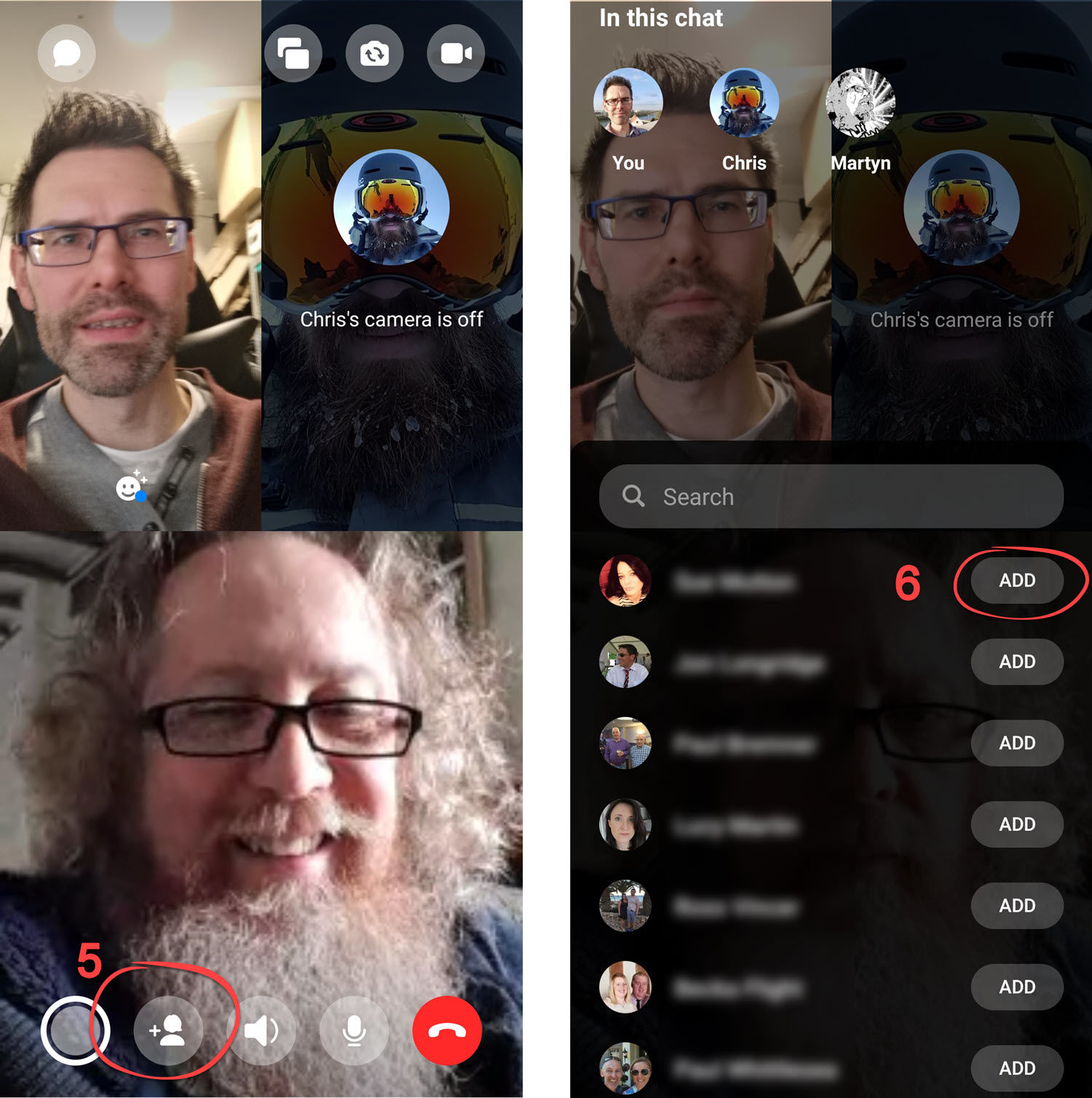
- Add Participants: You can add up to 50 participants to a group video call.
- Use Effects And Emoticons: During a video call, you can use various effects and emoticons to enhance your experience.
- Monitor Your Connection: Make sure your internet connection is stable to avoid dropped calls or poor video quality.
Conclusion
Making a video call on Facebook using the Messenger app or directly from the website is a straightforward process. By following these steps and keeping in mind the necessary requirements, you’ll be able to connect with friends and family over the internet in no time.
Frequently Asked Questions (FAQs)
Here are some frequently asked questions about making video calls on Facebook:
- Q: What if I Don’t Have a Webcam or Microphone?
A: You can use a third-party device or app to connect your webcam and microphone. - Q: Can I Make a Video Call With Someone Who Doesn’t Have Messenger?
A: Yes, the person you’re calling will receive a notification and can choose to accept or decline the call. - Q: How do I Add Participants to a Group Video Call?
A: You can add up to 50 participants by tapping on the (+) icon during a video call.


