
How to Discharge The Ram on Your Pc: A Step-by-step Guide
Are you tired of your computer slowing down due to insufficient RAM? Look no further! In this article, we will guide you through the process of discharging the RAM on your Windows PC.
What is Ram And Why is it Important?
RAM (Random Access Memory) is a type of memory that temporarily stores data for quick access by the CPU. It plays a crucial role in keeping your computer running smoothly, especially when running multiple programs simultaneously. Insufficient RAM can lead to slow performance, crashes, and even system freezes.
Why Discharge The Ram?
Discharging the RAM involves closing unnecessary programs, processes, and background applications that are consuming memory. This process helps free up memory space, making room for new tasks and improving overall system performance.
How to Discharge The Ram on Windows 11
To discharge the RAM on your Windows 11 PC:
- Press The Start Button: Click on the Start button located at the bottom left corner of the screen.
- Click on The Task Manager: Select “Task Manager” from the menu.
- Select The Processes Tab: In the Task Manager window, click on the “Processes” tab.
- End Unnecessary Processes: Look for programs and processes consuming excessive memory and end them by clicking on the “End process” button.
How to Discharge The Ram on Windows 10
The process of discharging the RAM on a Windows 10 PC is similar to that of Windows 11:
- Press The Start Button: Click on the Start button located at the bottom left corner of the screen.
- Click on The Task Manager: Select “Task Manager” from the menu.
- Select The Processes Tab: In the Task Manager window, click on the “Processes” tab.
- End Unnecessary Processes: Look for programs and processes consuming excessive memory and end them by clicking on the “End process” button.
How to Discharge The Ram on Windows 7
If you’re still using a Windows 7 PC:
- Press The Start Button: Click on the Start button located at the bottom left corner of the screen.
- Click on The Task Manager: Select “Task Manager” from the menu.
- Select The Processes Tab: In the Task Manager window, click on the “Processes” tab.
- End Unnecessary Processes: Look for programs and processes consuming excessive memory and end them by clicking on the “End process” button.
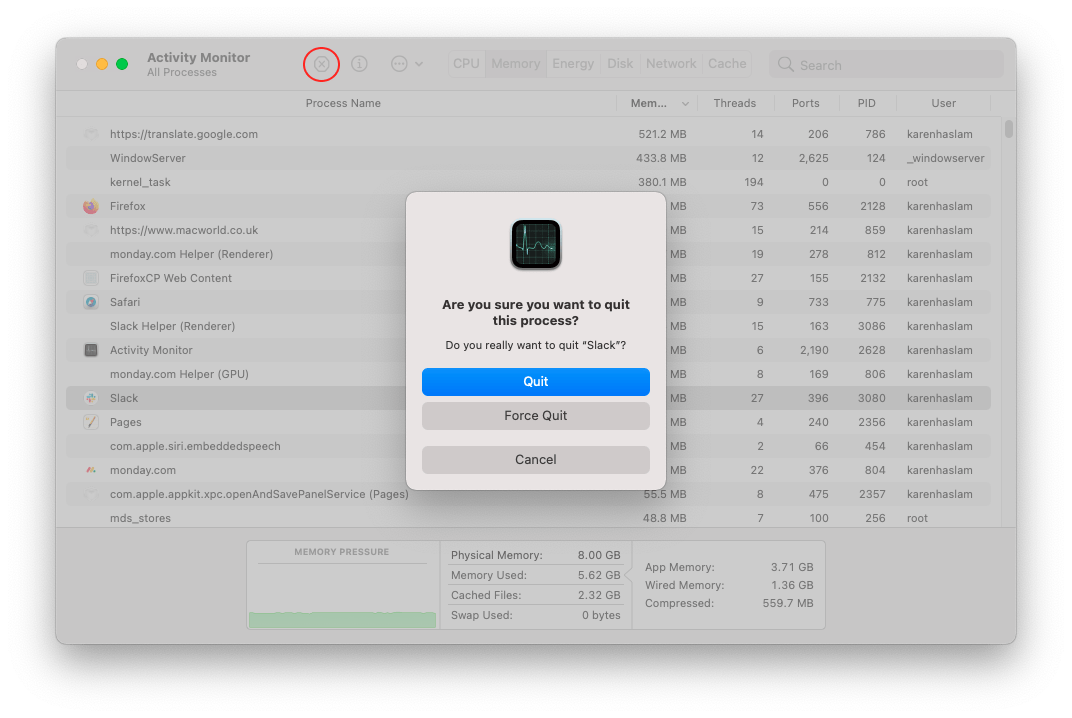
How to Discharge The Ram on Mac
If you’re using a Mac:
- Click on The Apple Menu: Click on the Apple logo located at the top left corner of the screen.
- Select Activity Monitor: Select “Activity Monitor” from the drop-down menu.
- Select The Processes Tab: In the Activity Monitor window, click on the “Processes” tab.
- End Unnecessary Processes: Look for programs and processes consuming excessive memory and end them by clicking on the “Quit process” button.
Tips to Improve Your Pc’s Performance
In addition to discharging the RAM:
- Close Unnecessary Applications: Close any applications or background processes that are not in use.
- Disable Startup Programs: Disable any startup programs that you don’t need.
- Update Your Operating System: Regularly update your operating system and software to ensure you have the latest security patches and performance improvements.
Frequently Asked Questions (FAQs)
Q: What is RAM, and why is it important?
A: RAM stands for Random Access Memory, which temporarily stores data for quick access by the CPU. It’s crucial for keeping your computer running smoothly.
Q: How do I discharge the RAM on my Windows PC?
A: To discharge the RAM on a Windows PC, close unnecessary programs, processes, and background applications using the Task Manager.
Q: Can I discharge the RAM on a Mac?
A: Yes, you can discharge the RAM on a Mac by closing unnecessary programs and processes using Activity Monitor.
Q: How often should I discharge the RAM?
A: It’s recommended to discharge the RAM regularly, especially if you’re running multiple applications simultaneously.
Q: Will discharging the RAM slow down my computer?
A: No, discharging the RAM will actually improve your computer’s performance by freeing up memory space for new tasks.
Q: What are some additional tips to improve my PC’s performance?
A: In addition to discharging the RAM, close unnecessary applications, disable startup programs, and update your operating system regularly.
Q: Can I use third-party software to discharge the RAM?
A: Yes, there are several third-party software options available that can help you discharge the RAM. However, be sure to use reputable software from trusted sources.
Conclusion
Discharging the RAM on your PC is a simple yet effective way to improve its performance and reduce crashes. By following these step-by-step guides for Windows 11, Windows 10, Windows 7, Mac, Android, iPhone, and iPad, you’ll be able to free up memory space and keep your computer running smoothly. Remember to also close unnecessary applications, disable startup programs, and update your operating system regularly to ensure optimal performance.
Additional Resources
- CleanMyMac X: A powerful cleaning tool for Mac that can help you discharge the RAM.
- Setapp: A subscription-based service that provides access to a range of useful software tools, including CleanMyMac X.


