
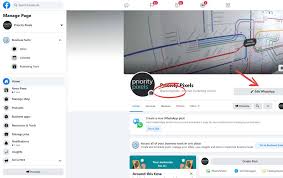
How to Manage a Facebook Page: A Step-by-step Guide
Are you wondering how to manage a Facebook page? Look no further! In this article, we will provide you with a comprehensive guide on how to create, configure, and manage your Facebook page.
Why Create a Facebook Page?
Before we dive into the nitty-gritty of managing a Facebook page, let’s talk about why you should even bother creating one in the first place. Creating a Facebook page is an excellent way to promote your business, brand, or personal blog online. With over 2.7 Billion monthly active users, Facebook provides a vast and engaged audience for you to reach out to.
Creating a Facebook Page
To create a Facebook page, follow these simple steps:
- Sign in to Your Facebook Account: If you haven’t already signed up for a Facebook account, do so now.
- Click on The “Create New Page” Button: This can be found at the top right corner of your Facebook homepage.
- Choose a Page Type: Select the type of page you want to create (e.G., Business/Brand, Artist/Band, Public Figure, etc.).
- Fill Out The Necessary Information: Enter the name of your page, add a profile picture and cover photo, and fill out the “About” section.
- Verify Your Page: Facebook will send you an email to verify that you own the email address associated with your page.
Managing Your Facebook Page
Now that you’ve created your page, let’s talk about how to manage it effectively.
Configuration of The Page
After creating a page, Facebook suggests completing its configuration to help you get started. This involves filling out the following details:
- Contact information (phone number, email address, etc.)
- Location and hours of operation
- Profile picture and cover photo
You can complete these steps by clicking on the “Create Page” button.
Settings of a Page
The settings of your page are located in the panel on the left-hand side of the screen. Here you can find various sections to modify, such as:
- Privacy and visibility
- Roles and access
- Call-to-action buttons
To access these settings, click on the three dots at the top right corner of your page and select “Settings”.
Roles And Access
In the roles section, you can add new users who will have access to manage your page. To do this:
- Click on the “People” tab.
- Select the role you want the user to have (e.G., Editor, Admin).
- Enter their name or email address and click “Add”.
You can also grant access to specific actions like creating posts, responding to comments, or managing insights.
Call-to-action Buttons
To add a call-to-action button:
- Click on the three dots at the top right corner of your page.
- Select “Create Call-to-Action”.
- Choose the type of action you want users to perform (e.G., Sign up, Book now).
- Fill out the necessary information and click “Save”.
Deleting a Facebook Page
If you’ve decided that managing a Facebook page is no longer for you, don’t worry! Deleting a page is easier than you think.
- Go to your page’s settings.
- Click on the “Deactivation and elimination” section.
- Choose to either deactivate or permanently delete your page.
- Confirm your decision by clicking “Continue”.
Managing Your Facebook Page From a Smartphone
If you prefer using your mobile device, don’t worry! Managing a Facebook page is just as easy on-the-go.
To create a new page:
- Open the Facebook app and sign in to your account.
- Tap the “+” icon at the top right corner of the screen.
- Select “Page” from the menu.
- Choose the type of page you want to create.
- Fill out the necessary information and click “Create Page”.
To configure your page:
- Tap the three dots at the top right corner of your page.
- Select “Edit Page”.
- Fill out the necessary information (contact details, profile picture, etc.).
Managing Roles And Access
To manage roles and access on a smartphone:
- Open the Facebook app and sign in to your account.
- Go to your page’s settings.
- Tap on “Roles” or “Access”.
- Add new users by tapping “Add Person”.
You can also grant access to specific actions like creating posts, responding to comments, or managing insights.
Call-to-action Buttons
To add a call-to-action button on a smartphone:
- Open the Facebook app and sign in to your account.
- Go to your page’s settings.
- Tap on “Create Call-to-Action”.
- Choose the type of action you want users to perform (e.G., Sign up, Book now).
- Fill out the necessary information and tap “Save”.
Deleting a Facebook Page
To delete a page on a smartphone:
- Open the Facebook app and sign in to your account.
- Go to your page’s settings.
- Tap on “Deactivation and elimination”.
- Choose to either deactivate or permanently delete your page.
- Confirm your decision by tapping “Continue”.
Managing Your Facebook Page With Meta Business Suite
Meta Business Suite is a powerful tool that helps you manage your Facebook and Instagram accounts in one place.
To access Meta Business Suite:
- Open the Facebook app and sign in to your account.
- Tap on your profile picture at the top right corner of the screen.
- Select “Settings”.
- Scroll down to the bottom of the page and tap on “Meta Business Suite”.
From here, you can create new posts, view insights, and manage your page’s settings.
Tips For Managing a Successful Facebook Page
Here are some tips to help you manage a successful Facebook page:
- Post high-quality content regularly.
- Engage with your audience by responding to comments and messages.
- Use relevant hashtags and tags to reach a wider audience.
- Monitor your page’s performance using insights.
By following these tips, you can create a thriving community around your Facebook page.
Conclusion
Managing a Facebook page is easier than you think! By following the steps outlined in this article, you’ll be well on your way to creating and managing a successful Facebook presence.
If you have any questions or need further assistance, feel free to ask!
Here are some frequently asked questions:
- How do I create a new Facebook page?
- What are the benefits of having a Facebook page?
- How do I add a call-to-action button to my page?
- Can I delete a Facebook page if it’s not working out for me?
- How do I manage roles and access on a smartphone?
- What is Meta Business Suite, and how can I use it to manage my page?
- What are some tips for managing a successful Facebook page?


