
How to Insert Sim Card in Iphone: A Step-by-step Guide
Are you wondering how to insert a SIM card in your iPhone? Look no further! This article will provide you with a detailed guide on how to insert a SIM card, eSIM, and adapt a SIM for your iPhone.
Understanding The Different Types of Sim Cards
Before we dive into the step-by-step guide, it’s essential to understand the different types of SIM cards used in iPhones. Here are the most common types:
- Nano-sim: This is the standard SIM card used in most recent iPhone models.
- Micro-sim: This type of SIM card was used in older iPhone models, such as the iPhone 4 and 4s.
- Esim: This is a digital SIM card that can be activated using a QR code or by inserting manually.
How to Insert a Sim Card in Iphone
Inserting a SIM card in your iPhone is a relatively straightforward process. Here’s how to do it:
- Find The Sim Tray: The SIM tray is located on the right side of your iPhone, just above the volume buttons.
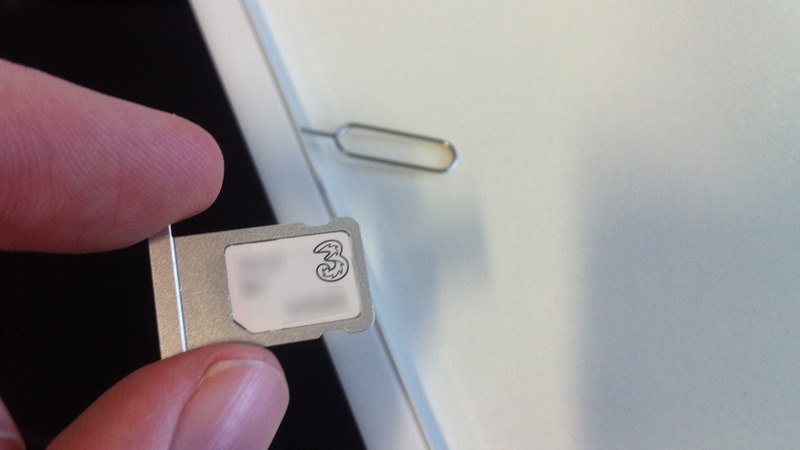
- Extract The Sim Tray: Use a paper clip or a SIM ejector tool to extract the SIM tray from the phone.
- Remove The Old Sim Card: Carefully remove the old SIM card from the tray and set it aside.
- Insert The New Sim Card: Take the new SIM card and insert it into the tray, making sure it’s properly aligned with the notches on the tray.
- Reinsert The Sim Tray: Reinsert the SIM tray back into your iPhone, making sure it clicks into place.
How to Insert Esim in Iphone
Inserting an eSIM in your iPhone is a bit different from inserting a traditional SIM card. Here’s how to do it:
- Stipulate a Contract With Your Carrier: You need to stipulate a contract with your carrier that supports eSIM technology.
- Get The QR Code: Your carrier will provide you with a QR code that you’ll use to activate your eSIM.
- Open Settings on Your Iphone: Open settings on your iPhone and select “Mobile” or “Cellular.”
- Add Cellular Plan: Tap on “Add Cellular Plan” and select “Scan QR code.”
- Scan The QR Code: Use the camera on your iPhone to scan the QR code provided by your carrier.
- Activate Esim: Follow the prompts to activate your eSIM.
How to Adapt a Sim For Iphone
Adapting a traditional SIM card for use in an iPhone can be done using a few simple tools. Here’s how to do it:
- Get The Necessary Tools: You’ll need a pair of scissors, tape, and a ruler.
- Print Out The Pattern: Print out the pattern for adapting a traditional SIM card into a Nano-SIM or Micro-SIM.
- Cut Out The Sim Card: Use scissors to cut out the SIM card along the lines provided in the pattern.
- Transform The Sim Card: Use tape and a ruler to transform the traditional SIM card into a Nano-SIM or Micro-SIM.
Troubleshooting Common Issues
Sometimes, you may encounter issues when inserting a SIM card or eSIM in your iPhone. Here are some common problems and their solutions:
- Sim Card Not Recognized: Check that the SIM card is properly aligned with the notches on the tray.
- Esim Activation Failed: Make sure that the QR code is correct and that you’ve stipulated a contract with your carrier.
Conclusion
Inserting a SIM card, eSIM, or adapting a SIM for use in an iPhone can seem daunting at first, but it’s actually a relatively straightforward process. By following this guide, you should be able to successfully insert a SIM card or eSIM into your iPhone and adapt a traditional SIM card for use in the device.
Frequently Asked Questions
Here are some frequently asked questions about inserting SIM cards and eSIMs in iPhones:
Q: What type of SIM card do I need for my iPhone?
A: The most recent iPhone models use Nano-SIM cards, while older models use Micro-SIM cards.
Q: How do I insert an eSIM into my iPhone?
A: To insert an eSIM into your iPhone, you’ll need to stipulate a contract with your carrier and get the QR code provided. Then, open settings on your iPhone and select “Mobile” or “Cellular.”
Q: Can I adapt a traditional SIM card for use in an iPhone?
A: Yes, you can adapt a traditional SIM card into a Nano-SIM or Micro-SIM using a few simple tools.
Q: What if my SIM card is not recognized by my iPhone?
A: Check that the SIM card is properly aligned with the notches on the tray and try again. If the issue persists, contact your carrier for assistance.
Additional Resources
If you need more information or have further questions about inserting SIM cards or eSIMs in iPhones, here are some additional resources:
- Apple Support Website: Visit the Apple support website for detailed instructions on how to insert a SIM card and eSIM into an iPhone.
- Carrier Website: Check your carrier’s website for more information on eSIM technology and how to activate it.
We hope this guide has been helpful in answering your questions about inserting SIM cards, eSIMs, and adapting traditional SIM cards for use in iPhones.


