
How to Velocizzare The Opening of Programs on Windows 11/10
Are you tired of waiting for your programs to open? Do you want to boost your computer’s performance? Look no further! In this article, we will show you how to velocizzare the opening of programs on Windows 11 and 10.
Why is it Important to Velocizzare The Opening of Programs?
The automatic start of programs can indeed impact your computer’s performance. Some applications initiate automatically when you turn on your machine, but often use resources without needing them. It’s essential to choose carefully which program to execute at startup and which ones to disable.
Pre-loading Functions For Frequent Applications
Some software integrates pre-loading functions (like OpenOffice), designed to velocizzare their start. You can find these features by reading the user guide or searching in settings. If you’re unsure, try searching online using a query like “[program name] pre-loading feature.”
Disabling Unnecessary Programs at Startup
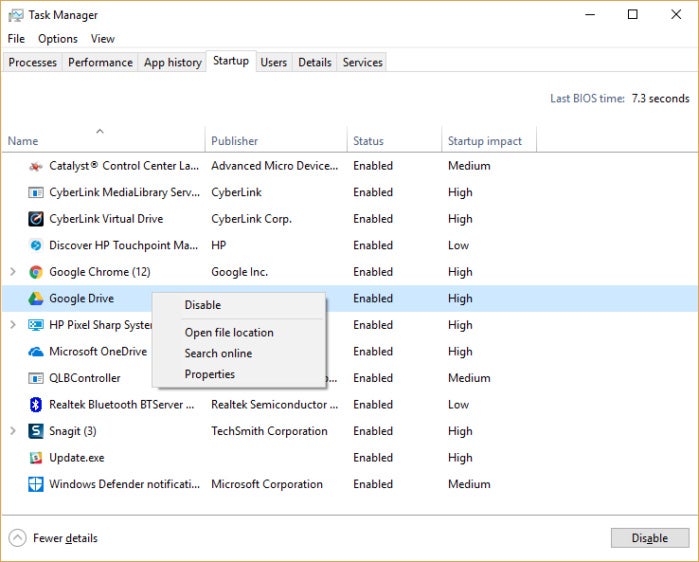
To disable unnecessary programs at startup on Windows:
- Press Ctrl + Alt + C to open the Task Manager.
- Click on the “Startup” tab.
- Select each program you don’t want to run at startup and click “Disable”.
Checking For Virus And Malware
Even if you’ve disabled unnecessary programs, your computer’s performance might not improve significantly. This could be due to the presence of viruses or malware. Use an antivirus software (like Windows Defender) to scan your system regularly.
Defragmenting The Disk or Optimizing Ssd
If you’re using a mechanical disk (not an SSD), consider defragmenting it. This process can help improve your computer’s performance by reducing the time it takes for files to load. On Windows, go to Start > Search for “defrag” and click on the result.
Using Third-party Cleaning Programs
Modern operating systems have built-in features to optimize performance, but third-party cleaning programs like CleanMyMac X can provide additional benefits. These tools can:
- Remove unnecessary files
- Manage system settings for better performance
- Protect your Mac from malware
Other Tips to Optimize System Performance
In addition to velocizzare the opening of programs, consider these other tips to optimize your system’s performance:
- Update drivers and operating system regularly
- Replace outdated components (if possible)
- Recover your system (if necessary)
Conclusion
By following these steps and tips, you can significantly improve your computer’s performance. Remember to choose carefully which programs to run at startup and consider using third-party cleaning tools for added benefits.
Faqs
- Q: What is Velocizzare The Opening of Programs?
A: It means making programs open faster on Windows 11/10. - Q: Why Should I Disable Unnecessary Programs at Startup?
A: To improve computer performance by reducing resource usage. - Q: How do I Check For Viruses And Malware?
A: Use an antivirus software (like Windows Defender) to scan your system regularly. - Q: What is Defragmenting The Disk?
A: A process that reduces file loading time on mechanical disks. - Q: Can I Use Third-party Cleaning Programs on my Mac?
A: Yes, tools like CleanMyMac X can provide additional benefits. - Q: How Often Should I Update Drivers And Operating System?
A: Regularly, as updates often improve performance and security. - Q: What if I Need to Recover my System?
A: Use the recovery process (if necessary) or consult a guide on how to do it.
Final Thoughts
Remember, velocizzare the opening of programs is just one aspect of optimizing your computer’s performance. By following these tips and staying informed about the latest technologies, you can keep your device running smoothly for years to come!


