
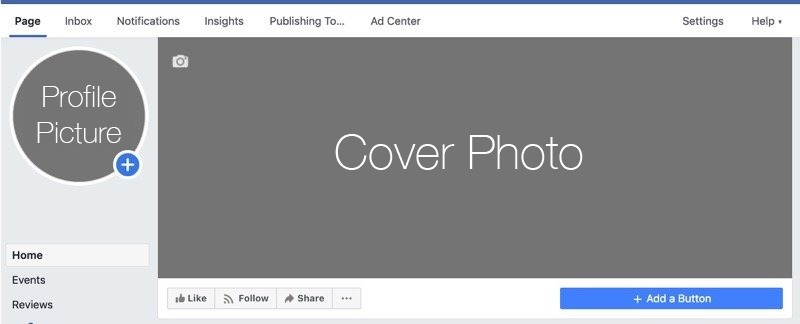
How to Centre Your Profile Image on Facebook: A Step-by-step Guide
Are you tired of seeing your profile image looking off-centre on Facebook? Do you want to know how to centre your photo profile on Facebook like a pro? Look no further! In this article, we’ll show you how to centre your profile image on Facebook using both smartphones and PCs.
Why Centre Your Profile Image on Facebook?
Centreing your profile image on Facebook is not just about aesthetics; it’s also about making sure that your photo looks its best. When your profile image is off-centre, it can look unprofessional and may even affect how people perceive you online. By centring your photo, you’ll be able to showcase yourself in the most flattering way possible.
How to Centre Your Profile Image on Facebook Using a Smartphone
If you’re using a smartphone to access Facebook, here’s how you can centre your profile image:
- Open Facebook And Go to Your Profile: First, open Facebook and navigate to your profile page.
- Tap The Menu Icon: Tap the menu icon (≡) in the top right corner of the screen.
- Select Your Name: Select your name from the menu list.
- Choose a New Photo: Choose a new photo from your gallery or select an existing photo on Facebook.
- Edit The Photo: Edit the photo by tapping on it and selecting the “Edit” option.
- Centre The Photo: Centre the photo by dragging it to the centre of the screen.
- Save Changes: Save changes by tapping on the “Save” button.
How to Centre Your Profile Image on Facebook Using a PC
If you’re using a PC to access Facebook, here’s how you can centre your profile image:
- Open Facebook And Log In: First, open Facebook and log in to your account.
- Go to Your Profile: Go to your profile page by clicking on your name in the top right corner of the screen.
- Click on The Camera Icon: Click on the camera icon next to your profile picture.
- Select a New Photo: Select a new photo from your computer or select an existing photo on Facebook.
- Edit The Photo: Edit the photo by clicking on it and selecting the “Edit” option.
- Centre The Photo: Centre the photo by dragging it to the centre of the screen using your mouse.
- Save Changes: Save changes by clicking on the “Save” button.
Tips For Centring Your Profile Image on Facebook
Here are some additional tips to keep in mind when centring your profile image on Facebook:
- Use a square-shaped photo: Facebook’s default profile picture is a square shape, so make sure your photo is also a square.
- Choose a high-quality photo: Select a high-quality photo that looks good in all sizes.
- Experiment with different filters and editing tools: Facebook offers a range of filters and editing tools that can help you enhance your photo.
How to Centre Your Cover Photo on Facebook
If you want to centre your cover photo on Facebook, here’s how you can do it:
- Open Facebook And Go to Your Profile: First, open Facebook and navigate to your profile page.
- Click on The “Edit” Button: Click on the “Edit” button next to your cover photo.
- Select a New Photo: Select a new photo from your computer or select an existing photo on Facebook.
- Centre The Photo: Centre the photo by dragging it to the centre of the screen using your mouse.
- Save Changes: Save changes by clicking on the “Save” button.
Frequently Asked Questions (FAQs)
Here are some frequently asked questions about centring your profile image on Facebook:
- Q: How do I Centre my Profile Image on Facebook?
A: To centre your profile image on Facebook, follow the steps outlined in this article. - Q: Can I Use a Non-square-shaped Photo as my Profile Picture?
A: Yes, you can use a non-square-shaped photo as your profile picture, but make sure it looks good in all sizes. - Q: How do I Centre my Cover Photo on Facebook?
A: To centre your cover photo on Facebook, follow the steps outlined above.
Conclusion
Centring your profile image and cover photo on Facebook is easy and can be done using both smartphones and PCs. By following the steps outlined in this article, you’ll be able to showcase yourself in the most flattering way possible and make a great first impression on friends and acquaintances alike.


