
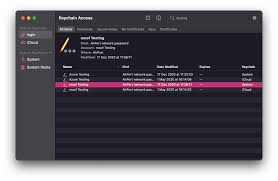
How to See Saved Passwords on Mac: A Comprehensive Guide
Are you tired of forgetting passwords or having trouble accessing them? Look no further! This article will guide you through the process of seeing saved passwords on your Mac, including how to access them in Safari and WiFi settings.
Table of Contents
- How to See Saved Passwords on Mac
- Accessing Saved Passwords in Safari
- Accessing Saved Wifi Passwords
- Alternative Solutions For Viewing Saved Passwords
- Password Management Software: Nordpass, Bitwarden, And 1Password
- Conclusion
How to See Saved Passwords on Mac
Seeing saved passwords on your Mac can be a bit tricky, but don’t worry, we’ve got you covered. To access your saved passwords, follow these steps:
- Go to System Preferences > Passwords
- Select the password category (e.G., Safari, WiFi, etc.)
- Double-click on the password you want to view
Accessing Saved Passwords in Safari
If you’re looking for a specific password saved in Safari, here’s how you can access it:
- Open Safari and go to Settings > Passwords
- Select the account associated with the password you want to view
- Click on the “Show Password” button next to the password field
Accessing Saved Wifi Passwords
To view your saved WiFi passwords on Mac:
- Go to System Preferences > Network
- Select the WiFi network you want to access
- Click on the “Advanced” button and select the “TCP/IP” tab
- Look for the “Passwords” section and click on the “+” button next to it
Alternative Solutions For Viewing Saved Passwords
If the above methods don’t work or you’re looking for alternative solutions, consider using password management software like NordPass, Bitwarden, or 1Password. These apps allow you to securely store and manage your passwords across multiple devices.
Nordpass: A Secure Password Manager
NordPass is a free password manager that offers military-grade encryption and a user-friendly interface. It allows you to save passwords for websites, applications, and more, while also providing features like password generation and auto-filling.
Bitwarden: A Free And Open-source Solution
Bitwarden is another popular password management software that’s free and open-source. It offers features like password generation, auto-filling, and secure sharing, all while keeping your data encrypted and secure.
1Password: A Premium Password Manager
1Password is a premium password manager that offers advanced features like password generation, auto-filling, and secure sharing. It also provides a 30-day free trial period to test the software before committing to a subscription.
Conclusion
In conclusion, seeing saved passwords on your Mac can be a bit of a challenge, but with this guide, you should now have a better understanding of how to access them in Safari and WiFi settings. Additionally, we’ve explored alternative solutions like password management software that can help you securely store and manage your passwords across multiple devices.
Frequently Asked Questions
- Q: How do I See Saved Passwords on my Mac?
A: To view saved passwords on your Mac, go to System Preferences > Passwords. - Q: Can I Access Saved Wifi Passwords on my Mac?
A: Yes, you can view saved WiFi passwords by going to System Preferences > Network and selecting the WiFi network you want to access. -
Q: What Are Some Alternative Solutions For Viewing Saved Passwords?
A: Consider using password management software like NordPass, Bitwarden, or 1Password to securely store and manage your passwords across multiple devices. -
Q: How do I Use Nordpass to View Saved Passwords on my Mac?
A: Download and install NordPass from the App Store. Follow the in-app instructions to create an account and start viewing your saved passwords. -
Q: Can I Use Bitwarden to Access Saved Wifi Passwords on my Mac?
A: Yes, you can use Bitwarden to view saved WiFi passwords by going to System Preferences > Network and selecting the WiFi network you want to access. -
Q: What Are Some Premium Features Offered by 1Password?
A: 1Password offers advanced features like password generation, auto-filling, and secure sharing, all while keeping your data encrypted and secure. -
Q: How do I Cancel my Subscription to Nordpass or Bitwarden?
A: To cancel your subscription to NordPass or Bitwarden, go to the App Store or Google Play Store and select “Cancel Subscription” from the account settings menu. -
Q: Can I Recover Deleted Passwords on my Mac Using 1Password?
A: Yes, you can recover deleted passwords by going to System Preferences > Passwords and selecting the password category you want to access.


