
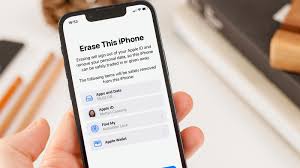
How to Format Your Iphone: A Step-by-step Guide
Are you planning to sell your old iPhone or upgrade to a newer model? Before putting your device up for sale, it’s essential to format and erase all the data on its memory. This process will ensure that any sensitive information is protected, and the buyer can start with a clean slate.
Why Format Your Iphone?
Formatting your iPhone is crucial before selling it, especially if you’re planning to sell it online or through a trade-in program. When you format your device, all data on its memory, including contacts, photos, messages, and more, will be erased. This process ensures that the buyer can’t access any personal information stored on the phone.
How to Format Your Iphone: A Step-by-step Guide
Formatting your iPhone is a straightforward process that can be completed in just a few minutes. Here’s a step-by-step guide to help you format your device:
Preliminary Operations
Before formatting your iPhone, make sure to perform some preliminary operations:
- Backup Your Data: Take a backup of all data on your iPhone using iCloud or iTunes. This will ensure that you can recover your important files and settings later.
- Disable Find My Iphone: Disable the “Find My iPhone” feature to prevent any unauthorized access to your device.
Formatting Your Iphone
Now that you’ve completed the preliminary operations, it’s time to format your iPhone:
Formatting Your Iphone Through Settings
To format your iPhone using the settings app:
- Connect your iPhone to a stable internet connection.
- Go to the “Settings” app and tap on your name at the top of the screen.
- Tap on “General” and then scroll down to the bottom of the page.
- Tap on “Transfer or Reset iPhone.”
- Select the option to “Erase All Content and Settings.”
- Enter your passcode, and confirm that you want to erase all content and settings.
Formatting Your Iphone Using Itunes
To format your iPhone using iTunes:
- Connect your iPhone to a computer with iTunes installed.
- Open iTunes and select the device icon in the top-left corner of the screen.
- Select “Summary” from the left-hand menu.
- Click on “Restore iPhone.”
- Confirm that you want to restore your iPhone.
Formatting Your Iphone Using Finder
To format your iPhone using Finder:
- Connect your iPhone to a Mac with macOS Catalina or later.
- Open Finder and select the device icon in the top-left corner of the screen.
- Select “General” from the left-hand menu.
- Click on “Restore iPhone.”
- Confirm that you want to restore your iPhone.
Formatting a Locked Iphone
If your iPhone is locked, you can still format it using the DFU (Device Firmware Update) mode:
- Connect your iPhone to a computer with iTunes installed.
- Open iTunes and select the device icon in the top-left corner of the screen.
- Press and hold the Sleep/Wake button for 3 seconds.
- Immediately press and hold the Volume Down button while still holding the Sleep/Wake button.
- Release the Sleep/Wake button, but keep holding the Volume Down button for 10 seconds.
- Release the Volume Down button, and iTunes should recognize your iPhone in recovery mode.
Conclusion
Formatting your iPhone is an essential step before selling or trading it in. By following these simple steps, you can ensure that all data on your device is erased, and the buyer can start with a clean slate. Remember to backup your data and disable Find My iPhone before formatting your device.
Frequently Asked Questions (FAQs)
Q: What Happens if I Don’t Format my Iphone?
A: If you don’t format your iPhone, any sensitive information stored on the device, including contacts, photos, messages, and more, will remain accessible to the buyer.
Q: Can I Still Use Itunes if I Have a Mac With Macos Catalina or Later?
A: Yes, you can still use iTunes if you have a Mac with macOS Catalina or later. However, you’ll need to open Finder instead of iTunes to format your iPhone.
Q: How Long Does it Take to Format my Iphone?
A: The time it takes to format your iPhone depends on the speed of your internet connection and the amount of data stored on the device. In most cases, formatting a standard iPhone will take around 10-15 minutes.
Q: Can I Still Use Find My Iphone if I Want to Sell my Iphone?
A: No, you should disable Find My iPhone before selling or trading in your iPhone to ensure that any unauthorized access to your device is prevented.


