
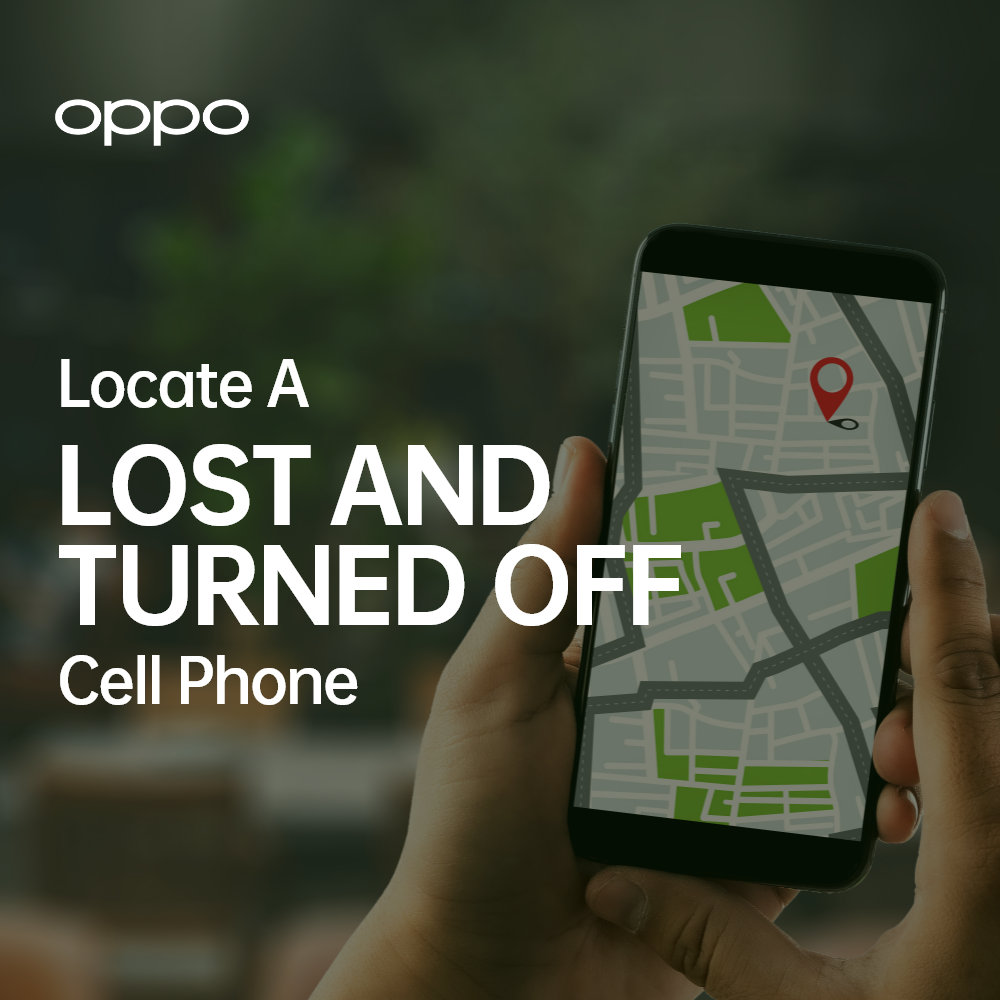
How to Find a Lost or Stolen Mobile Phone: A Comprehensive Guide
As humans, we’ve all been there – frantically searching everywhere for our mobile phone, only to realize it’s nowhere to be found. Losing a smartphone can be frustrating, especially when you have important contacts, photos, and data stored on it. In this article, we’ll explore various ways to find a lost or stolen mobile phone, including methods specific to Android, Samsung, Huawei, Xiaomi, and iPhone devices.
The Frustration of Losing a Mobile Phone
Imagine attending an upcoming concert, only to realize you’ve misplaced your trusty smartphone. The thought of missing out on memories and experiences can be distressing. However, with the right tools and knowledge, you can locate your mobile phone in no time.
How to Find a Lost Mobile Phone: A Step-by-step Guide
Using Google’s “Find My Device” Service
For Android users, Google offers a feature called “Find My Device.” This service allows you to locate your device on a map, remotely erase data, or lock the device if it’s been stolen. To use this feature:
- Go to the Google Account website and sign in with your Google account.
- Click on the “Security” tab and select “Find my device.”
- Make sure that Find My Device is enabled on your Android device.
- Sign in to your Google account and click on the device you want to locate.
How to Find a Lost Mobile Phone: A Step-by-step Guide
Using Samsung’s “Find Personal Device” Service
Samsung offers a service called “Find Personal Device,” which allows you to locate your device on a map, remotely erase data, or lock the device if it’s been stolen. To use this feature:
- Go to the Settings app and select “Safety & privacy.”
- Scroll down and find the “Find personal device” option.
- Make sure that Find Personal Device is enabled on your Samsung device.
- Sign in to your Samsung account and click on the device you want to locate.
How to Find a Lost Mobile Phone: A Step-by-step Guide
Using Huawei’s “Find Device” Service
Huawei offers a service called “Find Device,” which allows you to locate your device on a map, remotely erase data, or lock the device if it’s been stolen. To use this feature:
- Go to the Huawei Cloud website and sign in with your Huawei account.
- Click on the “Find device” option.
- Select the device you want to locate.
How to Find a Lost Mobile Phone: A Step-by-step Guide
Using Xiaomi’s “Find Device” Service
Xiaomi offers a service called “Find Device,” which allows you to locate your device on a map, remotely erase data, or lock the device if it’s been stolen. To use this feature:
- Go to the Settings app and select “Password & safety.”
- Scroll down and find the “Find device” option.
- Make sure that Find Device is enabled on your Xiaomi device.
- Sign in to your Xiaomi account and click on the device you want to locate.
How to Find a Lost Mobile Phone: A Step-by-step Guide
Using Iphone’s “Find My” Service
Apple offers a service called “Find My,” which allows you to locate your device on a map, remotely erase data, or lock the device if it’s been stolen. To use this feature:
- Go to the Find My website and sign in with your Apple ID.
- Click on the “All Devices” tab and select the device you want to locate.
How to Find a Lost Mobile Phone: A Step-by-step Guide
What If My Device is Turned Off?
If your device is turned off, you can still use some services to locate it. For Android devices, Samsung’s “Find Personal Device” service may work if the device was connected to a network before it was turned off.
How to Find a Lost Mobile Phone: A Step-by-step Guide
Tips And Precautions
- Always enable location services on your device.
- Make sure that you have a Google or Apple account associated with your device.
- Use strong passwords for your accounts.
- Regularly back up your data to prevent loss.
Conclusion
Losing a mobile phone can be frustrating, but with the right tools and knowledge, you can locate it in no time. Whether you’re using an Android, Samsung, Huawei, Xiaomi, or iPhone device, there are various services available to help you find your lost or stolen smartphone. Always take precautions to prevent loss and keep your data safe.
Frequently Asked Questions
- What if my Device is Turned Off?
If your device is turned off, you may still be able to use some services to locate it. Check the manufacturer’s website for more information. - How do I Enable Location Services on my Device?
To enable location services on your Android device, go to Settings > Location and make sure that Location services are enabled. For iOS devices, go to Settings > Location Services and toggle the switch to On. - What if Someone Steals my Device?
If someone steals your device, report it to the police immediately. You can also use remote erase or lock features to prevent unauthorized access. - Can I Track my Device’s Location History?
Some services allow you to view your device’s location history. Check the manufacturer’s website for more information. - How do I Prevent Data Loss on my Device?
Regularly back up your data to prevent loss. Use strong passwords and keep your operating system and apps up-to-date.
I hope this article has helped you find a lost or stolen mobile phone! If you have any further questions, please don’t hesitate to ask.


