
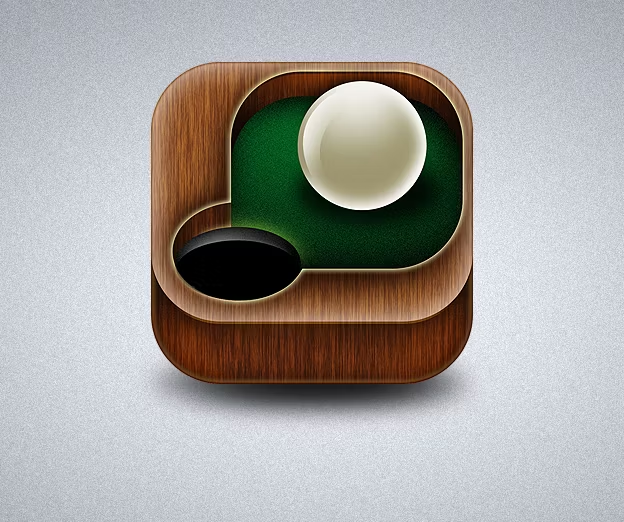
How to Create Unique Icons: A Step-by-step Guide
Are you tired of using generic icons on your device? Do you want to personalize your home screen with unique and original icons? Look no further! In this article, we will guide you through the process of creating custom icons using free instruments and easy-to-use software.
Benefits of Creating Custom Icons
Creating custom icons can be a fun and creative way to personalize your device. With custom icons, you can:
- Easily identify specific apps or files on your home screen
- Add a touch of personality to your device’s appearance
- Enhance the overall user experience by making it easier to navigate through your apps and files
Step 1: Choose The Right Software
There are several free software options available that allow you to create custom icons. Some popular choices include:
- Iconizer.Net: A web-based tool that offers a wide range of pre-designed icon templates and easy-to-use editing tools.
- Iconion (Windows/macOS): A dedicated icon creation software that allows for advanced customization options.
- Simplyicon (Windows): A user-friendly icon creation tool that supports a variety of file formats.
Step 2: Select an Icon Template
Once you have chosen the right software, select an icon template that suits your needs. You can browse through various categories and search for specific icons to find the perfect match.
- Iconizer.Net: Browse through the website’s vast library of pre-designed icon templates.
- Iconion (Windows/macOS): Select from a range of pre-designed icon templates or create your own custom design.
- Simplyicon (Windows): Choose from various icon categories and search for specific icons to find the perfect match.
Step 3: Customize Your Icon
Once you have selected an icon template, it’s time to customize it to your liking. Use the editing tools provided by the software to:
- Change the color palette
- Add or remove elements
- Adjust the size and shape of the icon
Step 4: Save And Export Your Icon
After customizing your icon, save and export it in a suitable format for use on your device.
- Iconizer.Net: Save your icon as a .Png file and download it directly to your computer.
- Iconion (Windows/macOS): Export your icon as a .Ico or .Png file and save it to your desired location.
- Simplyicon (Windows): Save your icon as a .Ico or .Png file and export it to your desired location.
Adding Custom Icons to Your Device
Now that you have created custom icons, it’s time to add them to your device. Follow these steps:
- Windows: Right-click on the desktop and select “Personalize” > “Themes” > “Desktop icon settings”. Click on the “+” button to add a new icon.
- Macos: Right-click on the desktop and select “New Alias” or “Create Alias” to create a shortcut to your desired app or file.
- Android: Long-press on an empty area of the home screen, then tap on the “+” icon to add a new widget. Choose the custom icon you created earlier.
Tips And Tricks
- Use high-quality images as icons for better visual appeal.
- Experiment with different colors and shapes to create unique icons that stand out.
- Consider creating custom icons for specific apps or files to make navigation easier.
Conclusion
Creating custom icons is a fun and creative way to personalize your device. With these step-by-step guidelines, you can easily create unique icons using free software options like Iconizer.Net, Iconion (Windows/macOS), and SimplyIcon (Windows). Don’t forget to follow the tips and tricks section for additional guidance.
Faqs
- Q: What Are The Benefits of Creating Custom Icons?
A: Custom icons can enhance the overall user experience by making it easier to navigate through your apps and files. - Q: Which Software Options Are Available For Creating Custom Icons?
A: Iconizer.Net, Iconion (Windows/macOS), SimplyIcon (Windows), and other dedicated icon creation software. - Q: How do I Add Custom Icons to my Device?
A: Follow the specific instructions for your operating system, such as right-clicking on the desktop in Windows or using the home screen widget feature in Android. - Q: Can I Use Any Image as an Icon?
A: Yes, but high-quality images are recommended for better visual appeal. - Q: How do I Edit And Customize my Icon Template?
A: Use the editing tools provided by the software to change the color palette, add or remove elements, and adjust the size and shape of the icon. - Q: Can I Save And Export my Custom Icon in Multiple Formats?
A: Yes, most software options allow you to save and export your custom icon in various file formats, such as .Ico, .Png, and .Jpg. - Q: Are There Any Specific Requirements For Creating Custom Icons on Android Devices?
A: Yes, use the home screen widget feature or a dedicated launcher app to add custom icons to your device. - Q: Can I Create Custom Icons For Specific Apps or Files?
A: Yes, consider creating custom icons for specific apps or files to make navigation easier and more intuitive.
I hope this article has been helpful in guiding you through the process of creating custom icons. If you have any further questions or need additional guidance, please don’t hesitate to reach out!


