
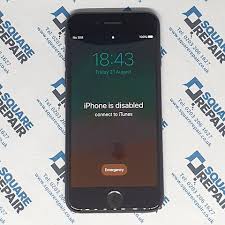
Unblocking Your Iphone: A Step-by-step Guide
Are you tired of seeing that dreaded “iPhone disabled” message on your screen? Don’t worry, we’ve got you covered! In this comprehensive guide, we’ll walk you through the process of unblocking your iPhone without a computer.
Understanding The Problem
Before we dive into the solution, it’s essential to understand why your iPhone is disabled in the first place. The most common reason is that you’ve entered an incorrect passcode too many times. This triggers a security feature that locks out your device until you reset it using a backup or by using another method.
Method 1: Using Icloud
If you have an iCloud account and have previously enabled the “Find My iPhone” feature, you can use iCloud to unblock your iPhone. Here’s how:
- Access Icloud: Open a web browser on a computer or mobile device and go to icloud.Com.
- Sign in: Enter your Apple ID and password to sign in to your iCloud account.
- Find My Iphone: Click on the “Find My” tab at the top of the page, then select “Find My iPhone.”
- Select Your Device: Choose the iPhone you want to unblock from the list of devices associated with your Apple ID.
- Erase And Unblock: Click on the “Erase iPhone” button, then follow the prompts to confirm that you want to erase the device. This will remove all data from the iPhone.
Method 2: Using Itunes
If you have a computer running iTunes, you can use it to unblock your iPhone. Here’s how:
- Connect Your Iphone: Connect your iPhone to the computer using a USB cable.
- Open Itunes: Open iTunes on your computer and select your iPhone from the top left corner of the window.
- Recovery Mode: Put your iPhone in recovery mode by pressing and holding the Sleep/Wake button and the Volume Down button simultaneously for 10 seconds, then release the Sleep/Wake button while continuing to hold the Volume Down button for another 10 seconds.
- Restore Your Iphone: Click on the “Restore” button in iTunes to restore your iPhone to its factory settings.
Method 3: Using Finder (macOS)
If you’re using a Mac with macOS Catalina or later, you can use the Finder app to unblock your iPhone. Here’s how:
- Connect Your Iphone: Connect your iPhone to the Mac using a USB cable.
- Open Finder: Open Finder on your Mac and select your iPhone from the sidebar.
- Restore Your Iphone: Click on the “Restore” button in Finder to restore your iPhone to its factory settings.
Method 4: Contacting Apple Support
If none of the above methods work, you can contact Apple support for assistance. Here’s how:
- Visit Apple’s Website: Go to apple.Com and click on the “Support” tab.
- Start a Chat or Call: Click on the “Start a chat” or “Call” button to begin the process of contacting Apple support.
- Explain Your Issue: Explain your issue with the Apple representative, who will guide you through the process of unblocking your iPhone.
Conclusion
Unblocking your iPhone can seem like a daunting task, but it’s actually quite straightforward. By following one of the methods outlined above, you should be able to successfully unblock your device and get back to using it as normal. If you’re still having trouble, don’t hesitate to reach out to Apple support for assistance.
Faqs
- Q: What if I Forgot my Passcode?
A: If you’ve forgotten your passcode, try using the “Forgot Passcode” option in Settings. - Q: Will I Lose All my Data When I Unblock my Iphone?
A: Yes, unfortunately, unblocking your iPhone will erase all data from the device. - Q: Can I Use a Third-party App to Unblock my Iphone?
A: While there are some third-party apps that claim to be able to unblock iPhones, we do not recommend using them as they may compromise the security of your device. - Q: How Long Does it Take to Unblock an Iphone?
A: The time it takes to unblock an iPhone will depend on the method you choose and any potential issues that may arise during the process. - Q: Can I Use my Iphone While It’s Being Unblocked?
A: No, it’s not recommended to use your iPhone while it’s being unblocked as this can cause further problems with the device. - Q: What if I’m Not Comfortable Using a Computer or Mobile Device to Unblock my Iphone?
A: If you’re not comfortable using a computer or mobile device to unblock your iPhone, you can always contact Apple support for assistance. - Q: Will I Need to Reset my Iphone After It’s Been Unblocked?
A: Yes, it’s recommended to reset your iPhone after it’s been unblocked to ensure that all data has been erased and the device is secure. - Q: Can I Recover my Data From a Backup if my Iphone Was Disabled Due to an Incorrect Passcode?
A: Unfortunately, no, you will not be able to recover your data from a backup if your iPhone was disabled due to an incorrect passcode.


