
How to Change Your Name on Instagram: A Step-by-step Guide
Are you tired of having a boring name on your Instagram account? Do you want to change it to something more unique and personal? Look no further! In this article, we will guide you through the process of changing your name on Instagram, whether you’re using an Android or iPhone device.
Why Change Your Name on Instagram?
Changing your name on Instagram can be a great way to refresh your profile and make it stand out from the crowd. Whether you want to change your name to something more fun, unique, or professional, we’ve got you covered.
Method 1: Changing Your Name on Android Device
To change your name on Instagram using an Android device, follow these steps:
- Open the Instagram app and tap on the profile icon (the person silhouette) in the bottom right corner.
- Tap on “Edit Profile” to access the edit mode.
- Tap on the text field next to “Name” and type in your new name.
- Tap on the “Save” button to save the changes.
Method 2: Changing Your Name on Iphone Device
To change your name on Instagram using an iPhone device, follow these steps:
- Open the Instagram app and tap on the profile icon (the person silhouette) in the bottom right corner.
- Tap on “Edit Profile” to access the edit mode.
- Tap on the text field next to “Name” and type in your new name.
- Tap on the “Save” button to save the changes.
Method 3: Changing Your Name on Computer
To change your name on Instagram using a computer, follow these steps:
- Open the Instagram website and sign in to your account.
- Click on the profile icon (the person silhouette) in the top right corner.
- Click on “Edit Profile” to access the edit mode.
- Type in your new name in the text field next to “Name”.
- Click on the “Save Changes” button to save the changes.
What Happens When You Change Your Name?
When you change your name on Instagram, it will be updated across all devices where you’re signed in. This means that anyone who views your profile or receives notifications from you will see your new name.
Tips And Variations
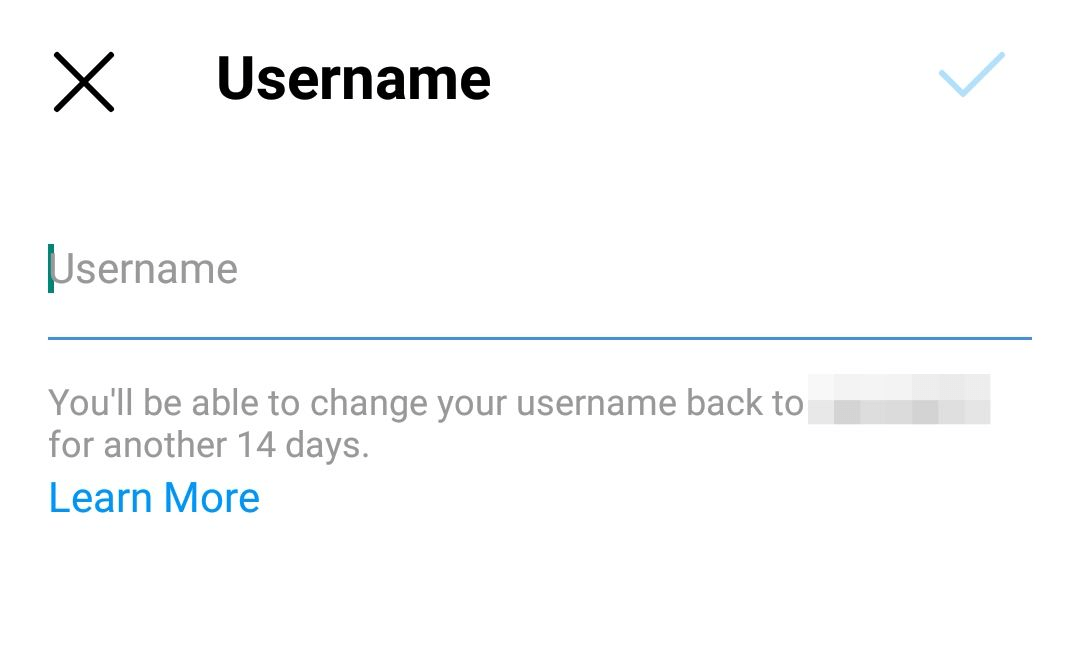
- If you want to change your username (the handle people use to tag you), follow the same steps as changing your name.
- To add special characters to your name, such as emojis or symbols, you can type them in using a keyboard app that supports Unicode.
- Be mindful of the 30-character limit for names on Instagram.
Conclusion
Changing your name on Instagram is a simple process that can help you refresh your profile and make it stand out. Whether you’re using an Android device, iPhone device, or computer, follow our step-by-step guide to change your name with ease.
Here are some frequently asked questions about changing your name on Instagram:
Frequently Asked Questions
- Q: How do I Change my Name on Instagram?
A: To change your name on Instagram, open the app and tap on the profile icon (the person silhouette) in the bottom right corner. Then, tap on “Edit Profile” to access the edit mode and type in your new name. - Q: Can I Add Special Characters to my Name?
A: Yes, you can add special characters, such as emojis or symbols, to your name by typing them in using a keyboard app that supports Unicode. - Q: What Happens When I Change my Name?
A: When you change your name on Instagram, it will be updated across all devices where you’re signed in. This means that anyone who views your profile or receives notifications from you will see your new name. - Q: Is There a Limit to The Length of Names on Instagram?
A: Yes, there is a 30-character limit for names on Instagram.


