
Actuating The Chat Vocal on Rocket League: A Step-by-step Guide
Are you ready to take your gaming experience to the next level with Rocket League? This guide will walk you through the process of actuating the chat vocal on Rocket League, ensuring that you can communicate seamlessly with your team and other players online.
The Importance of Chat Vocal in Rocket League
Rocket League is a game that requires teamwork and communication. The ability to converse with your teammates and opponents in real-time using voice chat makes all the difference between winning and losing. In this guide, we will explore how to enable chat vocal on Rocket League across various platforms, including PC, PS4, and Xbox One.
Understanding The Requirements
Before diving into the steps, it’s essential to understand the requirements for enabling chat vocal on Rocket League:
- On PC, you need a microphone and headphones that are compatible with your computer.
- On PS4, you need a controller with a built-in microphone or an external microphone connected to your console.
- On Xbox One, you need a subscription to Xbox Live Gold to play online.
Actuating Chat Vocal on Rocket League (PC)
Here’s how to enable chat vocal on Rocket League on PC:
- Connect Your Microphone And Headphones: Make sure your microphone and headphones are properly connected to your computer.
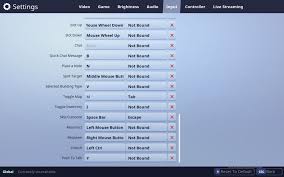
- Launch Rocket League: Open the game and go to the settings menu by clicking on the gear icon in the top-right corner of the screen.
- Access The Audio Settings: Click on the “Audio” tab, which can be found under the “Settings” menu.
- Disable Microphone With State no Active: Look for the option that says “Microphone with State No Active” and toggle it off.
- Adjust Audio Options: You may need to adjust your audio settings to ensure that your voice is coming through clearly.
Actuating Chat Vocal on Rocket League (PS4)
To enable chat vocal on Rocket League on PS4, follow these steps:
- Launch Rocket League: Open the game and go to the settings menu by clicking on the “Options” button.
- Access The Chat Vocal Settings: Select the “Chat Vocal” option from the settings menu.
- Choose a Voice: Select your preferred voice from the available options, which include “Only Team” or “All Players”.
- Adjust Audio Settings: Make sure that your microphone is properly configured and that you can hear yourself speaking.
Actuating Chat Vocal on Rocket League (Xbox One)
To enable chat vocal on Rocket League on Xbox One, follow these steps:
- Launch Rocket League: Open the game and go to the settings menu by clicking on the “Settings” button.
- Access The Audio Settings: Select the “Audio” option from the settings menu.
- Disable Microphone With State no Active: Look for the option that says “Microphone with State No Active” and toggle it off.
- Adjust Audio Options: You may need to adjust your audio settings to ensure that your voice is coming through clearly.
Additional Tips
- If you’re having trouble with your microphone, check out our guide on how to set up a microphone for gaming.
- For those who prefer to use external platforms like Discord, we have a separate tutorial on how to set up chat vocal using Discord.
Conclusion
Actuating the chat vocal on Rocket League is a straightforward process that requires minimal technical expertise. By following these steps and adjusting your audio settings as needed, you’ll be able to communicate effectively with your team and opponents online. Happy gaming!


